

Introduction
You’ve got access to Endgame. Now what? This guide walks you through the same steps our team covers in live onboarding sessions. By the end, you’ll have asked your first question, obtained a real insight, and learned how to get even better answers. Time needed: 10-15 minutesStep 1: Set up your profile
(2 minutes) Before you ask anything, help Endgame understand how to talk to you.1
First time login
The first time you login, you’ll be prompted to describe your role. If you skip it, you can click your initials in the bottom left corner, then click Settings.
2
Describe your role
In the Settings > Profile > Personalization section, select your role under “What best describes your responsibilities?”, then fill out the “Additional details” field. Be specific about what you do day-to-day.Examples:
- “I’m an Enterprise AE focused on new business in financial services. I manage 50 named accounts and need help with research, meeting prep, and deal strategy.”
- “I’m a CSM managing 30 mid-market accounts. I focus on renewals, expansion, and making sure customers are getting value.”
- “I’m a Sales Manager with 8 AEs. I need to stay on top of deals, coach my team, and prep for forecast calls.”
3
Add custom instructions (optional)
Tell Endgame how you prefer responses. For example:
- “Be concise and use bullet points”
- “Always include next steps I can act on”
- “Avoid jargon and keep it simple”
4
Add a writing sample (optional)
If you want Endgame to draft emails that sound like you, paste an example of your writing style. This is especially useful for prospecting and follow-up emails.
Step 2: Pick an account you know
(1 minute) For your first question, pick an account you’re already familiar with. Click the Search button (or press⌘K) to find the account, then click into the account detail page.
Your threads are private. Only you can see your conversations unless you
explicitly share them. Experiment freely.
Step 3: Ask your first question
(3 minutes) Now for the fun part. Below are starter prompts based on your role. Pick one, paste it into the chat, and hit enter.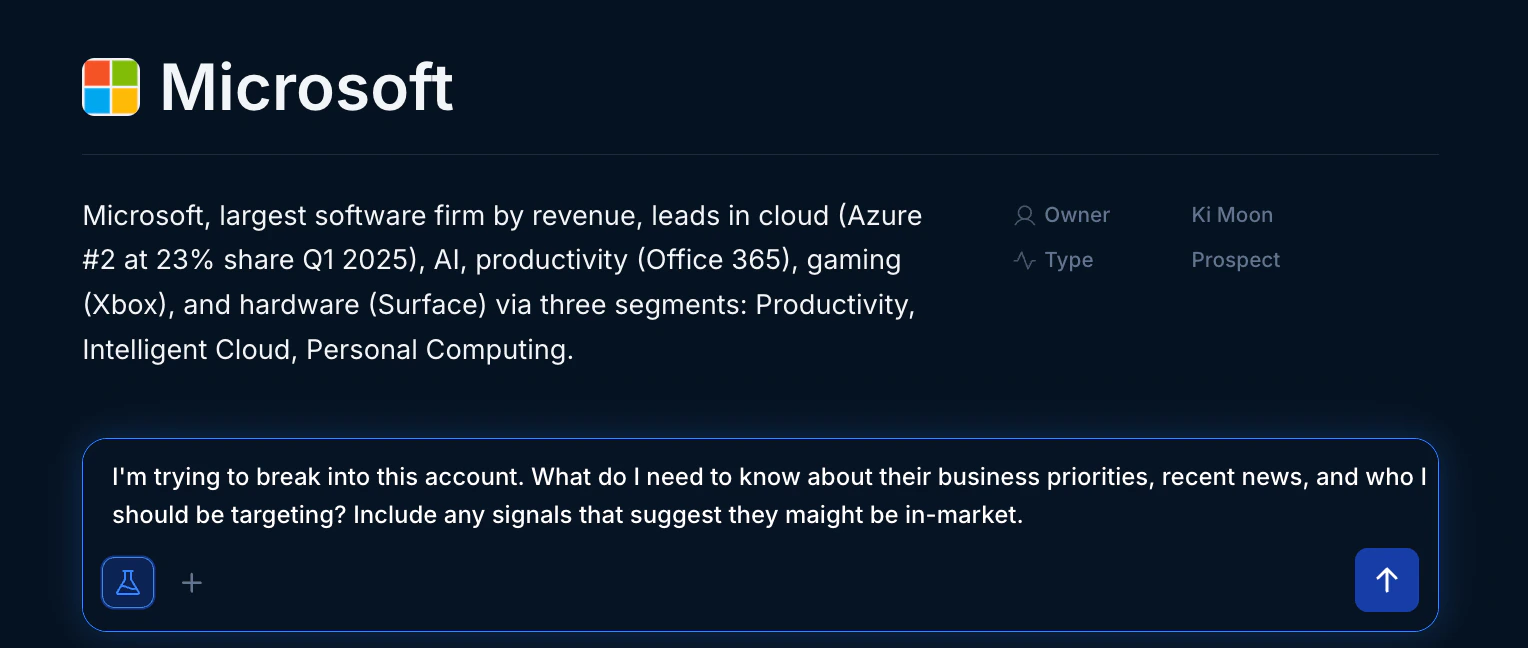
Account detail view
- Sales Rep
- CSM/AM
- SE
- Sales Manager
- RevOps / Enablement
If you’re prospecting into this account:If you have an active deal:If you’re prepping for a meeting:
Step 4: Read the response
(2 minutes) Endgame will pull from your CRM, call recordings, emails, and public sources to answer your question. Here’s how to get the most out of the response: Check the sources. Click the Sources tab to see where the information came from. This helps you verify accuracy and dig deeper if needed. Look for surprises. The most valuable insights are often things you didn’t know or had forgotten. Pay attention to recent news, stakeholder changes, or themes from calls. Notice what’s missing. If Endgame doesn’t mention something you expected, that’s useful too. It might mean the information isn’t in your systems, or you need to ask a more specific question.Step 5: Ask a follow-up
(2 minutes) The first answer is just the starting point. Now make it better. Go deeper on something specific:Start fresh threads for different topics. If you switch from account
research to writing an email, start a new thread. Mixing topics in one thread
can confuse the context.
You’re up and running
That’s it. You’ve:What to try next
Get a daily digest
Schedule insights delivered to your inbox
Ask across all accounts
Query your entire book from the homepage
Better prompting patterns
Level up with advanced techniques
Create a skill
Rerun your best workflows with one click
Common early questions
Why is Endgame showing different numbers than Salesforce?
Why is Endgame showing different numbers than Salesforce?
This usually comes down to filtering. Endgame might be including or excluding records based on how you asked the question (e.g., “my accounts” vs “all accounts” or “open opportunities” vs “all opportunities”).Try asking: “Why did you include these accounts? What filters did you apply?”Endgame will explain its reasoning, and you can adjust your question to get the view you want.
What data can Endgame actually see?
What data can Endgame actually see?
Endgame connects to your Salesforce, call recordings (Gong/Zoom/Chorus), emails, Slack (if connected), and public sources like LinkedIn and news. The specific fields depend on how your admin configured the integration.If you’re not seeing something you expect, check with your admin about which Salesforce objects and fields are enabled.
Can other people see my conversations?
Can other people see my conversations?
No. Your threads are private by default. The only way someone else can see a thread is if you explicitly Share it. Even then, you can stop sharing at any time.
What if I'm not sure how to phrase my question?
What if I'm not sure how to phrase my question?
Start simple and iterate. Ask something basic, see what you get, then refine. You can also ask Endgame directly: “I’m trying to figure out X. What’s the best way to ask you about that?”
What if the answer is bad or inaccurate?
What if the answer is bad or inaccurate?
- As a first step, ask Endgame about the discrepancy. This can help clarify the way the answer was provided.
- Then try to reframe the question based on the clarification.
-
If the answer is still inaccurate, click the thumbs down icon at the bottom of the response and let us know why.
