

Before you start
- You need to be an Endgame admin.
- In Slack, you need to be a Slack admin or get approval from one. Check with your Slack admin before you connect.
Connect Slack
- In Settings > Organization > Integrations, find Slack and click Connect. Slack’s sign-in page opens.
- If you’re not a Slack admin, you’ll see a page to request approval. Submit the request, and Slackbot messages your Slack admins. Slackbot lets you know whether they approve it. If this page doesn’t appear, you already have approval.
- Click Allow to give Endgame the permissions it needs.
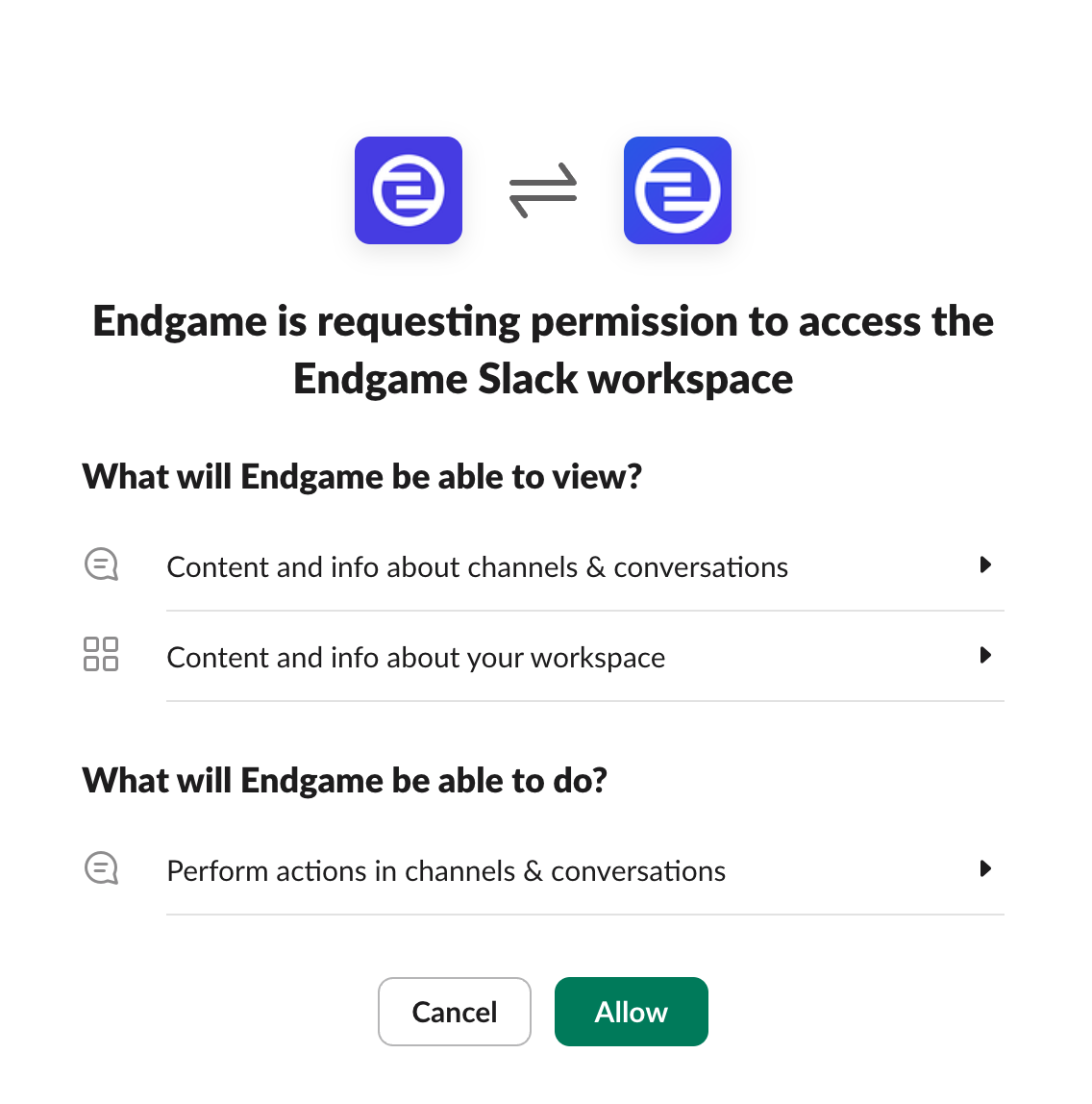
Click Allow to give Endgame access to your Slack workspace.
Choose channels to sync
The Slack page has two kinds of channels. You can choose any public channel except#general. Private and archived channels aren’t listed, and a channel linked to an account can’t also be organization-wide.
- Organization-wide channels are for multi-account chats with Endgame, like
#sales-team. Endgame syncs their messages, but doesn’t use them to analyze individual accounts. - Account-specific channels are linked to one account, like
#deal-acme. Endgame links their messages to that account.
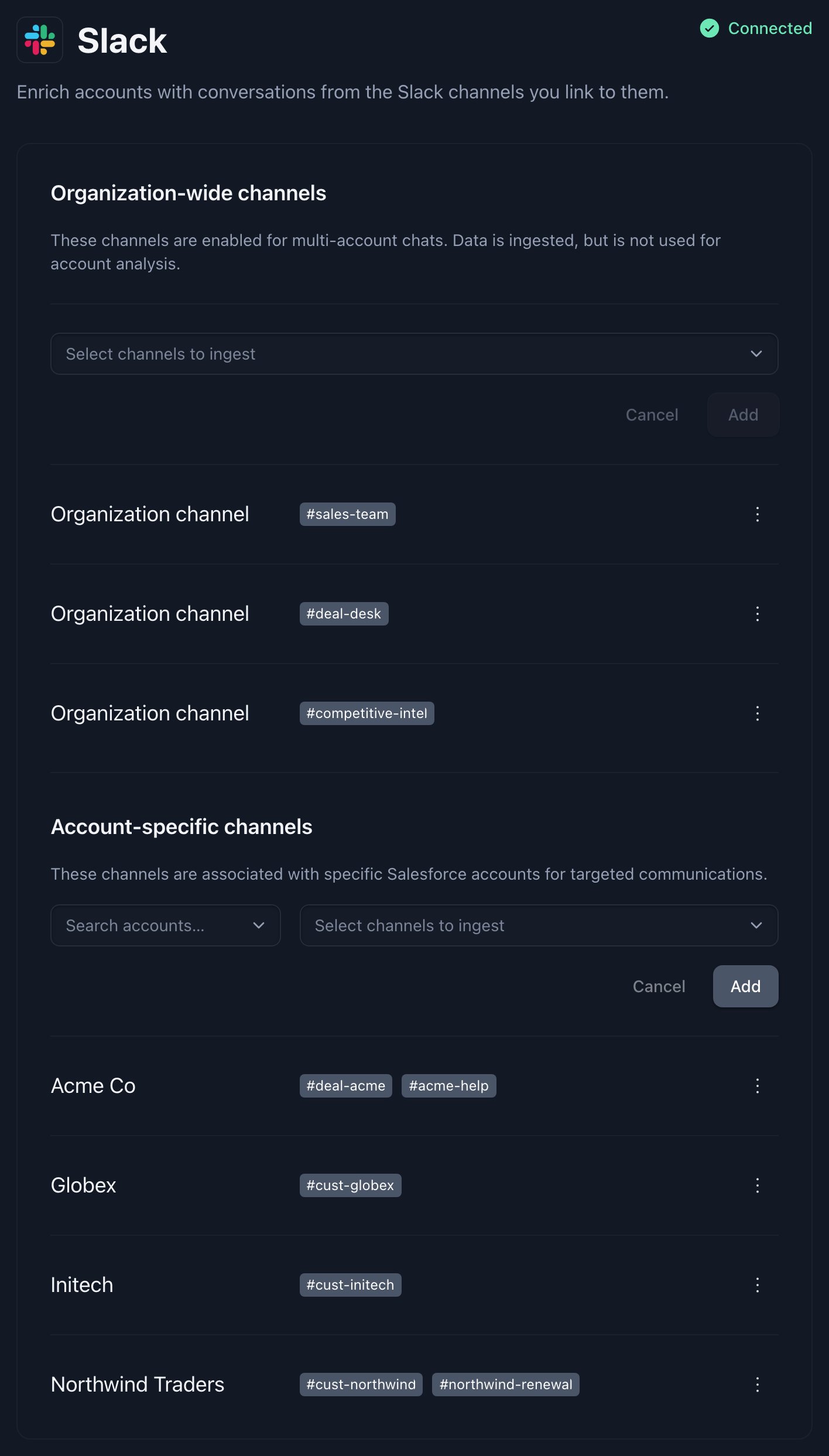
The Slack page lists your organization-wide channels and the channels linked to each account.
Link channels to an account
- In Account-specific channels, search for the account.
- Select one or more channels for it, like
#deal-acmeand#acme-help. - Click Add.
Add organization-wide channels
- In Organization-wide channels, select the channels you want.
- Click Add.
Endgame only syncs messages from the channels you add here.
Update credentials or disconnect
Use the Connection section at the bottom of the Slack page. See Manage a connected integration.- Update credentials takes you to Slack’s sign-in page to renew Endgame’s access.
- Slack can’t be disconnected from Settings yet. Click Contact support and we’ll disconnect it for you.