User configuration
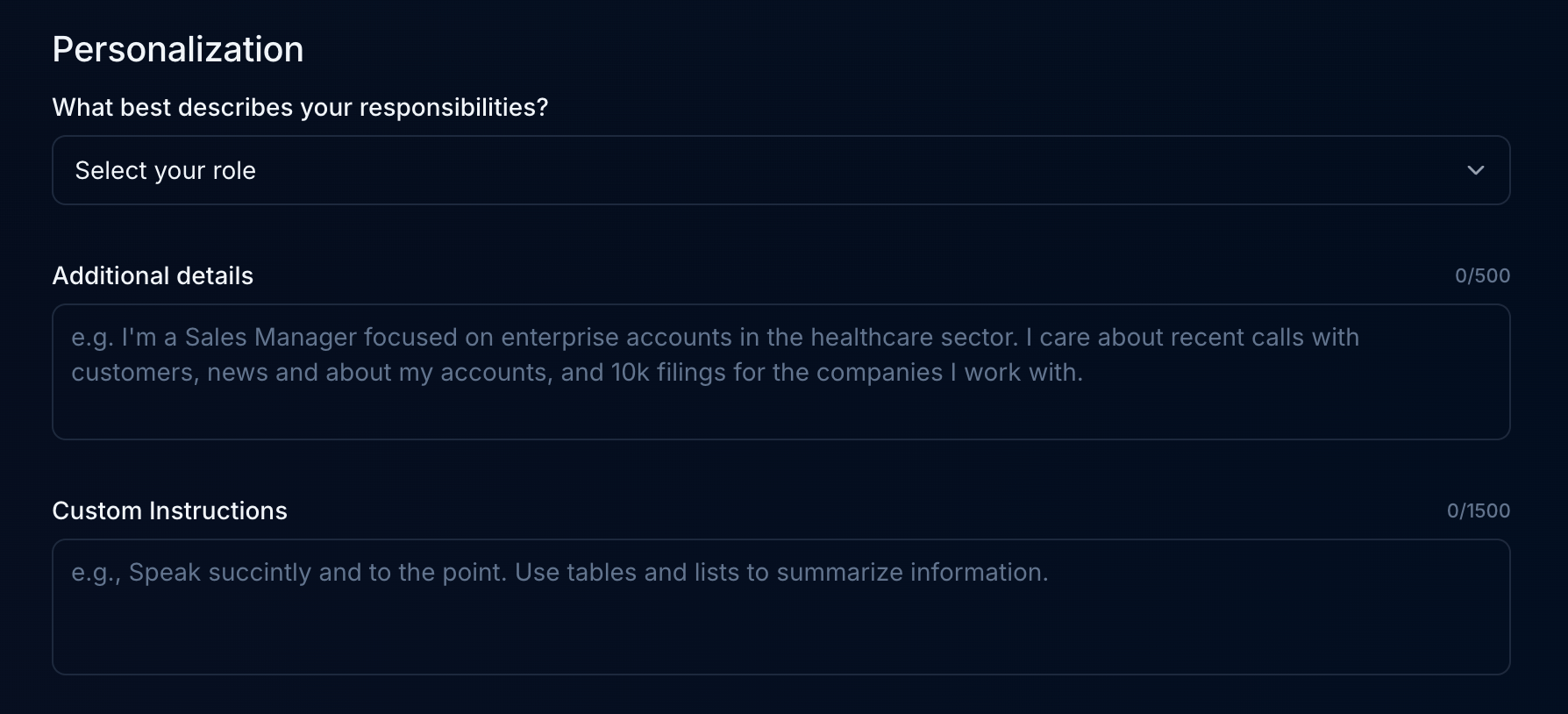
Users can customize their Endgame chat experience through the Personalization section in the user settings view. The Role and Custom Instructions fields allow you to provide information about your position and your chat preferences to help Endgame deliver more relevant responses. In the Role field, include details about your responsibilities, level within your organization’s hierarchy, types of activities you engage in, and any other data relevant to your work. This context enables Endgame to provide more accurate and meaningful responses tailored to your specific needs. For example:- “I’m a Sales Manager overseeing a team of 8 account executives in the Mid-Market segment. I’m responsible for pipeline management, forecasting, and coaching my team on deal strategy. I frequently work with opportunity data, account health metrics, and sales performance reports.”
- “I’m a Customer Success Director managing enterprise accounts with ARR over $100K. My focus areas include renewal strategy, expansion opportunities, and customer health monitoring. I regularly analyze usage data, support tickets, and engagement metrics to identify at-risk accounts and growth opportunities.”
- “I prefer concise, direct responses without excessive explanations.”
- “I work in sales and need help with objection handling and deal strategy.”
- “Focus on actionable advice I can implement immediately.”
- “Use conversational language and avoid overly technical jargon.”
- “Provide responses with specific examples whenever possible.”
User preferences
Memories
Users can add memories through their chat interactions with Endgame. Memories capture preferences and directives that enhance future chat responses. They are automatically detected and saved based on your interactions. For example, memories might include statements like “I prefer answers with tables when possible” or “My fiscal year ends January 31.” User memories are incorporated into the system that generates your responses, so you’ll experience the results of your memory preferences in subsequent chats.How to create or update a memory
Memories are detected and saved automatically through your chat interactions. You can be explicit to ensure your preferences are captured, for example “I like my answers concise,” but Endgame will also detect memories that are less directly stated. You can update a memory by including the change in a subsequent prompt, such as “I only like concise answers when drafting emails” or “I prefer verbose answers.”Turning memories on/off
This feature is toggled on by default to capture your memories. You can update this setting in the user settings view. When Memories is toggled on, your memories from chat are stored and used in your chat responses. When toggled off, new memories are not saved and existing memories, if any, are not used in chat responses.
User memory setting
How to view and delete memories
Users can review their memories in the user settings view. To navigate to user settings, click on your initials in the lower left sidebar and click on Manage in the Memories section. Here you’ll see a list of the memories Endgame has saved for you along with the quote that informed the memory. You can delete any memories you don’t want Endgame to use. Because memories are saved automatically, Endgame may occasionally interpret something as a memory that you don’t want saved. You can easily review and delete them here.
User memory management