Use the instructions below to enable the Notion integration in Endgame. Once enabled, Endgame will process your linked Notion pages and provide insights via the Endgame UI.
Creating a Notion integration requires that the connecting user is a Notion
Administrator for the workspace that you wish to connect.
1
Create integration in Notion
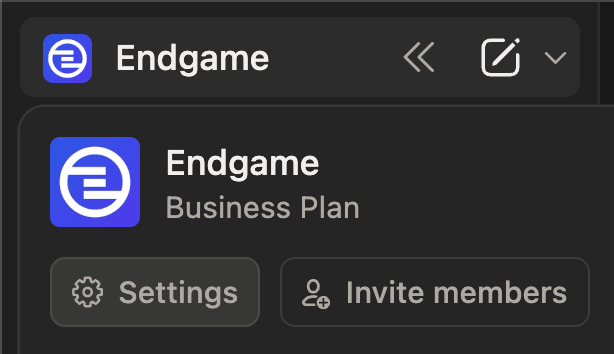
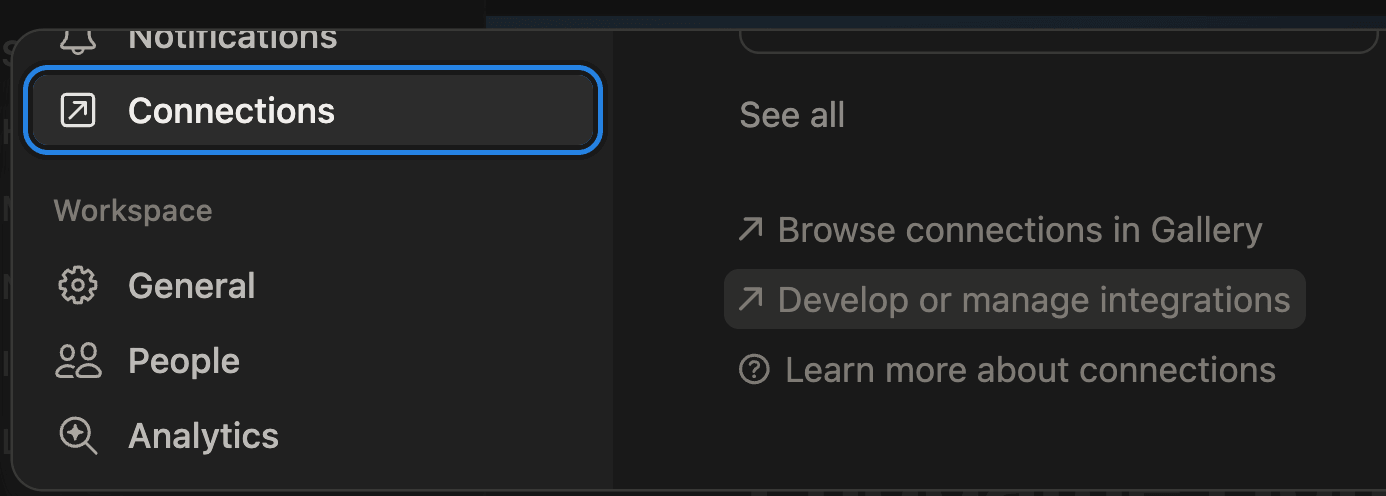
Before setting up your connection within Endgame, you must first create a new integration within Notion.In Notion click on your workspace in the top left corner -> Settings -> Connections (under Integrations) -> Develop or Manage Integrations (scroll to bottom) -> Internal Integrations (bottom of side menu) -> Create a New Integration.
Notion settings
Notion connections
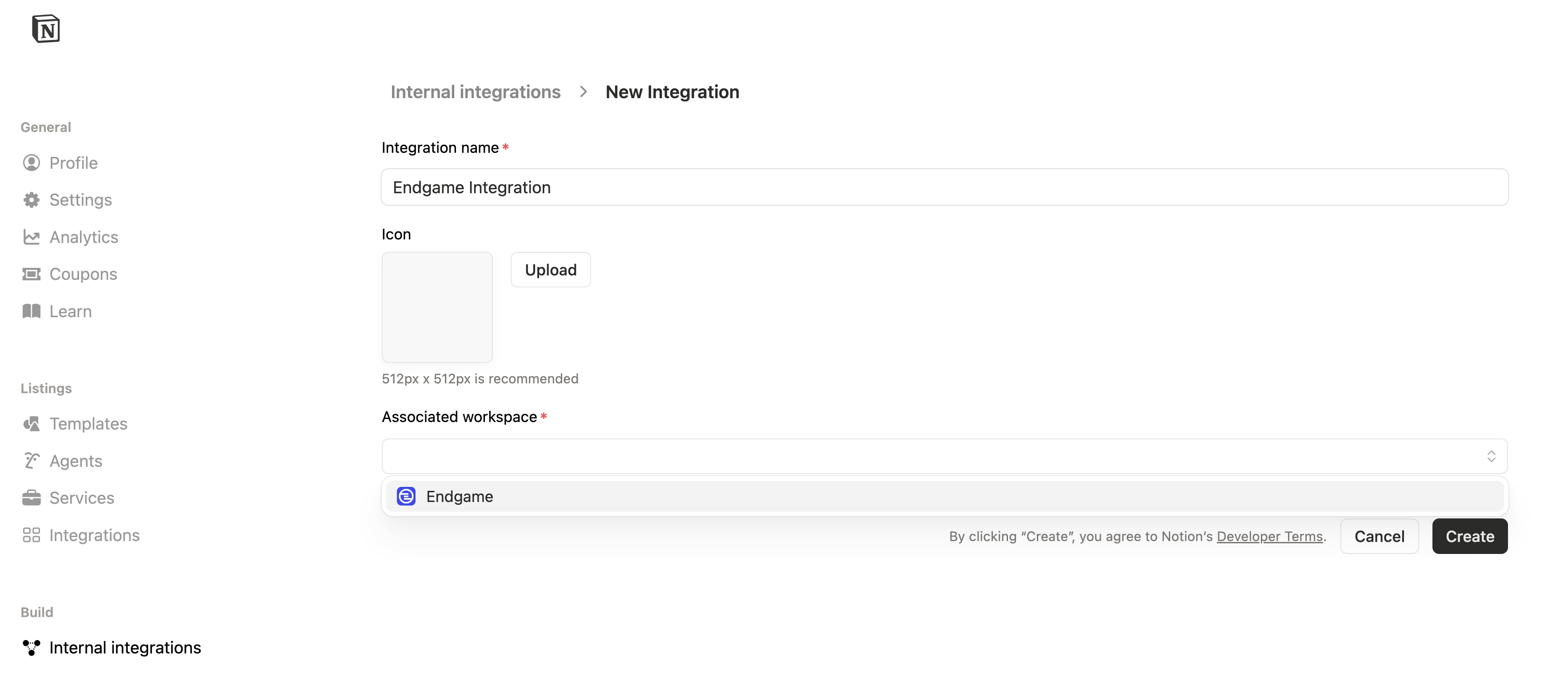
Name your integration something to indicate it will be used to connect to
Endgame, i.e., Endgame Integration. Select the workspace you wish to connect.
Endgame currently only supports a single workspace connection.
Create new integration Notion
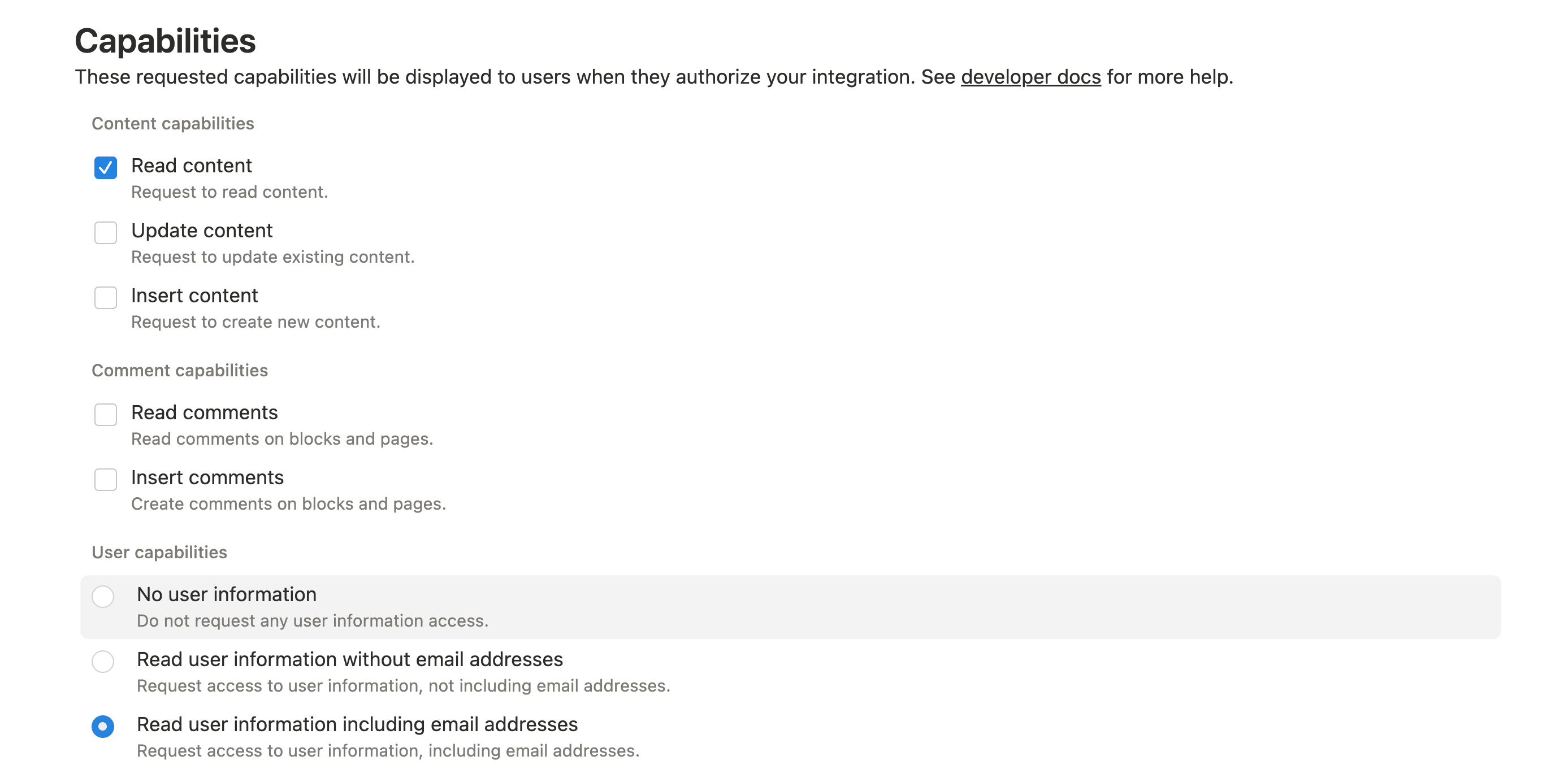
Once created, you can edit the integration’s Capabilities. Endgame only requires the “Read Content” and “Read user information including email addresses” scopes.
Edit capabilities
2
Grant integration access to pages
You will need to grant access to the content in Notion that you want to sync to Endgame. We recommend organizing your content into nested file structures to avoid having to grant individual access to each page. If you give Endgame access at the parent level, all content nested below that page will also be accessible.There are two ways to select content:
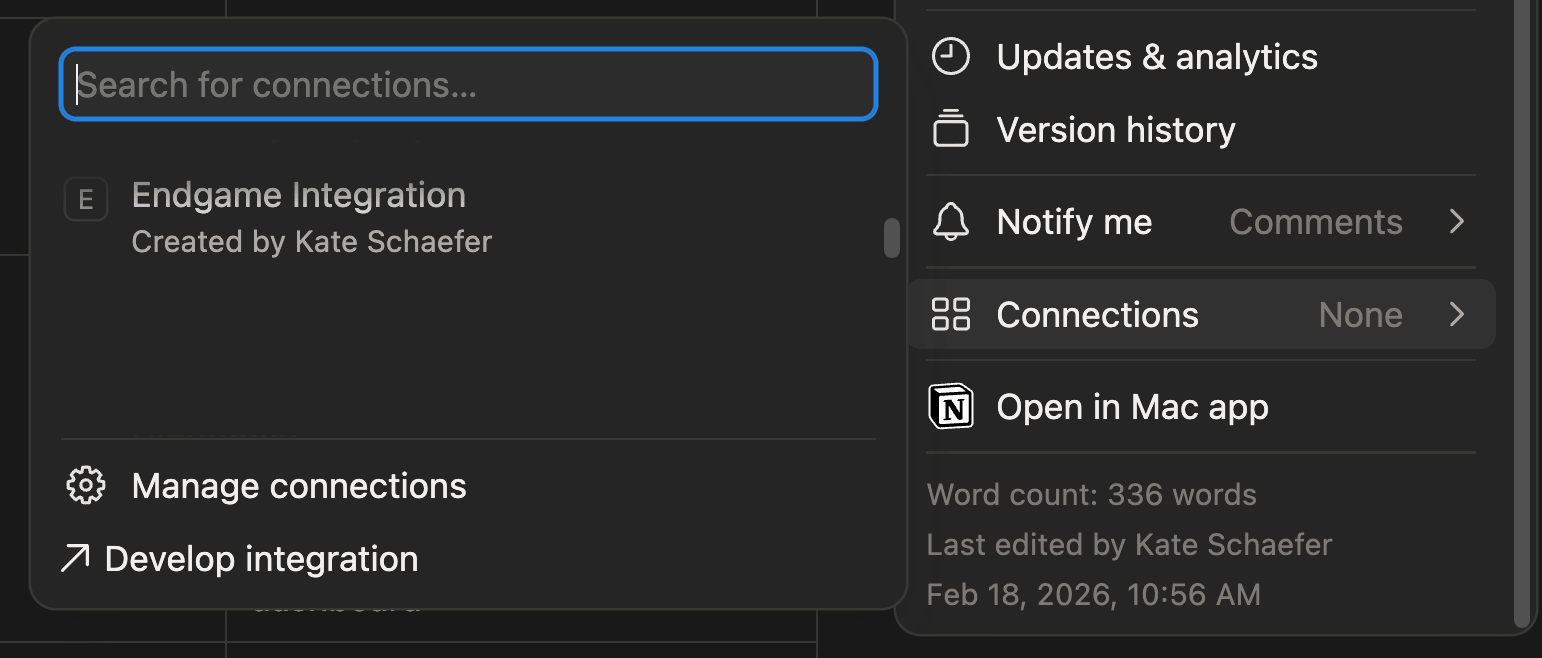
Navigate to the page you want to give access to. Click on the three dot menu in the top right corner -> Connections -> select the connection you set up in the previous step.
Connect page to integration
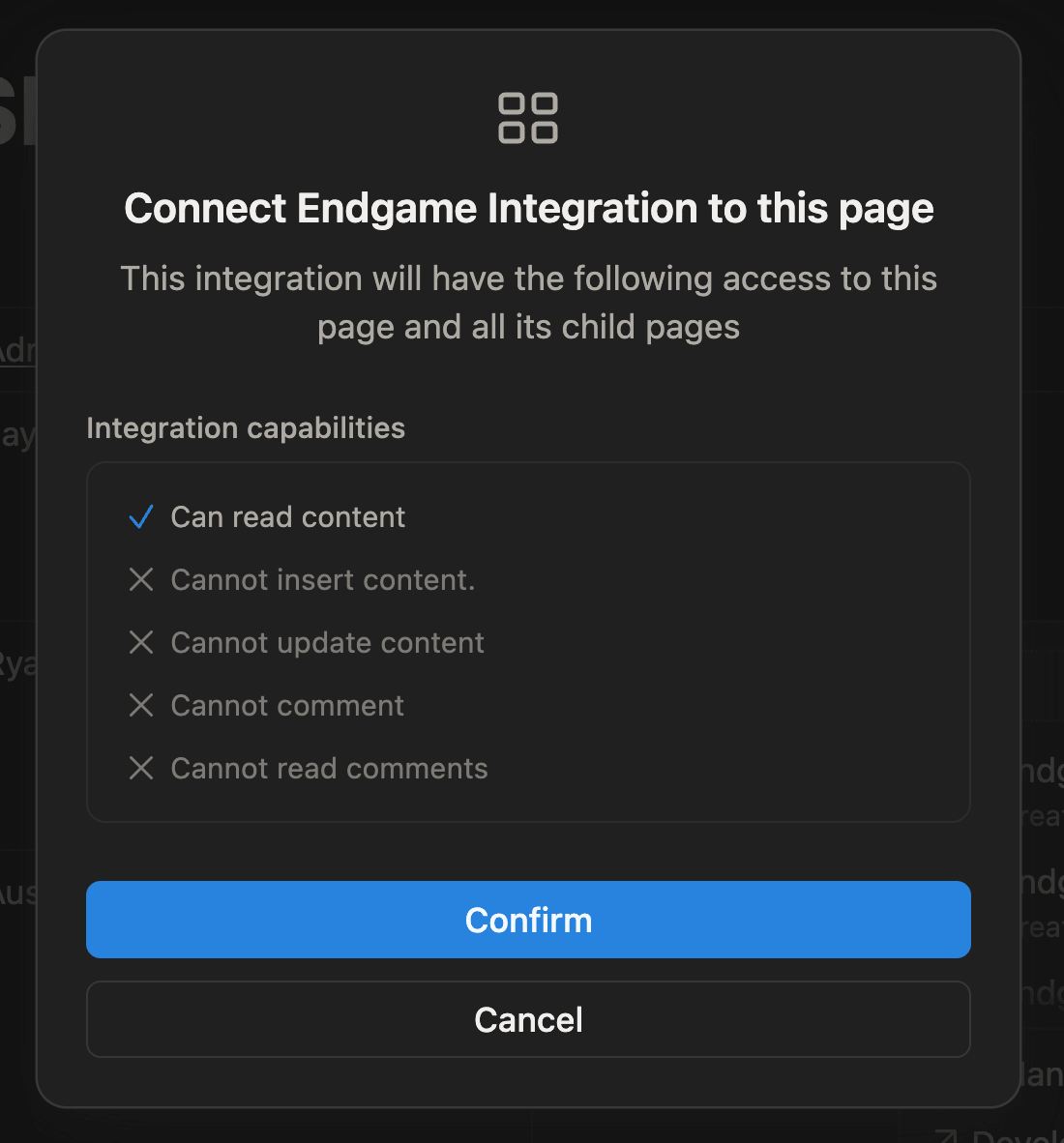
You will be prompted with a modal listing the capabilities you granted to this integration. Click Confirm to proceed.
Confirmation connect page
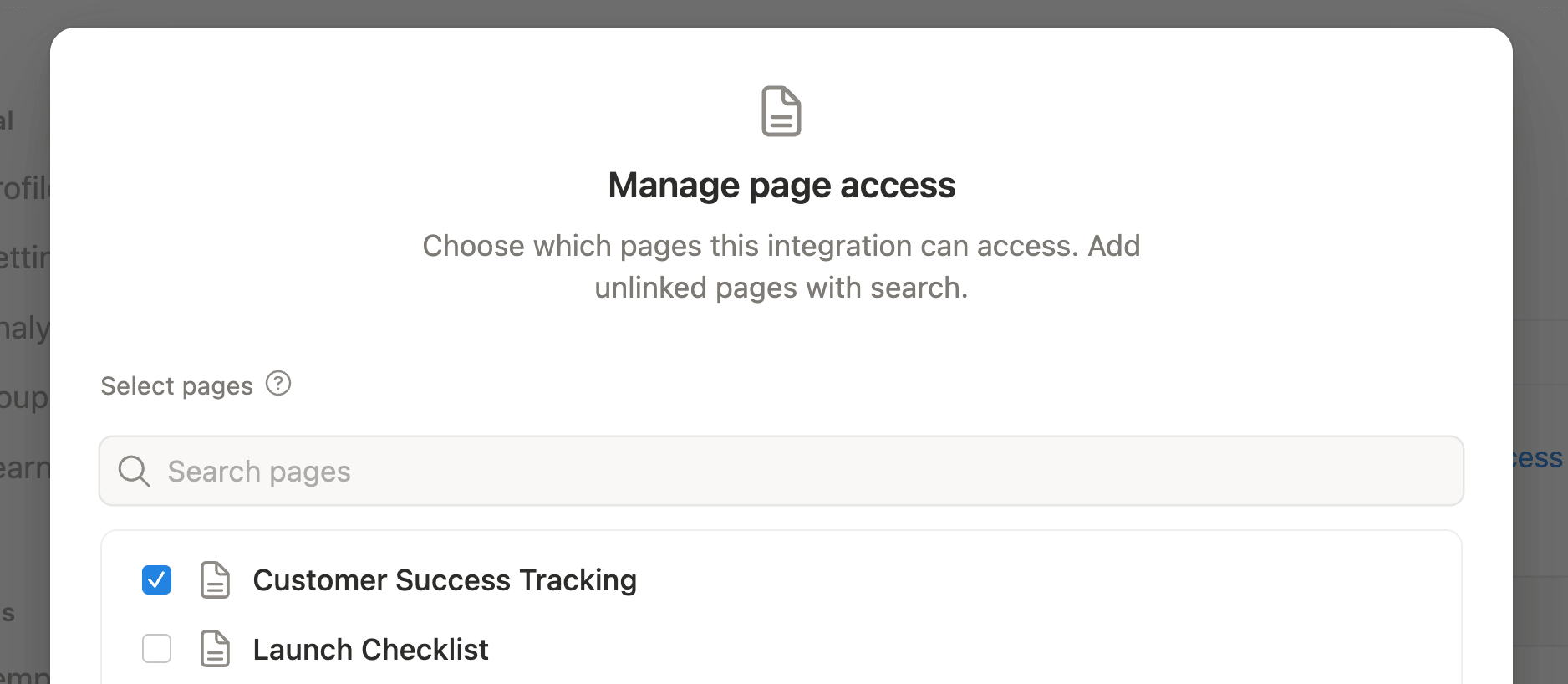
From the integration page, navigate to the Content access tab -> Edit Access -> select the pages you want to share -> Save.
Manage page access
3
Configuration in Endgame
Navigate to the integrations page and click Connect for the Notion option.
Notion connection
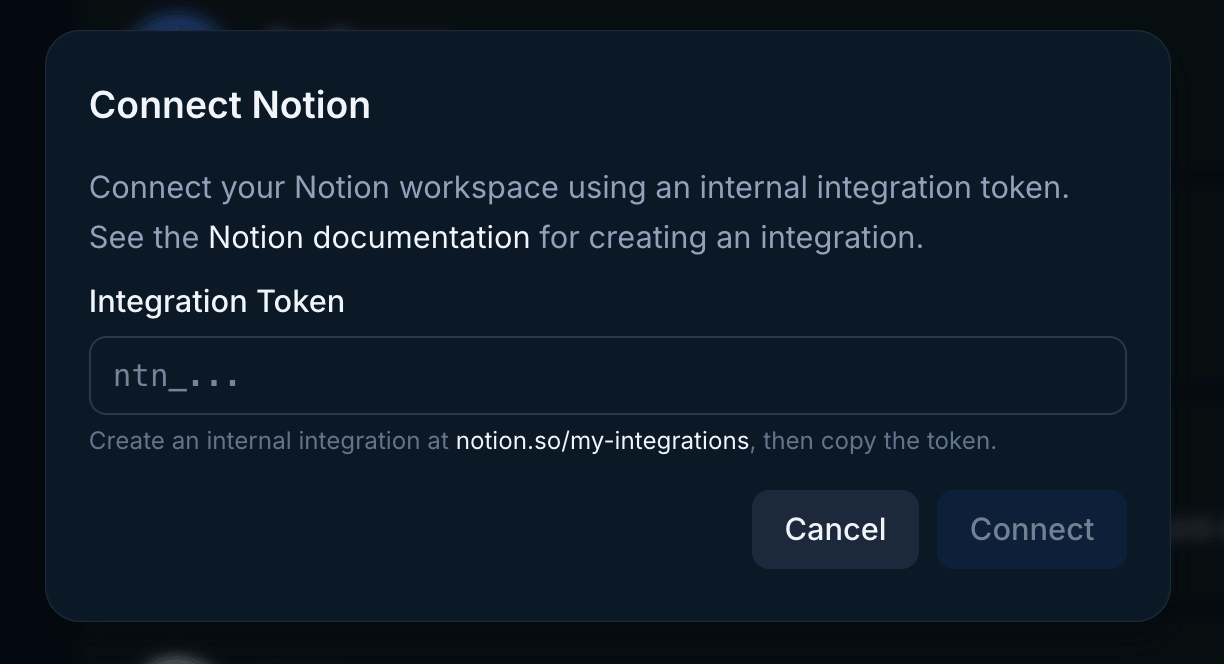
You will need to copy and paste your secret key from the Notion integration page into the field.
Provide Notion secret
4
Copy URLs from Notion to Endgame
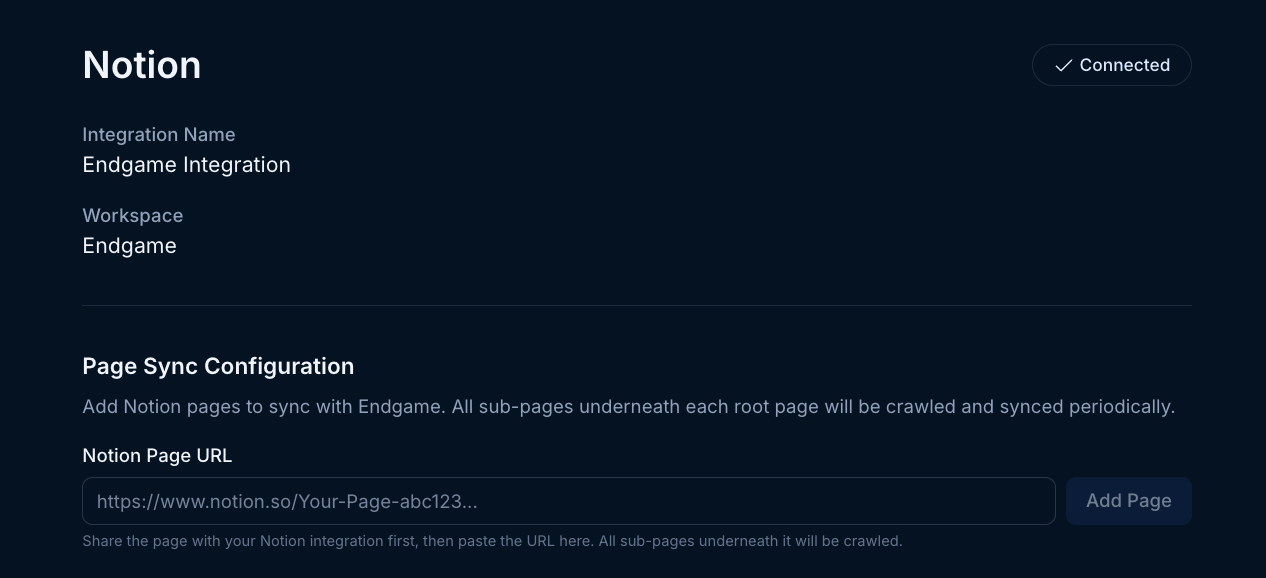
You have already given Endgame access within Notion, but you need to additionally tell Endgame which pages you want to ingest. You do this by copying the URL for the Notion page (that you have already given access to in Notion) into the Notion Page URL input and clicking Add Page.
Notion page URLs
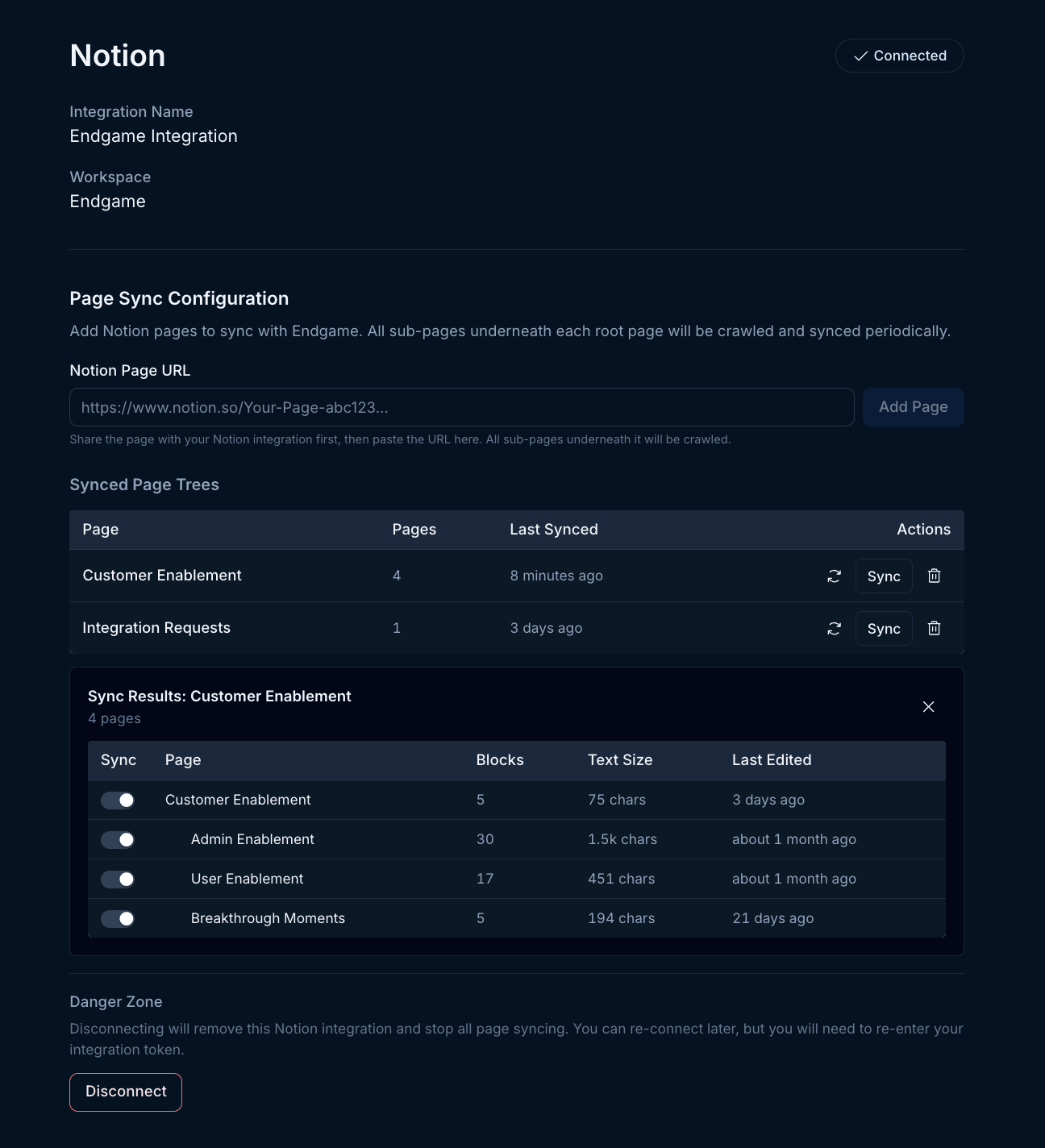
Endgame will by default ingest all nested content for a page. If you wish to exclude some pages or simply view the pages being synced, click on the circular arrow icon for the page. This will display all the nested pages. You can toggle off pages you do not want to include in the Endgame sync. When you are done with this configuration, you can close the preview by clicking the “X” in the top right corner.Endgame syncs your page data every hour. You can trigger an immediate sync by clicking the Sync button.
Notion synced content
Page content can be deleted by clicking the trash icon for the page. Note that deleting a page with nested content will delete all nested page content as well. If you wish to only exclude certain nested pages, follow the instructions above.
5
Updating your connection
Users can update or disconnect their Notion connection at any time. Disconnecting will remove all your existing page data and the links you have created.To update your connection with a new secret and keep your page links, hover over the Connect button in the top right corner and when it shows Reconnect, click it to open the Notion secret modal. To disconnect, click the Disconnect button in the lower left hand corner.You can also revoke integration permissions within Notion at the integration or page level.
That’s it! Now that you’ve connected Notion to Endgame, we’ll automatically ingest your data into our systems once an hour and present our insights in Endgame.