

If your organization brings Salesforce data into Endgame through Snowflake, Salesforce doesn’t appear on your Integrations page. See Salesforce via Snowflake instead.
Before you start
- You need to be an Endgame admin.
- Decide which Salesforce user Endgame connects with. This is your integration user: Endgame syncs data with its credentials, so it only sees what that user can see in Salesforce. We recommend a dedicated API integration user rather than a personal account.
- The integration user needs the
Approve Uninstalled Connected Appspermission in Salesforce. - Salesforce requires connected apps to be approved before Endgame can receive data. You, or someone with access in Salesforce, will need to approve Endgame’s connected app right after you connect.
- Whoever approves it needs the Customize Application permission, plus either Modify All Data or Manage Connected Apps in Salesforce.
Connect Salesforce during onboarding
Salesforce is the first thing you connect. It’s part of onboarding, not something you set up from Settings like other integrations: until Salesforce is connected and your data is ready, signing in to Endgame opens a welcome screen.- On the welcome screen, under Connect Salesforce, choose where to connect:
- Production: click Connect.
- Sandbox: next to Using a sandbox?, click Connect here.
- Sign in to Salesforce as your integration user and approve access.
- In Salesforce, approve the Endgame connected app so Endgame can start receiving data.
Approve the Endgame connected app
Salesforce requires connected apps to be approved before Endgame can receive data. After you sign in to Salesforce from Endgame, in Salesforce go to Setup > Connected Apps > Connected Apps OAuth Usage and click Install next to theEndgameLabs2 app.
Fix an approval error when signing in
If you see anOAUTH_APPROVAL_ERROR_GENERIC error while signing in to Endgame, check these in Salesforce:
- Connected app approval: the
EndgameLabs2connected app must be approved before users can sign in. - Permitted users: go to Apps > Connected Apps > Manage Connected Apps > EndgameLabs2 and check Permitted Users. It has two options:
- All users may self-authorize: everyone can access Endgame without pre-approval in Salesforce.
- Admin approved users are pre-authorized: each person needs a profile or permission set that gives them access to the app.
- Integration user: the integration user needs the
Approve Uninstalled Connected Appspermission to connect, and for theEndgameLabs2app to show up in Salesforce.
Manage Salesforce in Settings
Once you’re connected, Salesforce appears in Settings > Organization > Integrations. Click Manage next to it to open the Salesforce page. It works differently from other integrations:- You normally connect Salesforce during onboarding. If it isn’t connected yet, its page here also offers Connect, and Connect here for a sandbox.
- You can choose important custom fields, sync more objects, and change the integration user.
- Salesforce can’t be disconnected from Settings. In the Connection section at the bottom of the page, next to Disconnect Salesforce, click Contact support to email support@endgame.io.
If your organization lets Endgame write changes back to Salesforce from chat, each person also connects their own Salesforce login in Settings > You > Connections.
Create a dedicated API integration user
This is optional, but recommended. Endgame reads data with the Bulk API 2.0, so you can connect with a dedicated API-only user. When you create the user in Salesforce, select:- User License: Salesforce Integration
- Profile: Minimum Access - API Only Integrations
- Additional permissions:
Approve Uninstalled Connected Apps
How Endgame syncs your data
Endgame uses the Bulk API 2.0 to fetch data from Salesforce every hour, so the integration generally has little effect on your API limits. It syncs the required objects by default, and you can add more objects. After the first sync, Endgame only requests records that have changed since the last one (based onSystemModStamp).
Endgame checks for each query job to finish with an increasing backoff, starting at one minute and going up to ten minutes between checks. It downloads results in pages of 25,000 records, several pages at a time.
Endgame syncs data with the integration user’s credentials. Only accounts that user can access in Salesforce are run through any AI systems, and everyone in your Endgame organization has access to the data synced for that user. To change the integration user, see Change the integration user.
Choose important custom fields
Endgame adds the standard fields on the required objects to its context graph. Custom fields are synced too, but Endgame doesn’t reference all of them automatically: Salesforce instances often have hundreds of custom fields, and only a handful really help people understand their accounts. You choose which custom fields matter on Account, Contact, Opportunity and User.- In Endgame, on the Salesforce page, under Required objects, click Account, Contact, Opportunity or User. You can also hover over the row and click Configure.
- In Configure object fields, search for the fields you want Endgame to use and select the checkbox next to each one. To have Endgame suggest fields, click Recommend and review what it selects. Recommend replaces your current selection.
- Optionally, add a description to a field to explain what it means.
- Click Save.
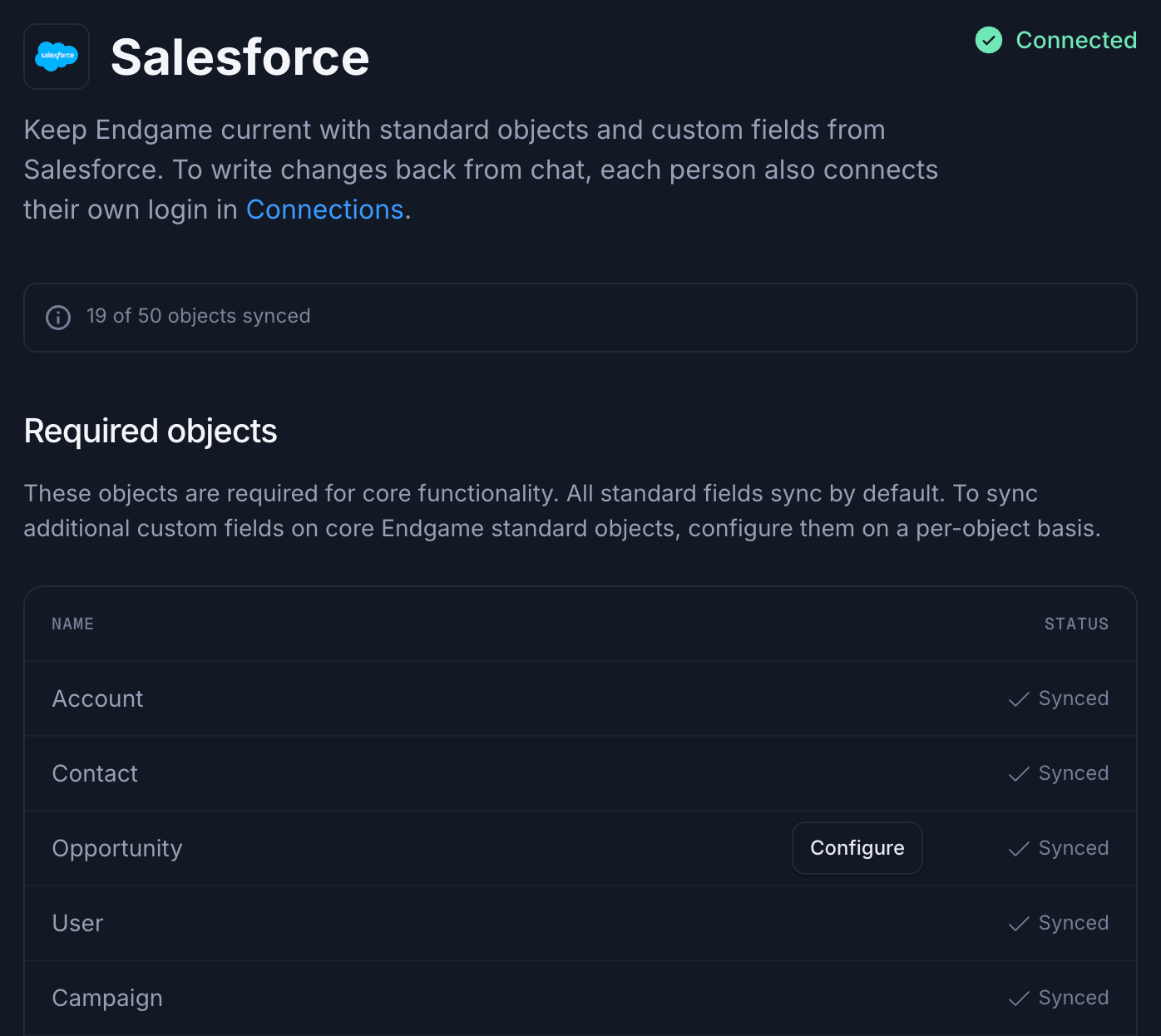
The Required objects table lists the objects Endgame always syncs, and which of them you can configure.
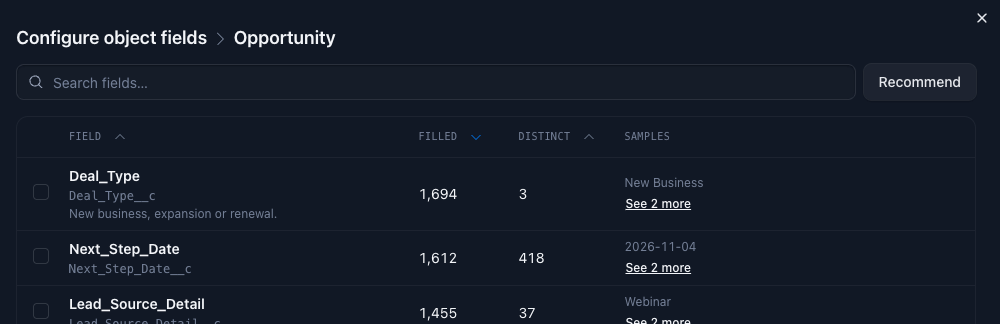
In Configure object fields, select the custom fields you want Endgame to use, then click Save.
Sync more objects
You can add more Salesforce objects to Endgame’s context graph. At the top of the Salesforce page, Endgame shows how many objects you’re syncing out of your limit, which counts every type of object together.- Standard objects: under Additional standard objects, turn on the toggle next to each object you want. Turning a standard object on or off files a request that an Endgame representative reviews, and we’ll reach out once the change has been made.
- Custom objects: under Custom objects, turn on the toggle next to each object you want. Custom objects sync automatically, and changes can take up to 2 hours.
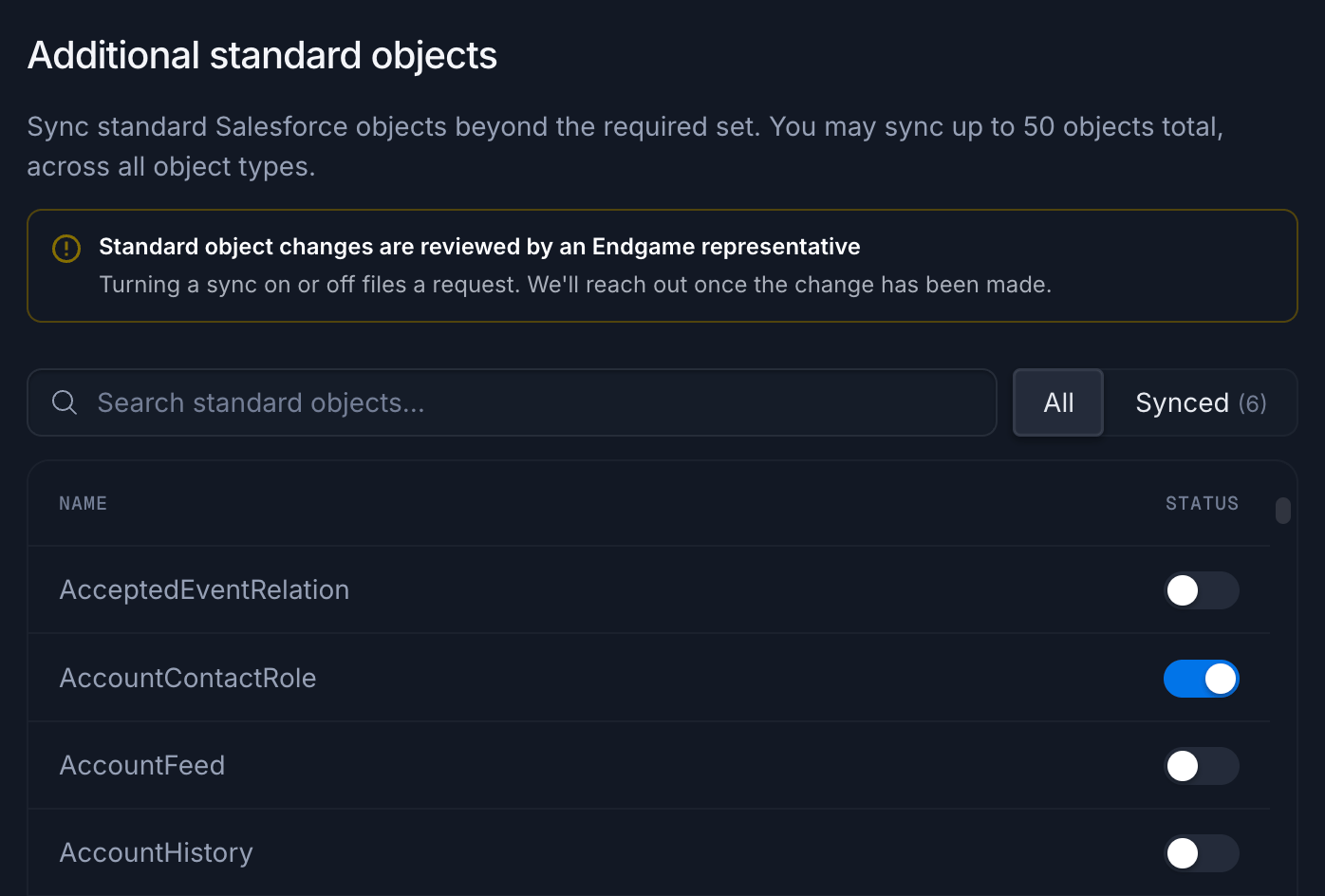
Turning on a standard object sends a request to Endgame to start syncing it.
Change the integration user
- In Endgame, at the bottom of the Salesforce page, in the Connection section, click Update credentials.
- Sign in to Salesforce as the new integration user and approve access.