

Before you start
- You need to be an Endgame admin.
- You’ll need three things from Zendesk:
- Subdomain: the first part of your Zendesk URL. For
acme.zendesk.com, it’sacme. - Admin email: the email of the Zendesk admin who creates the API token.
- API token: a Zendesk API token. Only Zendesk admins can create one.
- Subdomain: the first part of your Zendesk URL. For
Create an API token in Zendesk
- In Zendesk, go to Admin Center > Apps and integrations > APIs > Zendesk API.
- Turn on token access if it isn’t on already, then add a new API token. Give it a description that says what it’s for, like “Endgame”.
- Copy the token. Zendesk only shows it once.
Connect Zendesk
- In Settings > Organization > Integrations, find Zendesk and click Connect.
- Enter your Subdomain, Admin email and API token, then click Connect.
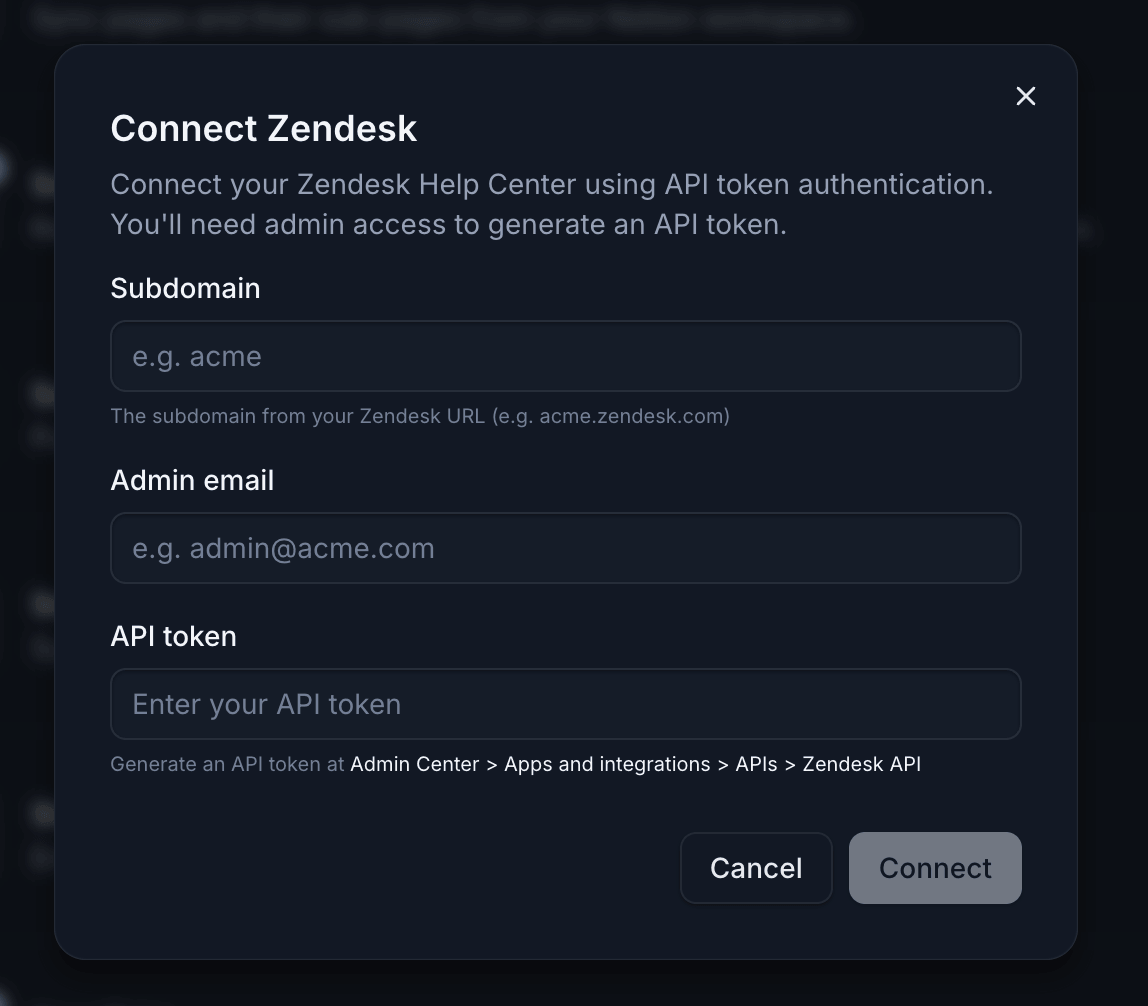
Connecting Zendesk needs your subdomain, an admin email and an API token.
What Endgame syncs
- Support tickets: tickets and their comments, along with the Zendesk users, organizations and CSAT ratings tied to them. These sync automatically every few minutes. You don’t need to choose anything.
- Help Center articles: published articles from the sections you choose. Drafts aren’t synced. Articles sync about every 15 minutes, and right away when you add a section.
Choose Help Center sections to sync
In Help Center sections on the Zendesk page, your Help Center categories are listed. Click a category to see its sections.- Add a section: click Add next to it. Endgame syncs the section’s published articles and lists it in Synced sections.
- Pause a section: turn off Enabled next to it in Synced sections. Endgame stops syncing new and updated articles from it, but keeps the articles it already synced.
- Remove a section: click the trash icon next to it, then Remove. The section stops syncing, and its synced articles are removed from Endgame.
Update credentials or disconnect
Use the Connection section at the bottom of the Zendesk page. See Manage a connected integration.- Update credentials opens the same dialog as connecting, with nothing prefilled. Enter your subdomain, admin email and a new API token, for example after you rotate the token in Zendesk.
- Disconnect stops syncing tickets and Help Center articles from Zendesk.