Connect Microsoft SharePoint to sync document libraries to Endgame
Use the instructions below to enable the Microsoft SharePoint integration in Endgame. Once enabled, Endgame will ingest documents from your SharePoint document libraries, making them available in Endgame chat responses.
Connecting to the Microsoft SharePoint API requires that the connecting user
is a SharePoint Administrator.
1
Navigate to Configuration
Navigate to the integrations page. Only Endgame Admins can configure organization integrations.
2
Start Setup
From the integrations page, click “Connect” on the SharePoint card to kick off the authentication process.
Microsoft SharePoint connection
3
Grant Permissions
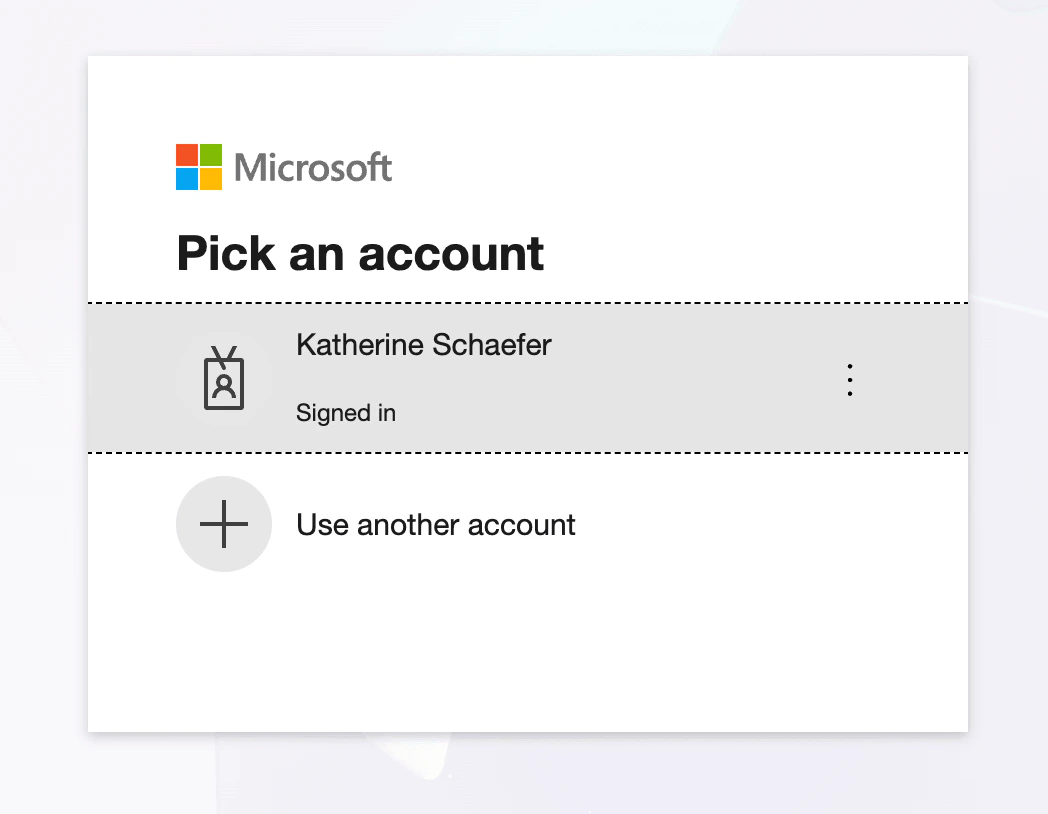
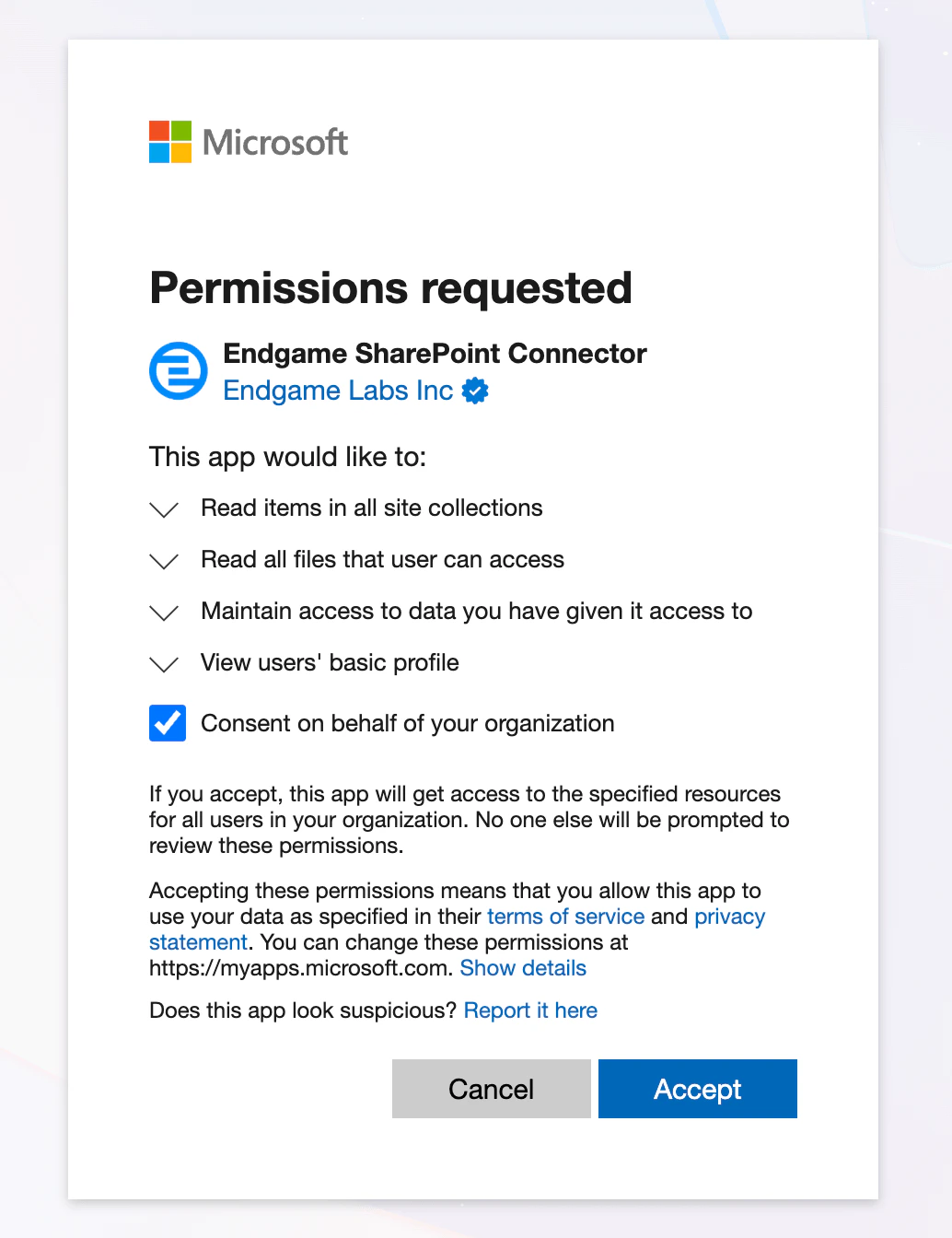
Select the Microsoft account you wish to connect to Endgame and go through the authentication flow. Ensure you check the box for “Consent on behalf of your organization” to give Endgame access to the necessary scopes.
Microsoft account selection
Microsoft grant permission
4
Add Document Libraries
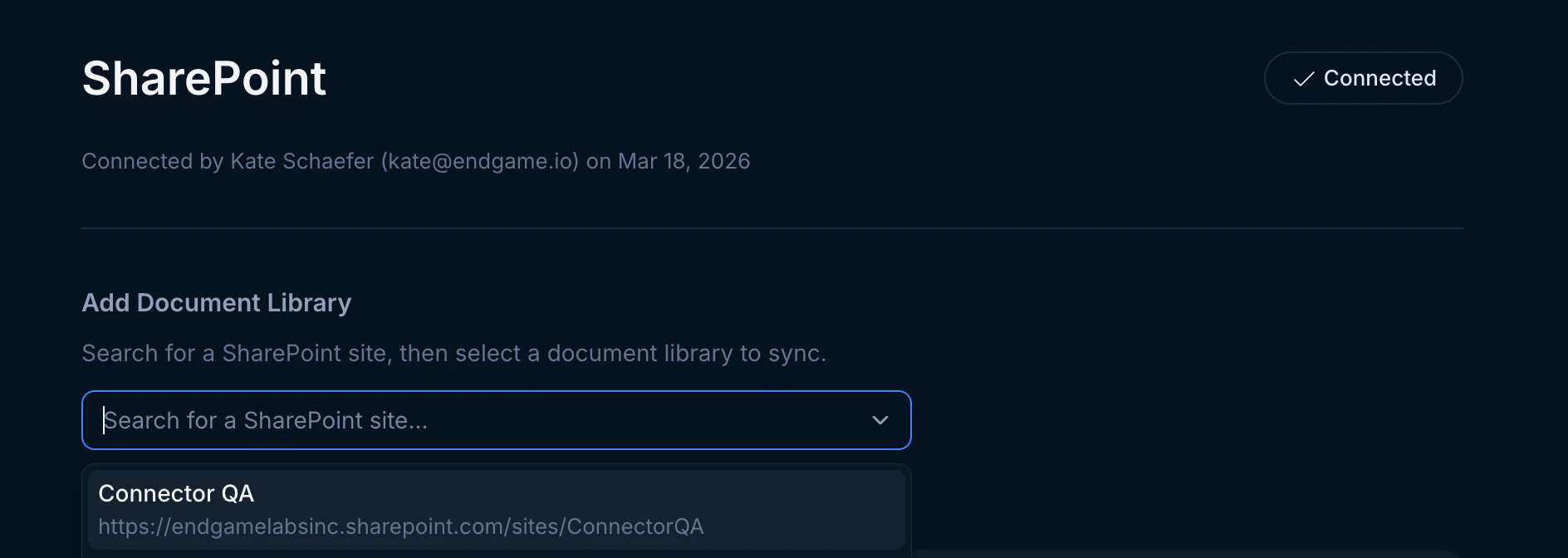
Once connected, click to Manage your configuration from the integrations page. You can now add SharePoint document libraries to sync with Endgame.First, search for the SharePoint site that contains the document library you want to sync.
Search for a SharePoint site
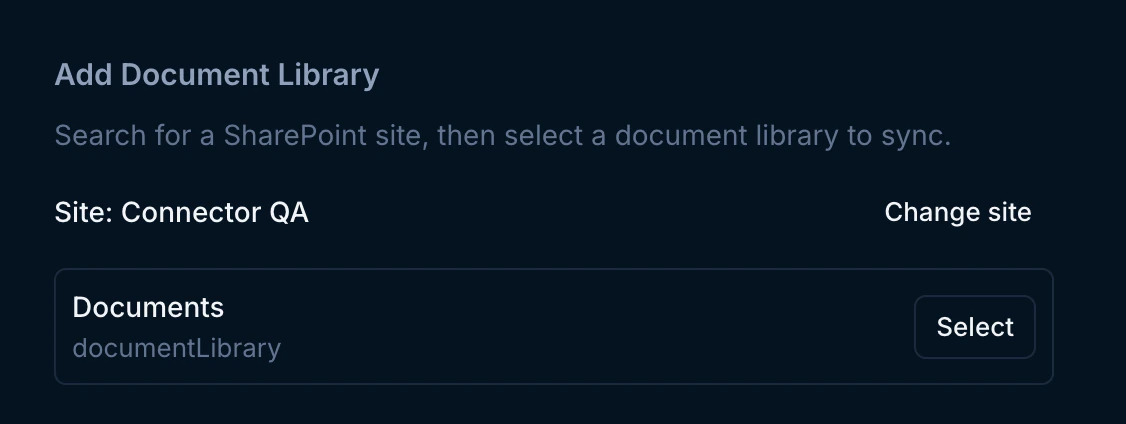
After selecting a site, you will see the available document libraries. Click “Select” to add as many document libraries as you wish to connect from that site.
Select a document library
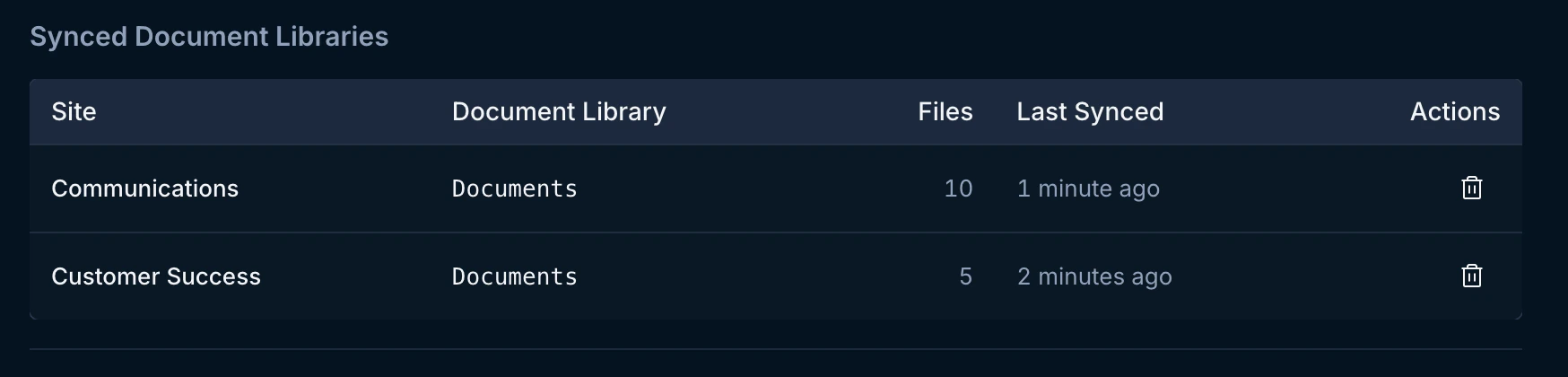
Your synced document libraries will appear in the table below, showing the site, document library name, file count, and last sync time. You can delete a synced library and its documents from Endgame at any time by clicking the trash icon. Your libraries sync to Endgame immediately upon connection and then every 15 minutes thereafter.
Synced document libraries
5
Manage your connection
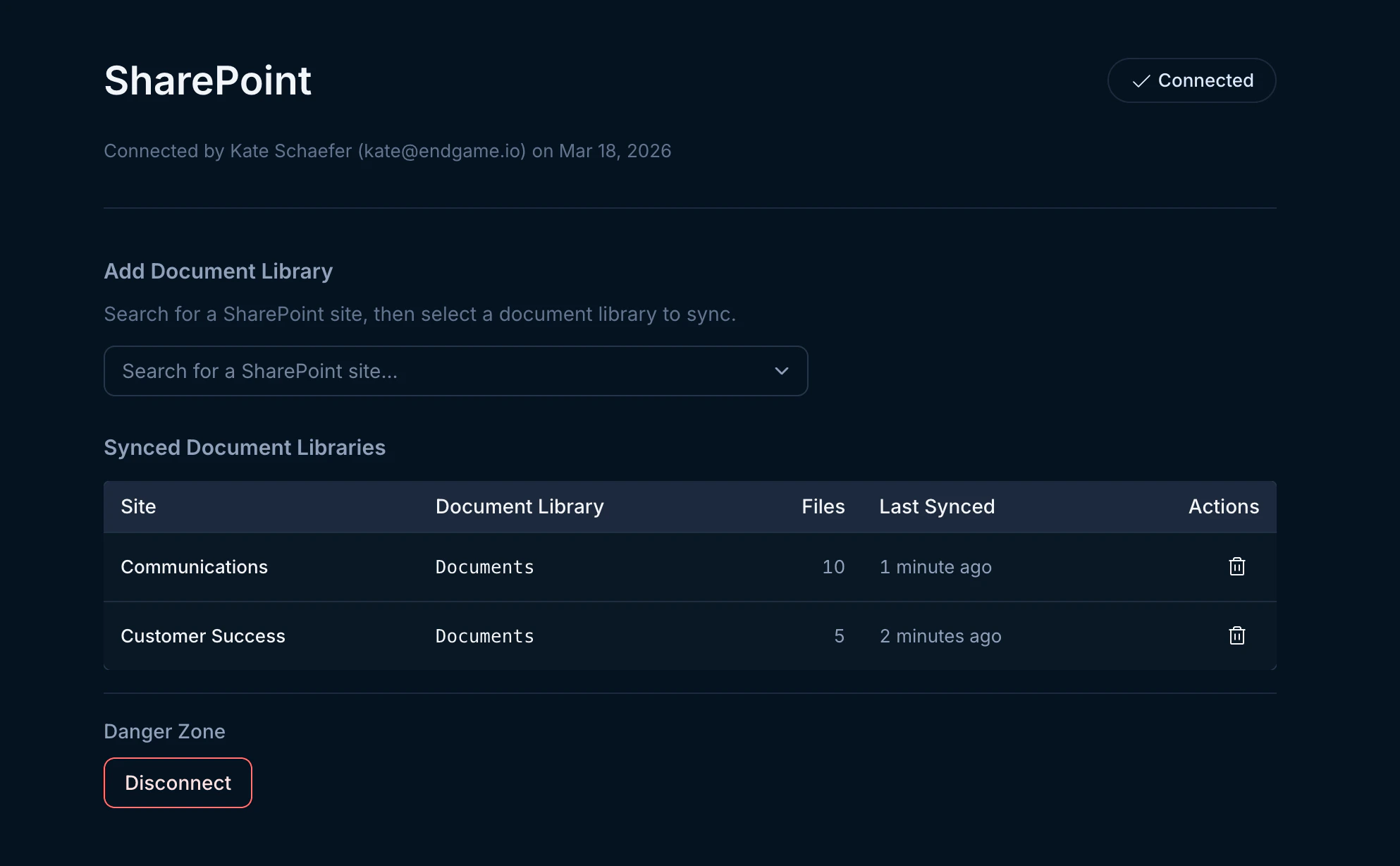
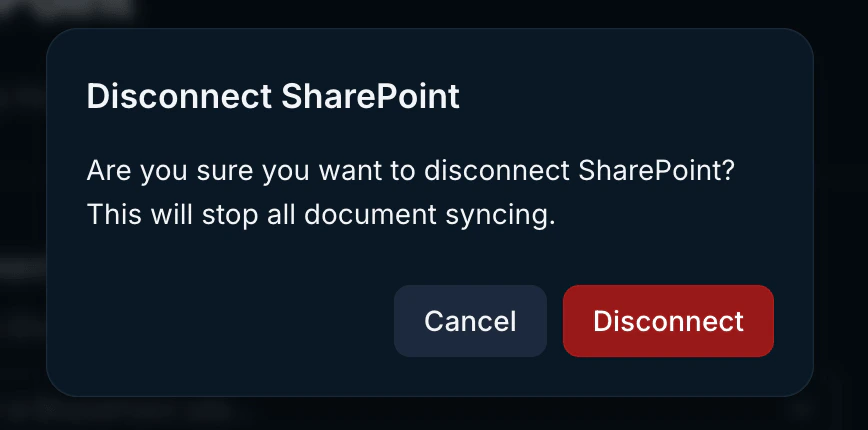
You can view and manage your full SharePoint configuration from the integration page. To disconnect, click the “Disconnect” button in the bottom left corner. Disconnecting will stop all document syncing and remove the configuration associated with your library.This action does not delete the documents that were previously synced into Endgame. If you want to completely delete documents from Endgame, click the trash icon next to the library.If a library is still syncing and you remove documents from the library, Endgame will reflect that change and delete those documents.To update your connection with a new user, hover over the Connect button in the top right corner until it shows “Reconnect,” then click it to trigger the authentication process. Reconnecting will preserve your library configuration.
SharePoint integration view
Disconnect SharePoint
Endgame will only ingest document libraries that you have explicitly added
in the SharePoint integration configuration. No other data is accessed or
ingested without your permission.