Connect Highspot to sync sales enablement content as knowledge
Use the instructions below to enable the Highspot integration in Endgame. Once enabled, Endgame will process content from your selected Highspot Spots and provide insights via the Endgame UI.
Connecting a Highspot instance to Endgame requires that the connecting user is
a Highspot Administrator.
1
Access Highspot integration
Log into Endgame and navigate to the integrations page. Only Endgame Admins can configure organization integrations. Click “Connect” for Highspot to begin the setup process.
Highspot connection
2
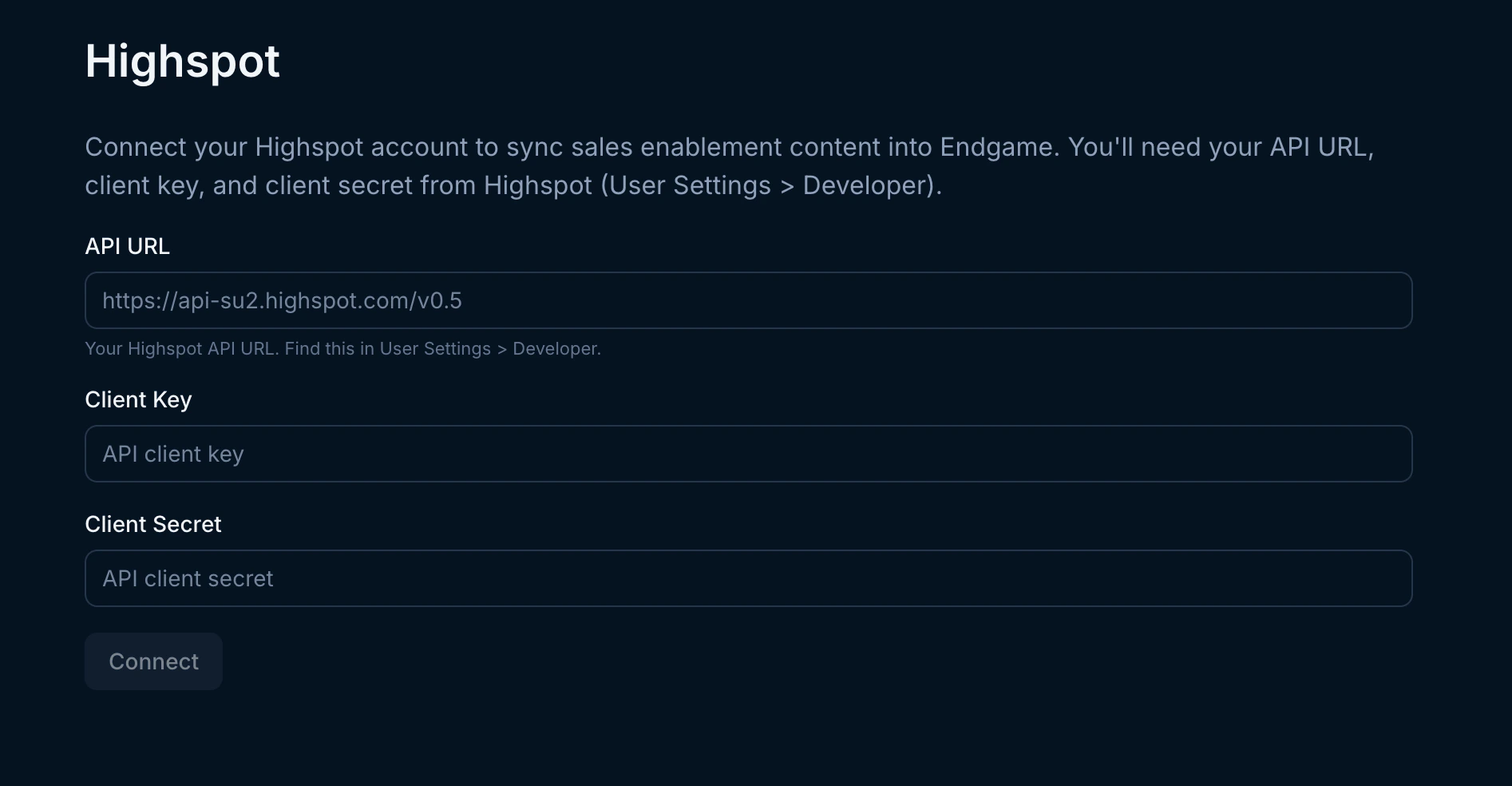
Enter your Highspot credentials
A modal will appear prompting you to provide your Highspot connection details. Fill out the required fields and click Connect to authenticate.
Highspot connection inputs
3
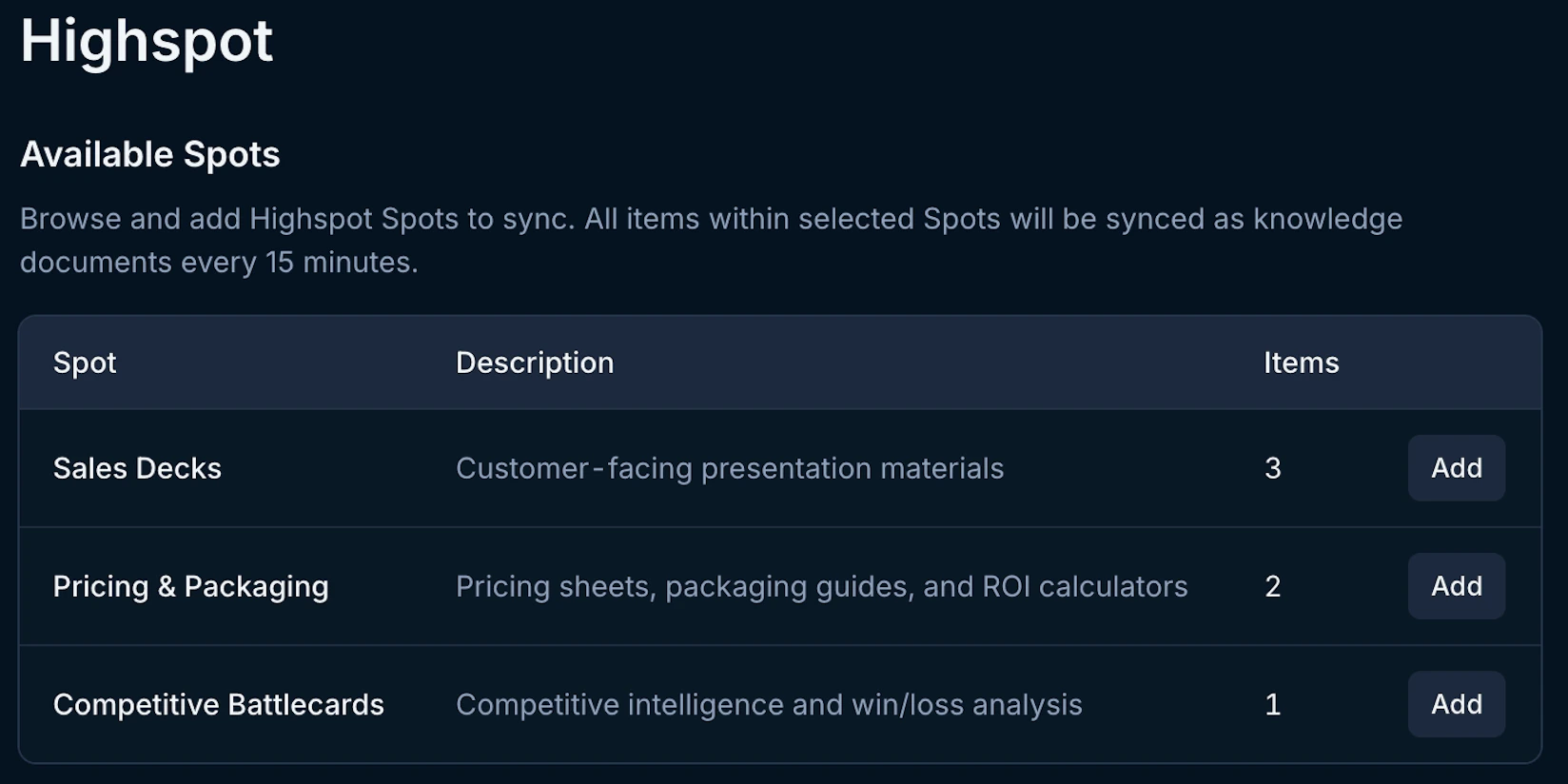
Select Spots to connect
After authenticating, you will see a list of available Spots from your Highspot instance. Click the Add button for any Spots you want Endgame to ingest.
Available Highspot Spots
4
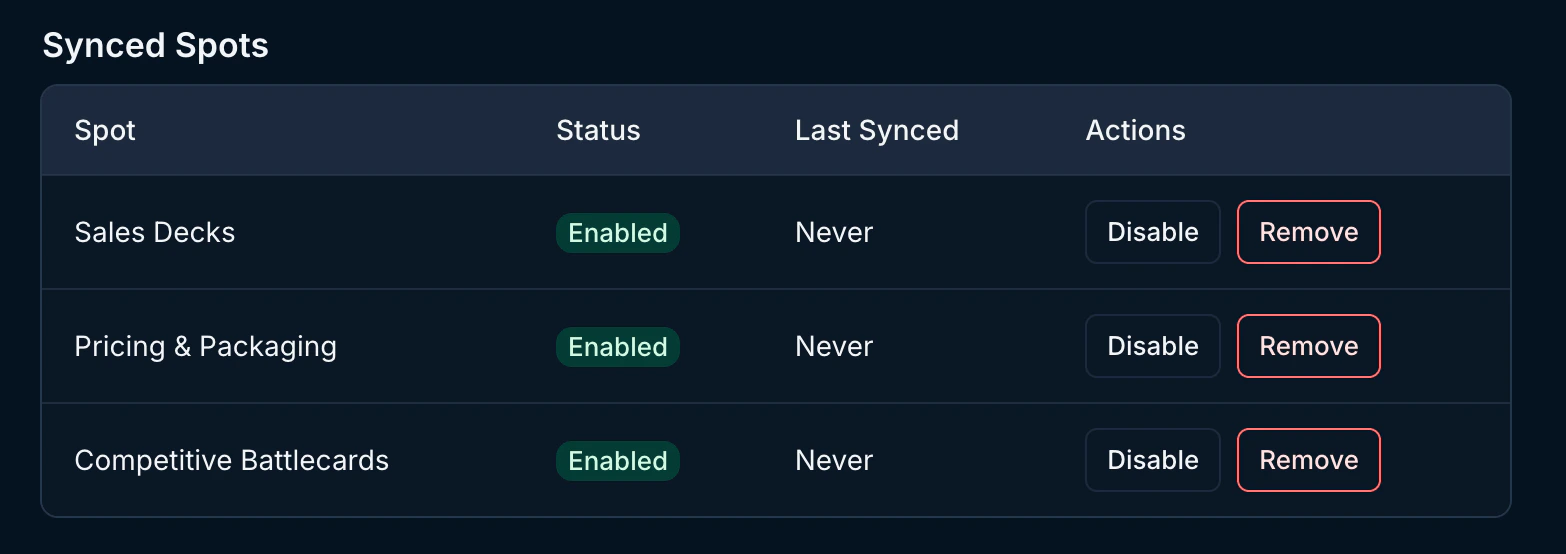
View and edit connected Spots
Once connected, you can view and manage your selected Spots at any time from the Highspot integration page. Disable Spots to stop ingest and Remove to fully remove them and discontinue use of the synced data.
Connected Highspot Spots
5
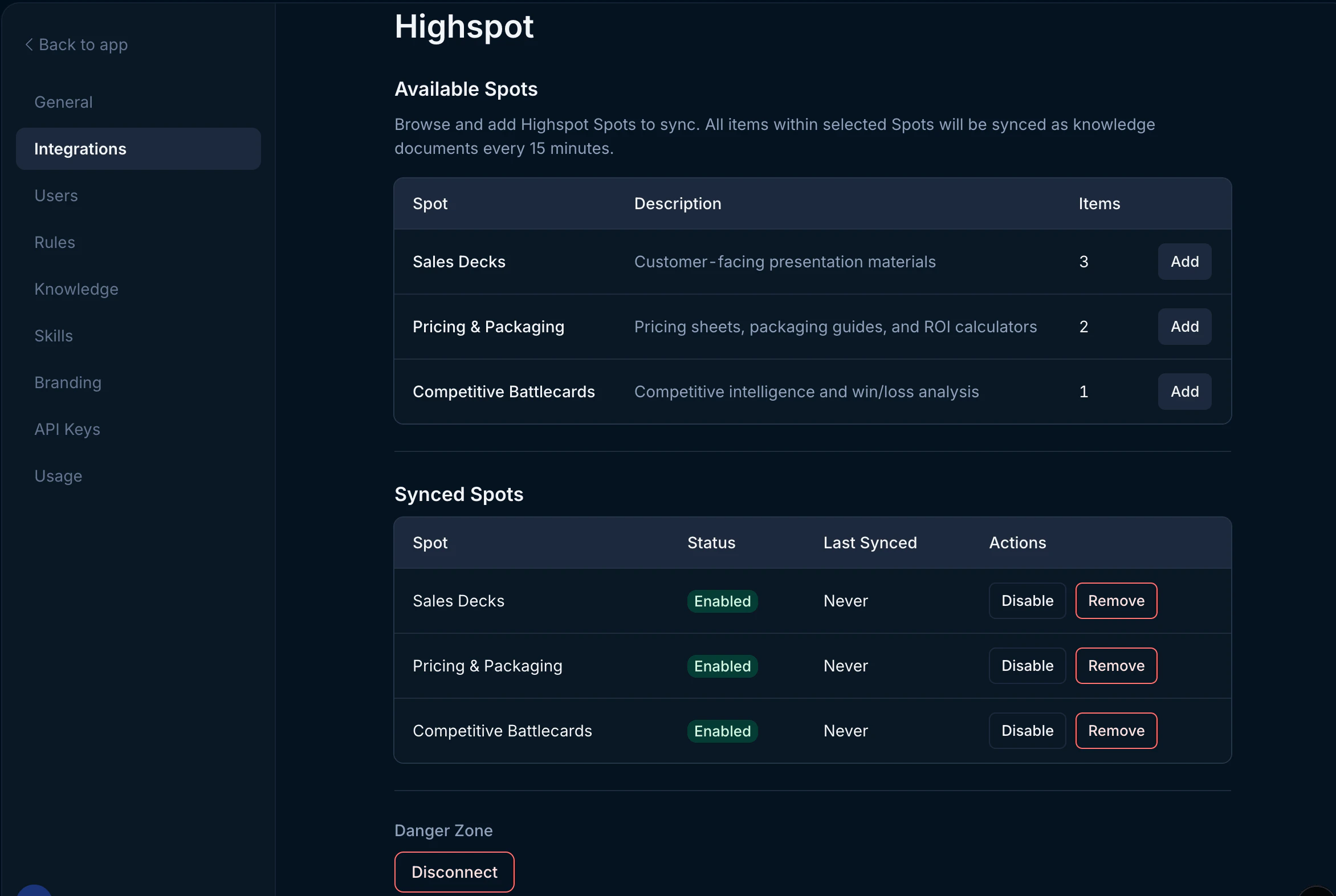
Updating your connection
Users can disconnect their Highspot connection at any time. Disconnecting will stop the ingestion of new content from Highspot and discontinue use of existing synced data. To disconnect, click the Disconnect button in the lower left-hand corner.
That’s it! Now that you’ve connected Highspot to Endgame, we’ll automatically ingest your Spot content every 15 minutes and present our insights in Endgame.