Create and manage API keys and machine-to-machine credentials for connecting to the Endgame MCP server.
Deprecation: The Endgame REST API, including the /threads endpoints, has
been deprecated. API keys and machine-to-machine credentials are still
supported for connecting to the Endgame MCP server.
Use API keys and machine-to-machine (M2M) credentials when an agent or automation needs to connect to the Endgame MCP server without a person signing in, such as a Claude Managed Agent, a scheduled job, or a CI pipeline. If a person is connecting their own AI assistant, they should sign in with their Endgame account instead — see Getting started.Credentials are passed as a Bearer token in the Authorization header on requests to the MCP server:
Authorization: Bearer eak_your_api_key_here
The Endgame MCP server URL is:
https://app.endgame.io/api/v1/mcp
Two kinds of credentials are accepted. Both are provisioned from Endgame itself — you don’t need to configure anything in an external identity provider.
Server-to-server integrations that want short-lived OAuth tokens via the client_credentials grant.
Both are admin-only. Admins can see every API key and application running against Endgame, and how much each one is used, in the Automations view of the Console.
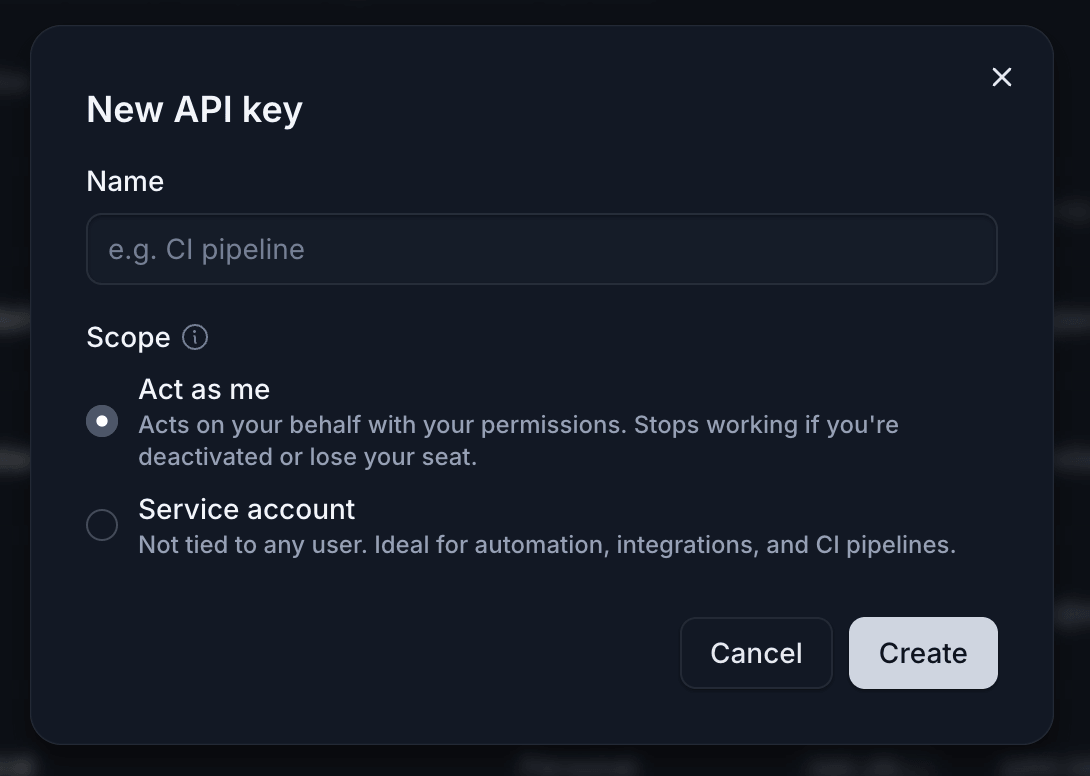
Give the key a descriptive name (e.g. deal-review-agent-prod) and pick a scope:
Act as me — Acts on your behalf with your permissions. Stops working if you’re deactivated or lose your seat.
Service account — Not tied to any user. Ideal for automation, integrations, and CI pipelines.
The full key is shown only once on creation — copy it immediately and store it in a secrets manager. The scope cannot be changed later.
Creating an API key in Endgame
3
Use the key to connect to the MCP server
Add the key as a Bearer token wherever your agent or MCP client is configured, with the server URL set to https://app.endgame.io/api/v1/mcp. For a step-by-step example, see Connect via Claude Managed Agents.
Use an M2M application when you need short-lived tokens issued per request (typical for production server-to-server integrations) rather than a long-lived static key.
You must be an admin in your Endgame organization to create applications.
Click New application, give it a descriptive name, and save. Endgame provisions a WorkOS OAuth client on your behalf and returns a client ID and client secret. The secret is shown only once on creation — copy it immediately into your secrets manager. You can rotate it later from the same page.
3
Exchange the credentials for an access token
Perform a standard OAuth client_credentials grant against WorkOS’s token endpoint:
API keys: revoke from the API Keys settings page — click Revoke next to the key’s row. Act as me keys are automatically revoked when the owning user is deactivated or their seat is revoked. Service account keys persist until explicitly revoked.M2M applications: delete the application (or rotate its secret) from the Applications settings page. Deleting the application revokes all access tokens issued under it.Revocation is immediate in both cases; subsequent requests using a revoked credential fail with 401 UNAUTHORIZED.
Store credentials in a secrets manager. Never commit them to source control.
Use a separate credential per environment (dev, staging, prod) so rotation is scoped.
Give each one a descriptive name so revocation decisions are easy to audit.
Rotate on a regular cadence and whenever a team member with access leaves.
For shared or automated workflows, prefer Service account keys or M2M applications over Act as me keys, so access doesn’t depend on a single person staying in the organization.
For access questions or help with authentication, contact support@endgame.io.
{"docsConfig":{"theme":"aspen","$schema":"https://mintlify.com/schema.json","name":"Endgame","colors":{"primary":"#0274e8","light":"#399aff","dark":"#0274e8"},"logo":{"light":"https://mintcdn.com/endgame-e965a12c/ZCxG3y9yC9e-mB8z/logo/logo-with-text-dark.svg?fit=max\u0026auto=format\u0026n=ZCxG3y9yC9e-mB8z\u0026q=85\u0026s=7ad1de478834c7a62468ce96275889c8","dark":"https://mintcdn.com/endgame-e965a12c/ZCxG3y9yC9e-mB8z/logo/logo-with-text.svg?fit=max\u0026auto=format\u0026n=ZCxG3y9yC9e-mB8z\u0026q=85\u0026s=72705a8b78eaa554ba56008a65e277b0","href":"https://endgame.io"},"favicon":"https://mintcdn.com/endgame-e965a12c/O_5LQWeGxfBCh0lD/logo/favicon.png?fit=max\u0026auto=format\u0026n=O_5LQWeGxfBCh0lD\u0026q=85\u0026s=88bf19f21e0a5b17ff2ac338b5d5e222","appearance":{"default":"dark"},"background":{"color":{"light":"#ffffff","dark":"#0e1420"}},"navbar":{"links":[{"icon":"life-buoy","href":"mailto:support@endgame.io","label":"Support"},{"icon":"activity","href":"https://status.endgame.io","label":"Status"}],"primary":{"type":"button","label":"Sign in","href":"https://app.endgame.io"}},"footer":{"socials":{"linkedin":"https://www.linkedin.com/company/endgamelabs","x":"https://twitter.com/endgamelabs"}},"fonts":{"heading":{"family":"Inter","weight":500},"body":{"family":"Inter","weight":400}},"icons":{"library":"lucide"},"styling":{"codeblocks":{"theme":{"light":"github-light-default","dark":"night-owl"}},"latex":false},"metadata":{"timestamp":false},"navigation":{"pages":[]}},"deployment":{"deploymentMetadataValue":{"subdomain":"endgame-e965a12c","hasAudioNarration":false,"actualSubdomain":"endgame-e965a12c","customDomains":["docs.endgame.io"],"gitSource":{"type":"github","owner":"endgame-labs","repo":"mintlify-docs","deployBranch":"main","contentDirectory":"mintlify","isPrivate":false,"mountPath":"","label":""},"chroma":{"liveDeploymentHistoryId":"6adbec96db12077e326bd89c","collectionId":"f7230fc0-3c71-438c-8e31-d14cd2054053","schemaVersion":"v3","latestBuiltDeploymentHistoryId":"6adbec96db12077e326bd89c"},"entitlements":{"AI_CHAT":{"status":"ENABLED"},"WEB_MCP":{"status":"ENABLED"},"NARRATION":{"status":"ENABLED"}},"buildId":"6adbec96db12077e326bd89c","clientVersion":"0.0.4006","searchFilterCounts":[{"language":"default","tag":"Admin Guides","count":19},{"language":"default","tag":"Integrations","count":19},{"language":"default","tag":"Implementation Guide","count":10},{"language":"default","tag":"Features","count":9},{"language":"default","tag":"Knowledge","count":7},{"language":"default","tag":"Trust \u0026 Support","count":5},{"language":"default","tag":"Transcripts","count":5},{"language":"default","tag":"Knowledge Management","count":3},{"language":"default","tag":"Access","count":2},{"language":"default","tag":"Welcome","count":2}]},"assistantConfig":{},"basePath":"","hasChatPermissions":true,"hasWebMcpPermissions":true,"toggles":[{"name":"kill-isr","enabled":true,"variant":{"name":"disabled","enabled":false,"feature_enabled":true},"impressionData":false},{"name":"agent-mintlify-slack","enabled":true,"variant":{"name":"disabled","enabled":false,"feature_enabled":true},"impressionData":false},{"name":"editor-v7-file-tree","enabled":true,"variant":{"name":"disabled","enabled":false,"feature_enabled":true},"impressionData":false},{"name":"agent-integrations-settings","enabled":true,"variant":{"name":"disabled","enabled":false,"feature_enabled":true},"impressionData":false},{"name":"automations-pr-grouping","enabled":true,"variant":{"name":"disabled","enabled":false,"feature_enabled":true},"impressionData":false},{"name":"custom-prefix","enabled":true,"variant":{"name":"disabled","enabled":false,"feature_enabled":true},"impressionData":false},{"name":"analytics-v7","enabled":true,"variant":{"name":"disabled","enabled":false,"feature_enabled":true},"impressionData":false},{"name":"user-flows-analytics","enabled":true,"variant":{"name":"disabled","enabled":false,"feature_enabled":true},"impressionData":false},{"name":"no-publish-flow","enabled":true,"variant":{"name":"disabled","enabled":false,"feature_enabled":true},"impressionData":false},{"name":"workos-onboarding","enabled":true,"variant":{"name":"disabled","enabled":false,"feature_enabled":true},"impressionData":false},{"name":"llms-txt-v2","enabled":true,"variant":{"name":"disabled","enabled":false,"feature_enabled":true},"impressionData":false},{"name":"pause-universal-search-reconcile","enabled":true,"variant":{"name":"disabled","enabled":false,"feature_enabled":true},"impressionData":false},{"name":"snapshot-serving-live","enabled":true,"variant":{"name":"disabled","enabled":false,"feature_enabled":true},"impressionData":false},{"name":"stripTemperatureMiddleware","enabled":true,"variant":{"name":"disabled","enabled":false,"feature_enabled":true},"impressionData":false},{"name":"per-site-search-delta","enabled":true,"variant":{"name":"disabled","enabled":false,"feature_enabled":true},"impressionData":false},{"name":"support-platform-pylon-zendesk","enabled":true,"variant":{"name":"disabled","enabled":false,"feature_enabled":true},"impressionData":false},{"name":"snapshot-serving","enabled":true,"variant":{"name":"disabled","enabled":false,"feature_enabled":true},"impressionData":false},{"name":"instant-rollback","enabled":true,"variant":{"name":"disabled","enabled":false,"feature_enabled":true},"impressionData":false},{"name":"granular-notifications-server","enabled":true,"variant":{"name":"disabled","enabled":false,"feature_enabled":true},"impressionData":false},{"name":"granular-notifications","enabled":true,"variant":{"name":"disabled","enabled":false,"feature_enabled":true},"impressionData":false},{"name":"editor-private-page-search","enabled":true,"variant":{"name":"disabled","enabled":false,"feature_enabled":true},"impressionData":false},{"name":"automations-fable","enabled":true,"variant":{"name":"disabled","enabled":false,"feature_enabled":true},"impressionData":false},{"name":"fixed-ai-action-pricing","enabled":true,"variant":{"name":"disabled","enabled":false,"feature_enabled":true},"impressionData":false},{"name":"automation-resolve-merge-conflict","enabled":true,"variant":{"name":"disabled","enabled":false,"feature_enabled":true},"impressionData":false},{"name":"scoped-publishing","enabled":true,"variant":{"name":"disabled","enabled":false,"feature_enabled":true},"impressionData":false},{"name":"mintql","enabled":true,"variant":{"name":"disabled","enabled":false,"feature_enabled":true},"impressionData":false},{"name":"page-level-analytics","enabled":true,"variant":{"name":"disabled","enabled":false,"feature_enabled":true},"impressionData":false},{"name":"editor-version-history-v2","enabled":true,"variant":{"name":"disabled","enabled":false,"feature_enabled":true},"impressionData":false},{"name":"editor-nav-generations","enabled":true,"variant":{"name":"disabled","enabled":false,"feature_enabled":true},"impressionData":false},{"name":"billing-page-v2","enabled":true,"variant":{"name":"disabled","enabled":false,"feature_enabled":true},"impressionData":false},{"name":"workspace-projects","enabled":true,"variant":{"name":"disabled","enabled":false,"feature_enabled":true},"impressionData":false},{"name":"assistant-v5","enabled":true,"variant":{"name":"disabled","enabled":false,"feature_enabled":true},"impressionData":false},{"name":"byok-sep-25","enabled":true,"variant":{"name":"disabled","enabled":false,"feature_enabled":true},"impressionData":false},{"name":"fork-pr-previews","enabled":true,"variant":{"name":"disabled","enabled":false,"feature_enabled":true},"impressionData":false},{"name":"revalidation-jwt","enabled":true,"variant":{"name":"disabled","enabled":false,"feature_enabled":true},"impressionData":false},{"name":"vite-origin","enabled":true,"variant":{"name":"disabled","enabled":false,"feature_enabled":true},"impressionData":false},{"name":"editor-agent-model-picker","enabled":true,"variant":{"name":"disabled","enabled":false,"feature_enabled":true},"impressionData":false},{"name":"billing-updated-9-15","enabled":true,"variant":{"name":"disabled","enabled":false,"feature_enabled":true},"impressionData":false},{"name":"workos-sso-scim","enabled":true,"variant":{"name":"disabled","enabled":false,"feature_enabled":true},"impressionData":false},{"name":"hobby-abuse-scan","enabled":true,"variant":{"name":"disabled","enabled":false,"feature_enabled":true},"impressionData":false},{"name":"dashboard-inbox","enabled":true,"variant":{"name":"disabled","enabled":false,"feature_enabled":true},"impressionData":false},{"name":"workos-signup","enabled":true,"variant":{"name":"disabled","enabled":false,"feature_enabled":true},"impressionData":false},{"name":"workos-enabled","enabled":true,"variant":{"name":"disabled","enabled":false,"feature_enabled":true},"impressionData":false}],"googleFontsInlined":false},"customCss":[{"filePath":"style.css","content":"/* cyrillic-ext */\n@font-face {\n font-family: 'Geist Mono';\n font-style: normal;\n font-weight: 400;\n font-display: swap;\n src: url(/_mintlify/assets/fonts/google/s/geistmono/v6/or3nQ6H-1_WfwkMZI_qYFrodmgPn.woff2) format('woff2');\n unicode-range: U+0460-052F, U+1C80-1C8A, U+20B4, U+2DE0-2DFF, U+A640-A69F, U+FE2E-FE2F;\n}\n/* cyrillic */\n@font-face {\n font-family: 'Geist Mono';\n font-style: normal;\n font-weight: 400;\n font-display: swap;\n src: url(/_mintlify/assets/fonts/google/s/geistmono/v6/or3nQ6H-1_WfwkMZI_qYFrMdmgPn.woff2) format('woff2');\n unicode-range: U+0301, U+0400-045F, U+0490-0491, U+04B0-04B1, U+2116;\n}\n/* symbols2 */\n@font-face {\n font-family: 'Geist Mono';\n font-style: normal;\n font-weight: 400;\n font-display: swap;\n src: url(/_mintlify/assets/fonts/google/s/geistmono/v6/or3nQ6H-1_WfwkMZI_qYFg08vz7ehw.woff2) format('woff2');\n unicode-range: U+2000-2001, U+2004-2008, U+200A, U+23B8-23BD, U+2500-259F;\n}\n/* vietnamese */\n@font-face {\n font-family: 'Geist Mono';\n font-style: normal;\n font-weight: 400;\n font-display: swap;\n src: url(/_mintlify/assets/fonts/google/s/geistmono/v6/or3nQ6H-1_WfwkMZI_qYFrgdmgPn.woff2) format('woff2');\n unicode-range: U+0102-0103, U+0110-0111, U+0128-0129, U+0168-0169, U+01A0-01A1, U+01AF-01B0, U+0300-0301, U+0303-0304, U+0308-0309, U+0323, U+0329, U+1EA0-1EF9, U+20AB;\n}\n/* latin-ext */\n@font-face {\n font-family: 'Geist Mono';\n font-style: normal;\n font-weight: 400;\n font-display: swap;\n src: url(/_mintlify/assets/fonts/google/s/geistmono/v6/or3nQ6H-1_WfwkMZI_qYFrkdmgPn.woff2) format('woff2');\n unicode-range: U+0100-02BA, U+02BD-02C5, U+02C7-02CC, U+02CE-02D7, U+02DD-02FF, U+0304, U+0308, U+0329, U+1D00-1DBF, U+1E00-1E9F, U+1EF2-1EFF, U+2020, U+20A0-20AB, U+20AD-20C4, U+2113, U+2C60-2C7F, U+A720-A7FF;\n}\n/* latin */\n@font-face {\n font-family: 'Geist Mono';\n font-style: normal;\n font-weight: 400;\n font-display: swap;\n src: url(/_mintlify/assets/fonts/google/s/geistmono/v6/or3nQ6H-1_WfwkMZI_qYFrcdmg.woff2) format('woff2');\n unicode-range: U+0000-00FF, U+0131, U+0152-0153, U+02BB-02BC, U+02C6, U+02DA, U+02DC, U+0304, U+0308, U+0329, U+2000-206F, U+20AC, U+2122, U+2191, U+2193, U+2212, U+2215, U+FEFF, U+FFFD;\n}\n/* cyrillic-ext */\n@font-face {\n font-family: 'Geist Mono';\n font-style: normal;\n font-weight: 500;\n font-display: swap;\n src: url(/_mintlify/assets/fonts/google/s/geistmono/v6/or3nQ6H-1_WfwkMZI_qYFrodmgPn.woff2) format('woff2');\n unicode-range: U+0460-052F, U+1C80-1C8A, U+20B4, U+2DE0-2DFF, U+A640-A69F, U+FE2E-FE2F;\n}\n/* cyrillic */\n@font-face {\n font-family: 'Geist Mono';\n font-style: normal;\n font-weight: 500;\n font-display: swap;\n src: url(/_mintlify/assets/fonts/google/s/geistmono/v6/or3nQ6H-1_WfwkMZI_qYFrMdmgPn.woff2) format('woff2');\n unicode-range: U+0301, U+0400-045F, U+0490-0491, U+04B0-04B1, U+2116;\n}\n/* symbols2 */\n@font-face {\n font-family: 'Geist Mono';\n font-style: normal;\n font-weight: 500;\n font-display: swap;\n src: url(/_mintlify/assets/fonts/google/s/geistmono/v6/or3nQ6H-1_WfwkMZI_qYFg08vz7ehw.woff2) format('woff2');\n unicode-range: U+2000-2001, U+2004-2008, U+200A, U+23B8-23BD, U+2500-259F;\n}\n/* vietnamese */\n@font-face {\n font-family: 'Geist Mono';\n font-style: normal;\n font-weight: 500;\n font-display: swap;\n src: url(/_mintlify/assets/fonts/google/s/geistmono/v6/or3nQ6H-1_WfwkMZI_qYFrgdmgPn.woff2) format('woff2');\n unicode-range: U+0102-0103, U+0110-0111, U+0128-0129, U+0168-0169, U+01A0-01A1, U+01AF-01B0, U+0300-0301, U+0303-0304, U+0308-0309, U+0323, U+0329, U+1EA0-1EF9, U+20AB;\n}\n/* latin-ext */\n@font-face {\n font-family: 'Geist Mono';\n font-style: normal;\n font-weight: 500;\n font-display: swap;\n src: url(/_mintlify/assets/fonts/google/s/geistmono/v6/or3nQ6H-1_WfwkMZI_qYFrkdmgPn.woff2) format('woff2');\n unicode-range: U+0100-02BA, U+02BD-02C5, U+02C7-02CC, U+02CE-02D7, U+02DD-02FF, U+0304, U+0308, U+0329, U+1D00-1DBF, U+1E00-1E9F, U+1EF2-1EFF, U+2020, U+20A0-20AB, U+20AD-20C4, U+2113, U+2C60-2C7F, U+A720-A7FF;\n}\n/* latin */\n@font-face {\n font-family: 'Geist Mono';\n font-style: normal;\n font-weight: 500;\n font-display: swap;\n src: url(/_mintlify/assets/fonts/google/s/geistmono/v6/or3nQ6H-1_WfwkMZI_qYFrcdmg.woff2) format('woff2');\n unicode-range: U+0000-00FF, U+0131, U+0152-0153, U+02BB-02BC, U+02C6, U+02DA, U+02DC, U+0304, U+0308, U+0329, U+2000-206F, U+20AC, U+2122, U+2191, U+2193, U+2212, U+2215, U+FEFF, U+FFFD;\n}\n:root{--eg-gray-50:#f9fafc;--eg-gray-100:#f3f5f9;--eg-gray-200:#e6e9ef;--eg-gray-300:#cfd5e0;--eg-gray-400:#96a0b5;--eg-gray-500:#737f96;--eg-gray-600:#4b5568;--eg-gray-700:#384255;--eg-gray-800:#242b3a;--eg-gray-850:#151c28;--eg-gray-900:#0e1420;--eg-gray-925:#090f1b;--eg-gray-950:#040810;--eg-blue-300:#399aff;--eg-blue-400:#0081f3;--eg-blue-500:#0274e8;--eg-blue-700:#004ba2;--eg-green:#34d399;--eg-orange:#dd8c5e;--eg-red:#e97d90;--eg-bg:var(--eg-gray-900);--eg-surface:var(--eg-gray-850);--eg-surface-sunken:var(--eg-gray-925);--eg-surface-lifted:var(--eg-gray-800);--eg-fg:var(--eg-gray-200);--eg-fg-strong:#ffffff;--eg-fg-secondary:var(--eg-gray-400);--eg-fg-muted:var(--eg-gray-500);--eg-border-muted:rgb(207 213 224 / 0.05);--eg-border:rgb(207 213 224 / 0.09);--eg-hover:rgb(207 213 224 / 0.09);--eg-active:rgb(207 213 224 / 0.14);--eg-callout-bg:color-mix(in srgb, var(--eg-gray-800) 50%, transparent);--eg-card-hover:color-mix(in srgb, var(--eg-gray-800) 60%, var(--eg-surface));--eg-status-note:var(--eg-blue-300);--eg-status-tip:var(--eg-green);--eg-status-warning:var(--eg-orange);--eg-status-danger:var(--eg-red);--eg-accent:var(--eg-blue-300);--eg-ring:var(--eg-blue-400);--eg-font-mono:\"Geist Mono\", ui-monospace, SFMono-Regular, \"SF Mono\", Menlo, Consolas, monospace;--gray-50:249 250 252;--gray-100:243 245 249;--gray-200:230 233 239;--gray-300:207 213 224;--gray-400:150 160 181;--gray-500:115 127 150;--gray-600:75 85 104;--gray-700:56 66 85;--gray-800:36 43 58;--gray-900:14 20 32;--gray-950:4 8 16;--rounded-xl:0.5rem;--rounded-2xl:0.5rem;--rounded-3xl:1rem;--rounded-full:9999px;--rounded-search:0.5rem}html.light{--eg-bg:#ffffff;--eg-surface:var(--eg-gray-50);--eg-surface-sunken:#f5f6fa;--eg-surface-lifted:var(--eg-gray-200);--eg-fg:var(--eg-gray-900);--eg-fg-strong:var(--eg-gray-950);--eg-fg-secondary:var(--eg-gray-700);--eg-fg-muted:var(--eg-gray-600);--eg-border-muted:rgb(14 20 32 / 0.05);--eg-border:rgb(14 20 32 / 0.09);--eg-hover:rgb(14 20 32 / 0.06);--eg-active:rgb(14 20 32 / 0.08);--eg-callout-bg:var(--eg-surface);--eg-card-hover:var(--eg-gray-100);--eg-status-note:var(--eg-blue-700);--eg-status-tip:#00875e;--eg-status-warning:#a95823;--eg-status-danger:#b5455d;--eg-accent:var(--eg-blue-700);scrollbar-color:rgb(0 0 0/.12) transparent}html{background-color:var(--eg-bg);scrollbar-color:rgb(255 255 255/.12) transparent}::selection{background:color-mix(in srgb,var(--eg-blue-700) 70%,transparent);color:#fff}html.light ::selection{background:var(--eg-blue-700)}:where(a[href], button, input, select, textarea, summary, [tabindex]:not([tabindex=\"-1\"])):focus-visible{outline:2px solid var(--eg-ring)!important;outline-offset:2px!important}#navigation-items a:focus-visible,#navigation-items button:focus-visible,#sidebar-content [data-id$=-viewport]:focus-visible,#table-of-contents a:focus-visible,#table-of-contents button:focus-visible,.accordion>summary:focus-visible,.code-block [tabindex=\"0\"]:focus-visible,.code-group [tabindex=\"0\"]:focus-visible,.tabs [role=tab]:focus-visible,[role=menu] [role^=menuitem]:focus-visible{outline-offset:-2px!important}.accordion>summary:focus-visible{border-radius:inherit}.tabs [role=tab]:focus-visible{border-radius:.375rem}#sidebar-content [data-id$=-viewport]:focus-visible{border-radius:.5rem}#table-of-contents .toc-item>a:focus-visible{margin-left:0!important;--toc-focus-padding:0rem!important}#table-of-contents h2 button{transition-property:color,background-color!important}.eyebrow,code,kbd,pre{font-family:var(--eg-font-mono)}#error-title,#page-title{font-weight:500;letter-spacing:-.05em;line-height:1.15;color:var(--eg-fg)}.eyebrow{font-size:.75rem;font-weight:400;letter-spacing:.14em;text-transform:uppercase;color:var(--eg-fg-muted)!important}.prose{color:var(--eg-fg)}.prose :where(h1, h2, h3, h4):not(:where([class~=\"not-prose\"], [class~=\"not-prose\"] *)){color:var(--eg-fg);font-weight:500}.prose :where(h2):not(:where([class~=\"not-prose\"], [class~=\"not-prose\"] *)){font-size:1.625rem;letter-spacing:-.05em;line-height:1.25;margin-top:4rem}.prose :where(h3):not(:where([class~=\"not-prose\"], [class~=\"not-prose\"] *)){font-size:1.25rem;letter-spacing:-.025em;margin-top:2rem;margin-bottom:1rem}.prose :where(h4):not(:where([class~=\"not-prose\"], [class~=\"not-prose\"] *)){letter-spacing:-.02em;margin-top:2rem;margin-bottom:.75rem}.prose :where(p, li):not(:where([class~=\"not-prose\"], [class~=\"not-prose\"] *)){color:var(--eg-fg)}.prose :where(li)::marker{color:var(--eg-fg-muted)}.prose :where(strong):not(:where([class~=\"not-prose\"], [class~=\"not-prose\"] *)){color:var(--eg-fg);font-weight:600}.prose :where(hr):not(:where([class~=\"not-prose\"], [class~=\"not-prose\"] *)){border-color:var(--eg-border-muted)}.prose :where(a):not(:where([class~=\"not-prose\"], [class~=\"not-prose\"] *, .card, .card *, .group\\/link, [data-component-part])){color:var(--eg-fg-strong);font-weight:inherit;border-bottom:0;text-decoration-line:underline;text-decoration-color:var(--eg-accent);text-decoration-thickness:1px;text-underline-offset:2px;transition:text-decoration-thickness .2s ease}.prose :where(a):not(:where([class~=\"not-prose\"], [class~=\"not-prose\"] *, .card, .card *, .group\\/link, [data-component-part])):active,.prose :where(a):not(:where([class~=\"not-prose\"], [class~=\"not-prose\"] *, .card, .card *, .group\\/link, [data-component-part])):hover{border-bottom:0;text-decoration-thickness:2px}.prose :where(h1, h2, h3, h4, h5, h6) a.link{color:inherit;text-decoration-line:none}.prose :where(h1, h2, h3, h4, h5, h6) a.link:hover{text-decoration-line:underline;text-decoration-thickness:2px}.prose :where(blockquote):not(.sr-only){border-left:2px solid var(--eg-active)!important;padding-left:1rem;color:var(--eg-fg-secondary)}.prose .eg-icon-list{display:flex;flex-direction:column;gap:.625rem;margin:1.25rem 0}.prose .eg-icon-list>div{display:flex;align-items:center;gap:.75rem}.prose .eg-icon-list svg[style*=mask]{flex-shrink:0;background-color:var(--eg-fg-muted)!important}.prose .eg-icon-list--done svg[style*=mask]{background-color:var(--eg-status-tip)!important}.update [data-component-part=update-label]{background-color:var(--eg-surface)!important;color:var(--eg-fg-muted)!important;font-family:var(--eg-font-mono);font-size:.75rem;font-weight:400;letter-spacing:.14em;text-transform:uppercase}.prose :where(code):not(:where(pre code, [class~=\"not-prose\"] *)){background:var(--eg-surface);border:0;border-radius:.25rem;padding:.2rem .4rem;font-size:.875em;font-weight:400;color:var(--eg-accent)}.prose :where(a code){color:inherit}#navbar{background-color:color-mix(in srgb,var(--eg-bg) 95%,transparent);backdrop-filter:blur(4px);-webkit-backdrop-filter:blur(4px)}#navbar>div.absolute.inset-0,.navbar-link>a{background-color:transparent!important}#navbar .border-b,#navbar>.border-gray-100{border-bottom:0!important;box-shadow:0 1px 0 0 var(--eg-border-muted)}.navbar-link>a{color:var(--eg-fg);font-size:.875rem;font-weight:500;border-radius:.5rem;transition:background-color .15s ease}.navbar-link>a:focus-visible,.navbar-link>a:hover{background-color:var(--eg-hover)!important}.navbar-link>a svg{color:var(--eg-fg-secondary)}#topbar-cta-button>a{height:2.25rem;padding:0 1rem;border-radius:.5rem;background:var(--eg-gray-300);font-size:.875rem;font-weight:500;transition:background-color .3s ease}#topbar-cta-button>a:hover{background:var(--eg-gray-200)}#topbar-cta-button>a .absolute{background:0 0!important}#topbar-cta-button>a,#topbar-cta-button>a *{color:var(--eg-gray-900)!important}html.light #topbar-cta-button>a{background:var(--eg-gray-900)}html.light #topbar-cta-button>a:hover{background:var(--eg-gray-800)}html.light #topbar-cta-button>a,html.light #topbar-cta-button>a *{color:var(--eg-gray-50)!important}.theme-preference-menu-trigger{background-color:var(--eg-surface)!important;box-shadow:inset 0 0 0 1px var(--eg-border-muted);transition:background-color .2s ease}.theme-preference-menu-trigger:hover{background-color:var(--eg-surface-lifted)!important}.theme-preference-menu-trigger svg{color:var(--eg-fg-secondary)!important}.theme-preference-menu-trigger:hover svg{color:var(--eg-fg-strong)!important}#search-bar-entry,#search-bar-entry-mobile{background-color:var(--eg-surface);border:0;box-shadow:inset 0 0 0 1px var(--eg-border-muted);border-radius:.5rem;color:var(--eg-fg-secondary)}#search-bar-entry:hover{box-shadow:inset 0 0 0 1px var(--eg-border)}#sidebar-content{border-right:1px solid var(--eg-border-muted)}.sidebar-group-header,.sidebar-group-header .sidebar-title{font-family:var(--eg-font-mono);font-size:.75rem;font-weight:400;letter-spacing:.14em;text-transform:uppercase;color:var(--eg-fg-muted)}.sidebar-nav-group-divider{background-color:var(--eg-border-muted)!important;border:0}#navigation-items li>a,#navigation-items li>button,#navigation-items li>div>a,#navigation-items li>div>button{color:var(--eg-fg-secondary);border-radius:.5rem;transition:background-color .15s ease,color .15s ease}#navigation-items li>a:not([aria-current=page],[class*=bg-primary]):hover,#navigation-items li>button:hover,#navigation-items li>div>a:not([aria-current=page],[class*=bg-primary]):hover,#navigation-items li>div>button:hover{background-color:var(--eg-hover)!important;color:var(--eg-fg)}#navigation-items a[aria-current=page],#navigation-items a[class*=bg-primary]{background-color:var(--eg-active)!important;color:var(--eg-fg-strong)!important;text-shadow:none!important;font-weight:500}#navigation-items li>button svg[class*=transition-transform]{color:var(--eg-fg-muted)!important}#navigation-items li svg[class*=mask],#navigation-items li svg[style*=mask]{background-color:var(--eg-fg-muted)}#footer a:hover svg[class*=mask],#footer a:hover svg[style*=mask],#navigation-items a[aria-current=page] svg,#navigation-items a[class*=bg-primary] svg{background-color:var(--eg-fg-strong)!important}#table-of-contents .toc-item,#table-of-contents .toc-item>a{border-left-color:var(--eg-border-muted)!important}#table-of-contents .toc-item>a{color:var(--eg-fg-secondary);transition:color .15s ease,border-color .15s ease}#table-of-contents .toc-item>a:hover{color:var(--eg-fg);border-left-color:var(--eg-fg-muted)!important}#table-of-contents .toc-item[data-active]>a{color:var(--eg-fg-strong)!important;border-left-color:var(--eg-fg)!important;text-shadow:none!important}#table-of-contents h2 button{font-family:var(--eg-font-mono);font-size:.75rem;font-weight:400;letter-spacing:.14em;text-transform:uppercase;color:var(--eg-fg-muted)}#table-of-contents h2 button svg{display:none}.card{background-color:var(--eg-surface)!important;border:0!important;border-radius:var(--rounded-3xl);box-shadow:inset 0 0 0 1px var(--eg-border-muted);transition:background-color .2s ease,box-shadow .2s ease}.card [data-component-part=card-icon] svg{background-color:var(--eg-fg-secondary)!important;transition:background-color .2s ease}.card:focus-within [data-component-part=card-icon] svg,.card:hover [data-component-part=card-icon] svg{background-color:var(--eg-fg-strong)!important}.card:has(a:focus-visible),.card:has(a[href]):hover,.card[role=link]:focus-visible,.card[role=link]:hover,a.card:focus-visible,a.card:hover{background-color:var(--eg-card-hover)!important;box-shadow:inset 0 0 0 1px var(--eg-border)}.card:has(a[href]):active,.card[role=link]:active,a.card:active{background-color:var(--eg-surface-lifted)!important}.card [data-component-part=card-title]{color:var(--eg-fg-strong)!important;font-weight:500;letter-spacing:-.015em}.callout svg,.card [data-component-part=card-content],.card [data-component-part=card-content] p{color:var(--eg-fg-secondary)!important}#pagination{margin-top:4rem;border-top:1px solid var(--eg-border-muted);column-gap:2.5rem;row-gap:0}#pagination>a{background:0 0!important;border:0!important;border-radius:.5rem;padding:2rem 0!important;box-shadow:none!important}#pagination>a>div{display:flex;flex-direction:column-reverse;gap:.75rem}#pagination>a>div>*{margin:0!important}#pagination>a>div>div:first-child{max-width:28rem;white-space:normal;overflow:visible;text-overflow:clip;font-size:1.125rem;font-weight:500;line-height:1.375;letter-spacing:-.025em;color:var(--eg-fg-secondary);transition:color .15s ease}#pagination>a:focus-visible>div>div:first-child,#pagination>a:hover>div>div:first-child{color:var(--eg-fg)}#pagination>a:focus-visible{outline-offset:6px!important}#pagination>a>div>div:last-child{font-family:var(--eg-font-mono);font-size:.75rem;letter-spacing:.14em;text-transform:uppercase;color:var(--eg-fg-muted)!important}#pagination>a>div>div:last-child span{font-weight:400}#pagination>a>div>div:last-child svg{display:none}#pagination>a:not(.justify-end)>div>div:last-child::before{content:\"←\";margin-right:.5em;letter-spacing:0}#pagination>a.justify-end>div>div:last-child::before{content:\"→\";margin-left:.5em;letter-spacing:0}@media (min-width:640px){#pagination>a.justify-end>div{align-items:flex-end;text-align:right}}@media (max-width:639px){#pagination>a.justify-end{justify-content:flex-start}#pagination>a.justify-end>div>div:last-child{align-self:flex-start}}#pagination>div:empty{display:none}#pagination:not(:has(>a+a)){grid-template-columns:minmax(0,1fr)}@media (min-width:640px){#pagination:has(>a+a){grid-template-columns:repeat(2,minmax(0,1fr));column-gap:2.5rem}}.callout{background-color:var(--eg-callout-bg)!important;border:0!important;border-radius:.5rem;box-shadow:inset 0 0 0 1px var(--eg-border-muted)}.callout,.callout [data-component-part=callout-content],.callout [data-component-part=callout-content] :where(p, li, strong, em){color:var(--eg-fg)!important}.callout [data-component-part=callout-content] a{-webkit-text-fill-color:var(--eg-fg-strong)}.callout [data-component-part=callout-icon] svg{width:1rem!important;height:1rem!important}.callout[data-callout-type=note] svg{color:var(--eg-status-note)!important}.callout[data-callout-type=check] svg,.callout[data-callout-type=tip] svg,.code-block button svg[class*=text-primary],.code-group button svg[class*=text-primary]{color:var(--eg-status-tip)!important}.callout[data-callout-type=warning] svg{color:var(--eg-status-warning)!important}.callout[data-callout-type=danger] svg{color:var(--eg-status-danger)!important}.code-block,.code-group{background-color:var(--eg-surface-sunken)!important;border-color:var(--eg-border-muted)!important}.code-block [class*=bg-codeblock],.code-block pre,.code-group [class*=bg-codeblock],.code-group pre,html .code-block .code-block-background,html .code-group .code-block-background{background-color:transparent!important}.shiki span[style*=\"--shiki-dark: #5f7e97\"i],.shiki span[style*=\"--shiki-dark: #637777\"i],.shiki span[style*=\"--shiki-dark:#5f7e97\"i],.shiki span[style*=\"--shiki-dark:#637777\"i]{--shiki-dark:var(--eg-gray-500)!important}html.dark .shiki span[style*=\"--shiki-dark: #637777\"i],html.dark .shiki span[style*=\"--shiki-dark:#637777\"i]{font-style:italic}html.light .shiki span[style*=\"--shiki-dark: #637777\"i],html.light .shiki span[style*=\"--shiki-dark:#637777\"i]{color:var(--eg-gray-600)!important}.code-block-fade-overlay{background-image:linear-gradient(to right,transparent 0,color-mix(in srgb,var(--eg-surface-sunken) 20%,transparent) 10px,color-mix(in srgb,var(--eg-surface-sunken) 50%,transparent) 25px,color-mix(in srgb,var(--eg-surface-sunken) 80%,transparent) 35px,var(--eg-surface-sunken) 45px)!important}[data-component-part=scroll-area-thumb]{background-color:rgb(255 255 255/.12)!important}[data-component-part=scroll-area-thumb]:active,[data-component-part=scroll-area-thumb]:hover{background-color:rgb(255 255 255/.28)!important}html.light [data-component-part=scroll-area-thumb]{background-color:rgb(0 0 0/.12)!important}html.light [data-component-part=scroll-area-thumb]:active,html.light [data-component-part=scroll-area-thumb]:hover{background-color:rgb(0 0 0/.28)!important}[data-component-part=scroll-area-scrollbar]{background-color:transparent!important}.step>div.w-px{background-color:var(--eg-border-muted)!important}.step>div.w-px.to-transparent{background-image:linear-gradient(to bottom,var(--eg-border-muted) 0%,transparent 100%)}.accordion,.border-standard,.chat-assistant-floating-input [class*=pointer-events-auto][class*=border],.tabs ul{border-color:var(--eg-border-muted)!important}.accordion,.step>div.w-px.to-transparent{background-color:transparent!important}.accordion>summary:hover{background-color:var(--eg-hover)!important}.tabs ul{scrollbar-width:thin}[data-component-part=tab-button]{font-weight:500!important;color:var(--eg-fg-secondary)!important;border-bottom-color:transparent!important;transition:color .2s ease,border-color .2s ease}[data-component-part=tab-button]:hover{color:var(--eg-fg-strong)!important;border-bottom-color:var(--eg-border)!important}[data-component-part=tab-button][data-active=true]{color:var(--eg-fg-strong)!important;border-bottom-color:var(--eg-fg-strong)!important}.frame{margin-top:2rem;margin-bottom:2rem;border-radius:var(--rounded-3xl)!important;background-color:var(--eg-surface)!important;border:0!important;box-shadow:inset 0 0 0 1px var(--eg-border-muted)}.frame [class*=\"border-black/5\"]{border-color:var(--eg-border-muted)!important;border-radius:inherit!important}.frame [class*=bg-grid]{display:none}.zoom-image-chrome-pull-hide button,button[data-ramka-trigger]{background-color:color-mix(in srgb,var(--eg-surface) 80%,transparent)!important;border-color:var(--eg-border)!important;color:var(--eg-fg-strong)!important;box-shadow:none!important}.zoom-image-chrome-pull-hide button:hover:not(:disabled),button[data-ramka-trigger]:hover:not(:disabled){background-color:var(--eg-surface-lifted)!important}.zoom-image-backdrop{background-color:rgb(4 8 16/.92)!important}html.light .zoom-image-backdrop{background-color:rgb(249 250 252/.94)!important}.chat-assistant-send-button{background-color:var(--eg-gray-300)!important;color:var(--eg-gray-900)!important}html.light .chat-assistant-send-button{background-color:var(--eg-gray-900)!important;color:var(--eg-gray-50)!important}.chat-assistant-send-button:disabled,html.light .chat-assistant-send-button:disabled{background-color:var(--eg-active)!important;color:var(--eg-fg-muted)!important}[role=tooltip][class*=bg-primary]{background-color:var(--eg-gray-950)!important;border-color:var(--eg-border)!important;color:var(--eg-gray-100)!important;border-radius:.375rem;font-weight:500}html.light [role=tooltip][class*=bg-primary]{background-color:var(--eg-gray-300)!important;color:var(--eg-gray-950)!important}[role=dialog]:has(>nav .navbar-link){background-color:var(--eg-surface)!important;box-shadow:inset 0 0 0 1px var(--eg-border)!important}[role=dialog]:has(>nav .navbar-link)>button{border-radius:.5rem;background-color:var(--eg-hover)!important}[role=dialog]:has(>nav .navbar-link) nav a,[role=dialog]:has(>nav .navbar-link) nav a *{color:var(--eg-fg-secondary)!important}[role=dialog]:has(>nav .navbar-link) nav a:hover,[role=dialog]:has(>nav .navbar-link) nav a:hover *{color:var(--eg-fg-strong)!important}html.dark #content a.group\\/link>div,html.dark #search-bar-entry,html.dark .prose a.group\\/link>div{filter:none!important}a.group\\/link:focus-visible{outline:0!important}a.group\\/link:focus-visible>div{border-width:0!important;outline:2px solid var(--eg-ring);outline-offset:2px}[data-component-part=search-modal],[role=menu]{background-color:var(--eg-surface)!important;border-color:var(--eg-border)!important}[data-component-part=search-modal]{border-radius:1rem!important}[role=menu] [role^=menuitem]{color:var(--eg-fg-secondary);border-radius:.375rem}[role=menu] [role^=menuitem]:hover,[role=menu] [role^=menuitem][data-highlighted]{background-color:var(--eg-hover)!important;color:var(--eg-fg-strong)}#footer a:hover,#footer a:hover *,[role=menu] [role^=menuitem][data-active=true],[role=menu] [role^=menuitem][data-active=true] *{color:var(--eg-fg-strong)!important}[data-component-part=search-header]>div{background-color:var(--eg-bg)!important;border-color:var(--eg-border-muted)!important}[data-component-part=search-list] [role=option][aria-selected=true],[data-component-part=search-list] [role=option][data-highlighted]{background-color:var(--eg-hover)!important}[data-component-part=search-backdrop]{background-color:rgb(4 8 16/.6)!important}html.light [data-component-part=search-backdrop]{background-color:rgb(14 20 32/.2)!important}[class*=\"--backdrop-opacity\"]{background-color:var(--eg-gray-950)!important}.theme-preference-switch-option{color:var(--eg-fg-muted)}.theme-preference-switch-option[aria-pressed=true]{background-color:var(--eg-active)!important;color:var(--eg-fg-strong)!important}div:has(>.theme-preference-switch-option){border-color:var(--eg-border-muted)!important}.prose :where(thead th){font-weight:500;color:var(--eg-fg)}.prose :where(tbody tr),.prose :where(thead){border-bottom-color:var(--eg-border-muted)!important}#footer{border-top:1px solid var(--eg-border-muted)}#footer a,#footer a *{color:var(--eg-fg-muted)!important;transition:color .15s ease}#footer a svg[class*=mask],#footer a svg[style*=mask]{background-color:var(--eg-fg-muted)!important}#error-badge{margin-bottom:-1rem;padding:0;font-family:var(--eg-font-mono);font-size:.75rem;font-weight:400;letter-spacing:.14em;line-height:1rem;text-transform:uppercase;color:var(--eg-fg-muted)!important}"}],"page":{"pagePath":"api-reference/api-keys","slug":"/api-reference/api-keys","pageMetadata":{"title":"API Keys","description":"Create and manage API keys and machine-to-machine credentials for connecting to the Endgame MCP server.","icon":"key-round","href":"/api-reference/api-keys"},"description":{"compiledSource":"\"use strict\";\nconst {jsx: _jsx} = arguments[0];\nconst {useMDXComponents: _provideComponents} = arguments[0];\nfunction _createMdxContent(props) {\n const _components = {\n p: \"p\",\n ..._provideComponents(),\n ...props.components\n };\n return _jsx(_components.p, {\n children: \"Create and manage API keys and machine-to-machine credentials for connecting to the Endgame MCP server.\"\n });\n}\nfunction MDXContent(props = {}) {\n const {wrapper: MDXLayout} = {\n ..._provideComponents(),\n ...props.components\n };\n return MDXLayout ? _jsx(MDXLayout, {\n ...props,\n children: _jsx(_createMdxContent, {\n ...props\n })\n }) : _createMdxContent(props);\n}\nreturn {\n default: MDXContent\n};\n","frontmatter":{},"scope":{}},"pageType":"default","mdx":{"mdxSource":{"compiledSource":"\"use strict\";const{Fragment:_Fragment,jsx:_jsx,jsxs:_jsxs}=arguments[0];const{useMDXComponents:_provideComponents}=arguments[0];function _createMdxContent(props){const _components={a:`a`,code:`code`,li:`li`,p:`p`,pre:`pre`,span:`span`,strong:`strong`,tbody:`tbody`,td:`td`,th:`th`,thead:`thead`,tr:`tr`,ul:`ul`,..._provideComponents(),...props.components},{CodeBlock,Frame,Heading,Note,OptimizedImage,Step,Steps,Table,Warning}=_components;if(!CodeBlock)_missingMdxReference(`CodeBlock`,true);if(!Frame)_missingMdxReference(`Frame`,true);if(!Heading)_missingMdxReference(`Heading`,true);if(!Note)_missingMdxReference(`Note`,true);if(!OptimizedImage)_missingMdxReference(`OptimizedImage`,true);if(!Step)_missingMdxReference(`Step`,true);if(!Steps)_missingMdxReference(`Steps`,true);if(!Table)_missingMdxReference(`Table`,true);if(!Warning)_missingMdxReference(`Warning`,true);return _jsxs(_Fragment,{children:[_jsx(Warning,{children:_jsxs(_components.p,{children:[_jsx(_components.strong,{children:`Deprecation:`}),` The Endgame REST API, including the `,_jsx(_components.code,{children:`/threads`}),` endpoints, has\nbeen deprecated. API keys and machine-to-machine credentials are still\nsupported for connecting to the `,_jsx(_components.a,{href:`/features/mcp-server`,children:`Endgame MCP server`}),`.`]})}),`\n`,_jsxs(_components.p,{children:[`Use API keys and machine-to-machine (M2M) credentials when an agent or automation needs to connect to the Endgame MCP server without a person signing in, such as a `,_jsx(_components.a,{href:`/features/mcp-server#connect-via-claude-managed-agents-service-accounts`,children:`Claude Managed Agent`}),`, a scheduled job, or a CI pipeline. If a person is connecting their own AI assistant, they should sign in with their Endgame account instead — see `,_jsx(_components.a,{href:`/features/mcp-server#getting-started`,children:`Getting started`}),`.`]}),`\n`,_jsxs(_components.p,{children:[`Credentials are passed as a `,_jsx(_components.strong,{children:`Bearer token`}),` in the `,_jsx(_components.code,{children:`Authorization`}),` header on requests to the MCP server:`]}),`\n`,_jsx(CodeBlock,{filename:``,numberOfLines:`1`,language:`http`,children:_jsx(_components.pre,{className:`shiki shiki-themes github-light-default night-owl`,style:{backgroundColor:`#ffffff`,\"--shiki-dark-bg\":`#011627`,color:`#1f2328`,\"--shiki-dark\":`#d6deeb`},language:`http`,children:_jsxs(_components.code,{language:`http`,numberOfLines:`1`,children:[_jsxs(_components.span,{className:`line`,children:[_jsx(_components.span,{style:{color:`#116329`,\"--shiki-dark\":`#CAECE6`},children:`Authorization`}),_jsx(_components.span,{style:{color:`#CF222E`,\"--shiki-dark\":`#C792EA`},children:`:`}),_jsx(_components.span,{style:{color:`#0A3069`,\"--shiki-dark\":`#ECC48D`},children:` Bearer eak_your_api_key_here`})]}),`\n`]})})}),`\n`,_jsx(_components.p,{children:`The Endgame MCP server URL is:`}),`\n`,_jsx(CodeBlock,{numberOfLines:`2`,language:`text`,children:_jsx(_components.pre,{className:`shiki shiki-themes github-light-default night-owl`,style:{backgroundColor:`#ffffff`,\"--shiki-dark-bg\":`#011627`,color:`#1f2328`,\"--shiki-dark\":`#d6deeb`},language:`text`,children:_jsxs(_components.code,{language:`text`,numberOfLines:`2`,children:[_jsx(_components.span,{className:`line`,children:_jsx(_components.span,{children:`https://app.endgame.io/api/v1/mcp`})}),`\n`,_jsx(_components.span,{className:`line`,children:_jsx(_components.span,{})})]})})}),`\n`,_jsx(_components.p,{children:`Two kinds of credentials are accepted. Both are provisioned from Endgame itself — you don’t need to configure anything in an external identity provider.`}),`\n`,_jsxs(Table,{children:[_jsx(_components.thead,{children:_jsxs(_components.tr,{children:[_jsx(_components.th,{children:`Credential`}),_jsx(_components.th,{children:`Where you create it`}),_jsx(_components.th,{children:`When to use`})]})}),_jsxs(_components.tbody,{children:[_jsxs(_components.tr,{children:[_jsxs(_components.td,{children:[_jsx(_components.strong,{children:`API key`}),` (`,_jsx(_components.code,{children:`eak_*`}),`)`]}),_jsx(_components.td,{children:_jsx(_components.a,{href:`https://app.endgame.io/settings/api-keys`,children:`Settings → API Keys`})}),_jsx(_components.td,{children:`Agents and automations where a long-lived static token is fine.`})]}),_jsxs(_components.tr,{children:[_jsx(_components.td,{children:_jsx(_components.strong,{children:`M2M application`})}),_jsx(_components.td,{children:_jsx(_components.a,{href:`https://app.endgame.io/settings/applications`,children:`Settings → Applications`})}),_jsxs(_components.td,{children:[`Server-to-server integrations that want short-lived OAuth tokens via the `,_jsx(_components.code,{children:`client_credentials`}),` grant.`]})]})]})]}),`\n`,_jsxs(_components.p,{children:[`Both are admin-only. Admins can see every API key and application running against Endgame, and how much each one is used, in the `,_jsx(_components.strong,{children:`Automations`}),` view of the `,_jsx(_components.a,{href:`/console-observation#automations`,children:`Console`}),`.`]}),`\n`,_jsx(Heading,{level:`2`,id:`create-an-api-key`,children:`Create an API key`}),`\n`,_jsx(Note,{children:_jsx(_components.p,{children:`You must be an admin in your Endgame organization to create API keys. The\nnumber of service account keys your organization can create may be limited.`})}),`\n`,_jsxs(Steps,{children:[_jsx(Step,{title:`Open the API Keys settings page`,children:_jsxs(_components.p,{children:[`Sign in to Endgame and open `,_jsx(_components.a,{href:`https://app.endgame.io/settings/api-keys`,children:`the API Keys settings page`}),`.`]})}),_jsxs(Step,{title:`Click New API key`,children:[_jsxs(_components.p,{children:[`Give the key a descriptive name (e.g. `,_jsx(_components.code,{children:`deal-review-agent-prod`}),`) and pick a scope:`]}),_jsxs(_components.ul,{children:[`\n`,_jsxs(_components.li,{children:[_jsx(_components.strong,{children:`Act as me`}),` — Acts on your behalf with your permissions. Stops working if you’re deactivated or lose your seat.`]}),`\n`,_jsxs(_components.li,{children:[_jsx(_components.strong,{children:`Service account`}),` — Not tied to any user. Ideal for automation, integrations, and CI pipelines.`]}),`\n`]}),_jsxs(_components.p,{children:[`The full key is shown `,_jsx(_components.strong,{children:`only once`}),` on creation — copy it immediately and store it in a secrets manager. The scope cannot be changed later.`]}),_jsx(Frame,{caption:`Creating an API key in Endgame`,children:_jsx(OptimizedImage,{src:`https://mintcdn.com/endgame-e965a12c/iMJIpERWQUPrtiN4/images/create-service-account-api-key-10-16-26.png?fit=max\u0026auto=format\u0026n=iMJIpERWQUPrtiN4\u0026q=85\u0026s=a6c1174ae1e62ea09c5af9d7da55c682`,alt:`New API key dialog with a name field and Act as me and Service account scope options`,className:`mint-rounded-lg`,\"data-og-width\":`1090`,width:`1090`,\"data-og-height\":`776`,height:`776`,\"data-path\":`images/create-service-account-api-key-10-16-26.png`,\"data-optimize\":`true`,\"data-opv\":`3`,srcset:`https://mintcdn.com/endgame-e965a12c/iMJIpERWQUPrtiN4/images/create-service-account-api-key-10-16-26.png?w=280\u0026fit=max\u0026auto=format\u0026n=iMJIpERWQUPrtiN4\u0026q=85\u0026s=f6c5162e468b0f38adbf2a9a04fc4c43 280w, https://mintcdn.com/endgame-e965a12c/iMJIpERWQUPrtiN4/images/create-service-account-api-key-10-16-26.png?w=560\u0026fit=max\u0026auto=format\u0026n=iMJIpERWQUPrtiN4\u0026q=85\u0026s=85f94893c19c304995ec829611a473ff 560w, https://mintcdn.com/endgame-e965a12c/iMJIpERWQUPrtiN4/images/create-service-account-api-key-10-16-26.png?w=840\u0026fit=max\u0026auto=format\u0026n=iMJIpERWQUPrtiN4\u0026q=85\u0026s=9eec67d1ffae772d2b3f70be5290c53d 840w, https://mintcdn.com/endgame-e965a12c/iMJIpERWQUPrtiN4/images/create-service-account-api-key-10-16-26.png?w=1100\u0026fit=max\u0026auto=format\u0026n=iMJIpERWQUPrtiN4\u0026q=85\u0026s=843bfee0f852694a9fe347e9158e8ad6 1100w, https://mintcdn.com/endgame-e965a12c/iMJIpERWQUPrtiN4/images/create-service-account-api-key-10-16-26.png?w=1650\u0026fit=max\u0026auto=format\u0026n=iMJIpERWQUPrtiN4\u0026q=85\u0026s=2477ec029a1f5bb10070094517e78bcf 1650w, https://mintcdn.com/endgame-e965a12c/iMJIpERWQUPrtiN4/images/create-service-account-api-key-10-16-26.png?w=2500\u0026fit=max\u0026auto=format\u0026n=iMJIpERWQUPrtiN4\u0026q=85\u0026s=8243c944762215f0081f7ce9c8e35857 2500w`})})]}),_jsx(Step,{title:`Use the key to connect to the MCP server`,children:_jsxs(_components.p,{children:[`Add the key as a Bearer token wherever your agent or MCP client is configured, with the server URL set to `,_jsx(_components.code,{children:`https://app.endgame.io/api/v1/mcp`}),`. For a step-by-step example, see `,_jsx(_components.a,{href:`/features/mcp-server#connect-via-claude-managed-agents-service-accounts`,children:`Connect via Claude Managed Agents`}),`.`]})})]}),`\n`,_jsx(Heading,{level:`2`,id:`create-a-machine-to-machine-application`,children:`Create a machine-to-machine application`}),`\n`,_jsx(_components.p,{children:`Use an M2M application when you need short-lived tokens issued per request (typical for production server-to-server integrations) rather than a long-lived static key.`}),`\n`,_jsx(Note,{children:_jsx(_components.p,{children:`You must be an admin in your Endgame organization to create applications.`})}),`\n`,_jsxs(Steps,{children:[_jsx(Step,{title:`Open the Applications settings page`,children:_jsxs(_components.p,{children:[`Sign in to Endgame and open `,_jsx(_components.a,{href:`https://app.endgame.io/settings/applications`,children:`the Applications settings page`}),`.`]})}),_jsx(Step,{title:`Create an application`,children:_jsxs(_components.p,{children:[`Click `,_jsx(_components.strong,{children:`New application`}),`, give it a descriptive name, and save. Endgame provisions a WorkOS OAuth client on your behalf and returns a `,_jsx(_components.strong,{children:`client ID`}),` and `,_jsx(_components.strong,{children:`client secret`}),`. The secret is shown `,_jsx(_components.strong,{children:`only once`}),` on creation — copy it immediately into your secrets manager. You can rotate it later from the same page.`]})}),_jsxs(Step,{title:`Exchange the credentials for an access token`,children:[_jsxs(_components.p,{children:[`Perform a standard OAuth `,_jsx(_components.code,{children:`client_credentials`}),` grant against WorkOS’s token endpoint:`]}),_jsx(CodeBlock,{filename:``,numberOfLines:`5`,language:`shellscript`,children:_jsx(_components.pre,{className:`shiki shiki-themes github-light-default night-owl`,style:{backgroundColor:`#ffffff`,\"--shiki-dark-bg\":`#011627`,color:`#1f2328`,\"--shiki-dark\":`#d6deeb`},language:`shellscript`,children:_jsxs(_components.code,{language:`shellscript`,numberOfLines:`5`,children:[_jsxs(_components.span,{className:`line`,children:[_jsx(_components.span,{style:{color:`#953800`,\"--shiki-light-font-style\":`inherit`,\"--shiki-dark\":`#82AAFF`,\"--shiki-dark-font-style\":`italic`},children:`curl`}),_jsx(_components.span,{style:{color:`#0550AE`,\"--shiki-dark\":`#82AAFF`},children:` -X`}),_jsx(_components.span,{style:{color:`#0A3069`,\"--shiki-dark\":`#ECC48D`},children:` POST`}),_jsx(_components.span,{style:{color:`#0A3069`,\"--shiki-dark\":`#ECC48D`},children:` https://login.endgame.io/oauth2/token`}),_jsx(_components.span,{style:{color:`#CF222E`,\"--shiki-dark\":`#F78C6C`},children:` \\\\`})]}),`\n`,_jsxs(_components.span,{className:`line`,children:[_jsx(_components.span,{style:{color:`#0550AE`,\"--shiki-dark\":`#82AAFF`},children:` -H`}),_jsx(_components.span,{style:{color:`#0A3069`,\"--shiki-dark\":`#D9F5DD`},children:` \"`}),_jsx(_components.span,{style:{color:`#0A3069`,\"--shiki-dark\":`#ECC48D`},children:`Content-Type: application/x-www-form-urlencoded`}),_jsx(_components.span,{style:{color:`#0A3069`,\"--shiki-dark\":`#D9F5DD`},children:`\"`}),_jsx(_components.span,{style:{color:`#CF222E`,\"--shiki-dark\":`#F78C6C`},children:` \\\\`})]}),`\n`,_jsxs(_components.span,{className:`line`,children:[_jsx(_components.span,{style:{color:`#0550AE`,\"--shiki-dark\":`#82AAFF`},children:` -d`}),_jsx(_components.span,{style:{color:`#0A3069`,\"--shiki-dark\":`#D9F5DD`},children:` \"`}),_jsx(_components.span,{style:{color:`#0A3069`,\"--shiki-dark\":`#ECC48D`},children:`grant_type=client_credentials`}),_jsx(_components.span,{style:{color:`#0A3069`,\"--shiki-dark\":`#D9F5DD`},children:`\"`}),_jsx(_components.span,{style:{color:`#CF222E`,\"--shiki-dark\":`#F78C6C`},children:` \\\\`})]}),`\n`,_jsxs(_components.span,{className:`line`,children:[_jsx(_components.span,{style:{color:`#0550AE`,\"--shiki-dark\":`#82AAFF`},children:` -d`}),_jsx(_components.span,{style:{color:`#0A3069`,\"--shiki-dark\":`#D9F5DD`},children:` \"`}),_jsx(_components.span,{style:{color:`#0A3069`,\"--shiki-dark\":`#ECC48D`},children:`client_id=`}),_jsx(_components.span,{style:{color:`#1F2328`,\"--shiki-dark\":`#C5E478`},children:`$CLIENT_ID`}),_jsx(_components.span,{style:{color:`#0A3069`,\"--shiki-dark\":`#D9F5DD`},children:`\"`}),_jsx(_components.span,{style:{color:`#CF222E`,\"--shiki-dark\":`#F78C6C`},children:` \\\\`})]}),`\n`,_jsxs(_components.span,{className:`line`,children:[_jsx(_components.span,{style:{color:`#0550AE`,\"--shiki-dark\":`#82AAFF`},children:` -d`}),_jsx(_components.span,{style:{color:`#0A3069`,\"--shiki-dark\":`#D9F5DD`},children:` \"`}),_jsx(_components.span,{style:{color:`#0A3069`,\"--shiki-dark\":`#ECC48D`},children:`client_secret=`}),_jsx(_components.span,{style:{color:`#1F2328`,\"--shiki-dark\":`#C5E478`},children:`$CLIENT_SECRET`}),_jsx(_components.span,{style:{color:`#0A3069`,\"--shiki-dark\":`#D9F5DD`},children:`\"`})]}),`\n`]})})}),_jsxs(_components.p,{children:[`The response contains an `,_jsx(_components.code,{children:`access_token`}),` (a JWT). Re-exchange the credentials whenever the token nears its expiration.`]})]}),_jsx(Step,{title:`Use the token to connect to the MCP server`,children:_jsxs(_components.p,{children:[`Pass the access token as a Bearer token on requests to `,_jsx(_components.code,{children:`https://app.endgame.io/api/v1/mcp`}),`.`]})})]}),`\n`,_jsx(Heading,{level:`2`,id:`revoke-credentials`,children:`Revoke credentials`}),`\n`,_jsxs(_components.p,{children:[_jsx(_components.strong,{children:`API keys:`}),` revoke from `,_jsx(_components.a,{href:`https://app.endgame.io/settings/api-keys`,children:`the API Keys settings page`}),` — click `,_jsx(_components.strong,{children:`Revoke`}),` next to the key’s row. `,_jsx(_components.strong,{children:`Act as me`}),` keys are `,_jsx(_components.strong,{children:`automatically revoked`}),` when the owning user is deactivated or their seat is revoked. `,_jsx(_components.strong,{children:`Service account`}),` keys persist until explicitly revoked.`]}),`\n`,_jsxs(_components.p,{children:[_jsx(_components.strong,{children:`M2M applications:`}),` delete the application (or rotate its secret) from `,_jsx(_components.a,{href:`https://app.endgame.io/settings/applications`,children:`the Applications settings page`}),`. Deleting the application revokes all access tokens issued under it.`]}),`\n`,_jsxs(_components.p,{children:[`Revocation is immediate in both cases; subsequent requests using a revoked credential fail with `,_jsx(_components.code,{children:`401 UNAUTHORIZED`}),`.`]}),`\n`,_jsx(Heading,{level:`2`,id:`security-guidance`,children:`Security guidance`}),`\n`,_jsxs(_components.ul,{children:[`\n`,_jsx(_components.li,{children:`Store credentials in a secrets manager. Never commit them to source control.`}),`\n`,_jsx(_components.li,{children:`Use a separate credential per environment (dev, staging, prod) so rotation is scoped.`}),`\n`,_jsx(_components.li,{children:`Give each one a descriptive name so revocation decisions are easy to audit.`}),`\n`,_jsx(_components.li,{children:`Rotate on a regular cadence and whenever a team member with access leaves.`}),`\n`,_jsxs(_components.li,{children:[`For shared or automated workflows, prefer `,_jsx(_components.strong,{children:`Service account`}),` keys or `,_jsx(_components.strong,{children:`M2M applications`}),` over `,_jsx(_components.strong,{children:`Act as me`}),` keys, so access doesn’t depend on a single person staying in the organization.`]}),`\n`]}),`\n`,_jsx(Heading,{level:`2`,id:`need-help`,children:`Need help?`}),`\n`,_jsxs(_components.p,{children:[`For access questions or help with authentication, contact `,_jsx(_components.a,{href:`mailto:support@endgame.io`,children:`support@endgame.io`}),`.`]})]})}function MDXContent(props={}){const{wrapper:MDXLayout}={..._provideComponents(),...props.components};return MDXLayout?_jsx(MDXLayout,{...props,children:_jsx(_createMdxContent,{...props})}):_createMdxContent(props)}return{default:MDXContent};function _missingMdxReference(id,component){throw new Error(`Expected `+(component?`component`:`object`)+\" `\"+id+\"` to be defined: you likely forgot to import, pass, or provide it.\")}","frontmatter":{},"scope":{"codeStyling":{"theme":{"light":"github-light-default","dark":"night-owl"}},"config":{},"pageMetadata":{"title":"API Keys","description":"Create and manage API keys and machine-to-machine credentials for connecting to the Endgame MCP server.","icon":"key-round","href":"/api-reference/api-keys"}}},"mdxSourceWithNoJs":null},"mdxExtracts":{"tableOfContents":[{"title":"Create an API key","slug":"create-an-api-key","depth":2,"children":[]},{"title":"Create a machine-to-machine application","slug":"create-a-machine-to-machine-application","depth":2,"children":[]},{"title":"Revoke credentials","slug":"revoke-credentials","depth":2,"children":[]},{"title":"Security guidance","slug":"security-guidance","depth":2,"children":[]},{"title":"Need help?","slug":"need-help","depth":2,"children":[]}],"codeExamples":{}},"jsLinks":[],"dynamicCss":".mint-rounded-lg {\n border-radius: 0.5rem\n}","subdomain":"endgame-e965a12c","siteName":"Endgame","title":"API Keys - Endgame","navMaps":{"firstHrefInVersion":{},"firstHrefInLanguage":{}},"lastModified":"2026-10-23T23:24:17.165Z","originalFileLocation":"api-reference/api-keys.mdx"},"headHtml":"\u003cscript data-mint-head>(function(){var d=document.documentElement,p=null;if(!p){try{p=localStorage.getItem(\"isDarkMode\")}catch(e){}if(p==='true')p='dark';else if(p==='false')p='light';if(p!=='light'\u0026\u0026p!=='dark'\u0026\u0026p!=='system')p=\"dark\"}var r=p==='system'?(matchMedia(\"(prefers-color-scheme: dark)\").matches?'dark':'light'):p;d.classList.remove(r==='dark'?'light':'dark');d.classList.add(r);d.setAttribute(\"data-theme-preference\",p)})();\u003c/script>\u003cmeta data-mint-head name=\"description\" content=\"Create and manage API keys and machine-to-machine credentials for connecting to the Endgame MCP server.\">\u003cmeta data-mint-head name=\"application-name\" content=\"Endgame\">\u003cmeta data-mint-head name=\"generator\" content=\"Mintlify\">\u003clink data-mint-head rel=\"icon\" type=\"image/png\" sizes=\"192x192\" href=\"/mintlify-assets/_mintlify/favicons/endgame-e965a12c/jdoJ9aDTNQpvmPF3/_generated/favicon/android-chrome-192x192.png\" media=\"(prefers-color-scheme: light)\">\u003clink data-mint-head rel=\"apple-touch-icon\" type=\"image/png\" sizes=\"180x180\" href=\"/mintlify-assets/_mintlify/favicons/endgame-e965a12c/jdoJ9aDTNQpvmPF3/_generated/favicon/apple-touch-icon.png\">\u003clink data-mint-head rel=\"icon\" type=\"image/png\" sizes=\"16x16\" href=\"/mintlify-assets/_mintlify/favicons/endgame-e965a12c/jdoJ9aDTNQpvmPF3/_generated/favicon/favicon-16x16.png\" media=\"(prefers-color-scheme: light)\">\u003clink data-mint-head rel=\"icon\" type=\"image/png\" sizes=\"32x32\" href=\"/mintlify-assets/_mintlify/favicons/endgame-e965a12c/jdoJ9aDTNQpvmPF3/_generated/favicon/favicon-32x32.png\" media=\"(prefers-color-scheme: light)\">\u003clink data-mint-head rel=\"shortcut icon\" type=\"image/x-icon\" href=\"/mintlify-assets/_mintlify/favicons/endgame-e965a12c/jdoJ9aDTNQpvmPF3/_generated/favicon/favicon.ico\" media=\"(prefers-color-scheme: light)\">\u003clink data-mint-head rel=\"icon\" type=\"image/png\" sizes=\"192x192\" href=\"/mintlify-assets/_mintlify/favicons/endgame-e965a12c/jdoJ9aDTNQpvmPF3/_generated/favicon-dark/android-chrome-192x192.png\" media=\"(prefers-color-scheme: dark)\">\u003clink data-mint-head rel=\"icon\" type=\"image/png\" sizes=\"16x16\" href=\"/mintlify-assets/_mintlify/favicons/endgame-e965a12c/jdoJ9aDTNQpvmPF3/_generated/favicon-dark/favicon-16x16.png\" media=\"(prefers-color-scheme: dark)\">\u003clink data-mint-head rel=\"icon\" type=\"image/png\" sizes=\"32x32\" href=\"/mintlify-assets/_mintlify/favicons/endgame-e965a12c/jdoJ9aDTNQpvmPF3/_generated/favicon-dark/favicon-32x32.png\" media=\"(prefers-color-scheme: dark)\">\u003clink data-mint-head rel=\"shortcut icon\" type=\"image/x-icon\" href=\"/mintlify-assets/_mintlify/favicons/endgame-e965a12c/jdoJ9aDTNQpvmPF3/_generated/favicon-dark/favicon.ico\" media=\"(prefers-color-scheme: dark)\">\u003cmeta data-mint-head property=\"og:title\" content=\"API Keys - Endgame\">\u003cmeta data-mint-head property=\"og:description\" content=\"Create and manage API keys and machine-to-machine credentials for connecting to the Endgame MCP server.\">\u003cmeta data-mint-head property=\"og:site_name\" content=\"Endgame\">\u003cmeta data-mint-head property=\"og:url\" content=\"https://docs.endgame.io/api-reference/api-keys\">\u003cmeta data-mint-head property=\"og:type\" content=\"website\">\u003cmeta data-mint-head property=\"og:image\" content=\"https://endgame-e965a12c.mintlify.app/_mintlify/api/og/v2?division=Access\u0026amp;title=API+Keys\u0026amp;description=Create+and+manage+API+keys+and+machine-to-machine+credentials+for+connecting+to+the+Endgame+MCP+server.\u0026amp;theme=2f738c0d007a459e9d5c4155\u0026amp;signature=65eda5ebd177b706328ccaa2709d4d19ef14e9684033ee014f083836be08c32f\">\u003cmeta data-mint-head property=\"og:image:width\" content=\"1200\">\u003cmeta data-mint-head property=\"og:image:height\" content=\"630\">\u003cmeta data-mint-head name=\"twitter:card\" content=\"summary_large_image\">\u003cmeta data-mint-head name=\"twitter:title\" content=\"API Keys - Endgame\">\u003cmeta data-mint-head name=\"twitter:description\" content=\"Create and manage API keys and machine-to-machine credentials for connecting to the Endgame MCP server.\">\u003cmeta data-mint-head name=\"twitter:image\" content=\"https://endgame-e965a12c.mintlify.app/_mintlify/api/og/v2?division=Access\u0026amp;title=API+Keys\u0026amp;description=Create+and+manage+API+keys+and+machine-to-machine+credentials+for+connecting+to+the+Endgame+MCP+server.\u0026amp;theme=2f738c0d007a459e9d5c4155\u0026amp;signature=65eda5ebd177b706328ccaa2709d4d19ef14e9684033ee014f083836be08c32f\">\u003cmeta data-mint-head name=\"twitter:image:width\" content=\"1200\">\u003cmeta data-mint-head name=\"twitter:image:height\" content=\"630\">\u003cmeta data-mint-head name=\"msapplication-config\" content=\"/mintlify-assets/_mintlify/favicons/endgame-e965a12c/jdoJ9aDTNQpvmPF3/_generated/favicon/browserconfig.xml\">\u003cmeta data-mint-head name=\"apple-mobile-web-app-title\" content=\"Endgame\">\u003cmeta data-mint-head name=\"msapplication-TileColor\" content=\"#0274e8\">\u003clink data-mint-head rel=\"canonical\" href=\"https://docs.endgame.io/api-reference/api-keys\">\u003clink data-mint-head rel=\"alternate\" type=\"application/xml\" href=\"/sitemap.xml\">\u003clink data-mint-head rel=\"alternate\" type=\"text/markdown\" href=\"/api-reference/api-keys.md\">\u003cscript data-mint-head type=\"application/ld+json\">{\"@context\":\"https://schema.org\",\"@graph\":[{\"@type\":\"Organization\",\"@id\":\"https://docs.endgame.io/#organization\",\"name\":\"Endgame\",\"url\":\"https://docs.endgame.io\",\"logo\":{\"@type\":\"ImageObject\",\"url\":\"https://mintcdn.com/endgame-e965a12c/ZCxG3y9yC9e-mB8z/logo/logo-with-text-dark.svg?fit=max\u0026auto=format\u0026n=ZCxG3y9yC9e-mB8z\u0026q=85\u0026s=7ad1de478834c7a62468ce96275889c8\"}},{\"@type\":\"WebSite\",\"@id\":\"https://docs.endgame.io#website\",\"name\":\"Endgame\",\"url\":\"https://docs.endgame.io\",\"publisher\":{\"@id\":\"https://docs.endgame.io/#organization\"}},{\"@type\":\"WebPage\",\"@id\":\"https://docs.endgame.io/api-reference/api-keys#webpage\",\"url\":\"https://docs.endgame.io/api-reference/api-keys\",\"name\":\"API Keys\",\"description\":\"Create and manage API keys and machine-to-machine credentials for connecting to the Endgame MCP server.\",\"dateModified\":\"2026-10-23T23:24:17.165Z\",\"isPartOf\":{\"@id\":\"https://docs.endgame.io#website\"},\"breadcrumb\":{\"@id\":\"https://docs.endgame.io/api-reference/api-keys#breadcrumb\"}},{\"@type\":\"BreadcrumbList\",\"@id\":\"https://docs.endgame.io/api-reference/api-keys#breadcrumb\",\"itemListElement\":[{\"@type\":\"ListItem\",\"position\":1,\"name\":\"Access\",\"item\":\"https://docs.endgame.io/authentication/index\"},{\"@type\":\"ListItem\",\"position\":2,\"name\":\"API Keys\",\"item\":\"https://docs.endgame.io/api-reference/api-keys\"}]},{\"@type\":[\"Article\",\"TechArticle\"],\"@id\":\"https://docs.endgame.io/api-reference/api-keys#article\",\"headline\":\"API Keys\",\"name\":\"API Keys\",\"description\":\"Create and manage API keys and machine-to-machine credentials for connecting to the Endgame MCP server.\",\"url\":\"https://docs.endgame.io/api-reference/api-keys\",\"mainEntityOfPage\":{\"@id\":\"https://docs.endgame.io/api-reference/api-keys#webpage\"},\"dateModified\":\"2026-10-23T23:24:17.165Z\",\"publisher\":{\"@id\":\"https://docs.endgame.io/#organization\"},\"isPartOf\":{\"@id\":\"https://docs.endgame.io#website\"}}]}\u003c/script>\u003cscript data-mint-head type=\"application/ld+json\">{\"@context\":\"https://schema.org\",\"@type\":\"WebSite\",\"name\":\"Endgame\",\"creator\":{\"@type\":\"Organization\",\"name\":\"Mintlify\",\"url\":\"https://mintlify.com\"}}\u003c/script>","siteName":"Endgame","nav":{"global":null,"groups":[{"group":"Welcome","pages":[{"title":"Welcome to Endgame","icon":"house","href":"/index"},{"title":"Changelog","icon":"package","href":"/changelog"}]},{"group":"Getting Started","pages":[{"title":"Core Concepts","icon":"lightbulb","href":"/core-concepts"},{"title":"Navigating Endgame","icon":"compass","href":"/navigating-endgame"}]},{"group":"Features","pages":[{"title":"Wiki","icon":"book-open","href":"/features/wiki"},{"title":"MCP Server","icon":"server","href":"/features/mcp-server"},{"title":"Endgame CLI","icon":"terminal","href":"/features/cli"},{"title":"Digests","icon":"calendar-clock","href":"/features/digests"},{"title":"Skills","icon":"hammer","href":"/features/skills"},{"title":"Slack","icon":"slack","href":"/features/slack"},{"title":"User Preferences","icon":"bookmark-plus","href":"/features/user-preferences"},{"title":"File Upload","icon":"cloud-upload","href":"/features/file-upload"},{"title":"Export Thread Content","icon":"share","href":"/features/export-thread-content"}]},{"group":"Integrations","pages":[{"title":"Connect and manage integrations","sidebarTitle":"Overview","icon":"plug","href":"/integrations/overview"},{"group":"CRM","icon":"database","pages":[{"title":"Salesforce","icon":"https://mintlify.s3.us-west-1.amazonaws.com/endgame-e965a12c/images/integrations/salesforce.svg","href":"/integrations/salesforce"},{"title":"Salesforce via Snowflake","icon":"database","href":"/integrations/salesforce-via-snowflake"}]},{"group":"Transcripts","icon":"mic","pages":[{"title":"Chorus","icon":"https://mintlify.s3.us-west-1.amazonaws.com/endgame-e965a12c/images/integrations/chorus.svg","href":"/integrations/chorus"},{"title":"Clari Copilot","icon":"https://mintlify.s3.us-west-1.amazonaws.com/endgame-e965a12c/images/integrations/clari-copilot.svg","href":"/integrations/clari-copilot"},{"title":"Endgame Notetaker","icon":"bot","href":"/integrations/endgame-notetaker"},{"title":"Gong","icon":"https://mintlify.s3.us-west-1.amazonaws.com/endgame-e965a12c/images/integrations/gong.svg","href":"/integrations/gong"},{"title":"Zoom","icon":"https://mintlify.s3.us-west-1.amazonaws.com/endgame-e965a12c/images/integrations/zoom.svg","href":"/integrations/zoom"}]},{"group":"Chat","icon":"message-circle","pages":[{"title":"Microsoft Teams","icon":"https://mintlify.s3.us-west-1.amazonaws.com/endgame-e965a12c/images/integrations/teams.svg","href":"/integrations/microsoft-teams"},{"title":"Slack","icon":"https://mintlify.s3.us-west-1.amazonaws.com/endgame-e965a12c/images/integrations/slack.svg","href":"/integrations/slack"}]},{"group":"Knowledge","icon":"book-open","pages":[{"title":"Confluence","icon":"https://mintlify.s3.us-west-1.amazonaws.com/endgame-e965a12c/images/integrations/confluence.svg","href":"/integrations/confluence"},{"title":"Google Drive","icon":"https://mintlify.s3.us-west-1.amazonaws.com/endgame-e965a12c/images/integrations/google-drive.svg","href":"/integrations/google-drive"},{"title":"Highspot","icon":"https://mintlify.s3.us-west-1.amazonaws.com/endgame-e965a12c/images/integrations/highspot.svg","href":"/integrations/highspot"},{"title":"Microsoft Outlook Calendar","icon":"https://mintlify.s3.us-west-1.amazonaws.com/endgame-e965a12c/images/integrations/microsoft-outlook.svg","href":"/integrations/microsoft-outlook-calendar"},{"title":"Microsoft SharePoint","icon":"https://mintlify.s3.us-west-1.amazonaws.com/endgame-e965a12c/images/integrations/sharepoint.svg","href":"/integrations/microsoft-sharepoint"},{"title":"Notion","icon":"https://mintlify.s3.us-west-1.amazonaws.com/endgame-e965a12c/images/integrations/notion.svg","href":"/integrations/notion"},{"title":"Seismic","icon":"https://mintlify.s3.us-west-1.amazonaws.com/endgame-e965a12c/images/integrations/seismic.svg","href":"/integrations/seismic"}]},{"group":"Data","icon":"chart-bar","pages":[{"title":"Looker","icon":"https://mintlify.s3.us-west-1.amazonaws.com/endgame-e965a12c/images/integrations/looker.svg","href":"/integrations/looker"},{"title":"Snowflake","icon":"https://mintlify.s3.us-west-1.amazonaws.com/endgame-e965a12c/images/integrations/snowflake.svg","href":"/integrations/snowflake"}]}]},{"group":"Access","pages":[{"title":"Authentication","description":"Learn about the available login options and granting user access.","icon":"key-round","href":"/authentication/index"},{"title":"API Keys","icon":"key-round","href":"/api-reference/api-keys"}]},{"group":"Admin Guides","pages":[{"title":"Admin's Guide to Endgame","description":"Welcome to the ultimate sales knowledge control tower","href":"/admin-getting-started"},{"group":"Implementation Guide","pages":[{"title":"Overview","href":"/implementation-guide/overview"},{"title":"Login \u0026 Connect CRM","href":"/implementation-guide/login-and-connect-crm"},{"title":"Connect Transcripts","href":"/implementation-guide/connect-conversations"},{"title":"Connect Chat","href":"/implementation-guide/connect-slack"},{"title":"Upload Knowledge","href":"/implementation-guide/upload-knowledge"},{"title":"Create Your First Rule","href":"/implementation-guide/create-first-rule"},{"title":"Build Your First Skill","href":"/implementation-guide/build-first-skill"},{"title":"Configure Salesforce Fields","href":"/implementation-guide/configure-salesforce"},{"title":"Test Drive","href":"/implementation-guide/test-drive"},{"title":"Invite Your Team","href":"/implementation-guide/invite-team"}]},{"title":"User Management","href":"/user-management"},{"title":"Console","href":"/console-observation"},{"group":"Tips \u0026 Tricks","pages":[{"title":"Salesforce Essentials","href":"/integrations/salesforce-essentials-for-admins"}]},{"group":"Skill Management","pages":[{"title":"Quickstart","href":"/skills/quickstart"},{"title":"Skills: Composing Skills","href":"/skills/skills-101"}]},{"group":"Knowledge Management","pages":[{"title":"Import Documents","href":"/knowledge/file-upload"},{"title":"Sales Knowledge: What to Connect","href":"/knowledge/knowledge-basics-for-admins"},{"title":"Google Drive Troubleshooting","href":"/knowledge/google-drive-troubleshooting"}]}]},{"group":"Trust \u0026 Support","pages":[{"title":"Vulnerability Disclosure Policy","href":"/vdp"},{"title":"Security","href":"/trust/security"},{"title":"Privacy","href":"/trust/privacy"},{"title":"Status","href":"/status"},{"title":"Contact Us","href":"/contact"}]},{"group":"Resources","pages":[{"title":"Application","href":"/platform"},{"title":"Website","href":"/homepage"}]}]},"title":"API Keys - Endgame","buildId":"dpl_2xiSHD9XEvLsPGPcfoMtkLTB3dy9","deploymentId":"dpl_2xiSHD9XEvLsPGPcfoMtkLTB3dy9","dynamics":["07c022d89b","a74be98ba7"],"chunks":["Frame-DYplxqhs.js","DynamicMarkdown-Cc6AuSHS.js","zoom-image-lightbox-BNnMwe0F.js","lightbox-handle-r17bVUz3.js"]}