

Find your integrations
Your integrations are in Settings > Organization > Integrations. They’re listed alphabetically, each with a short description of what it syncs.- Search by name or by what an integration does, like “transcripts”.
- Filter with All, Connected, or Available (not connected yet).
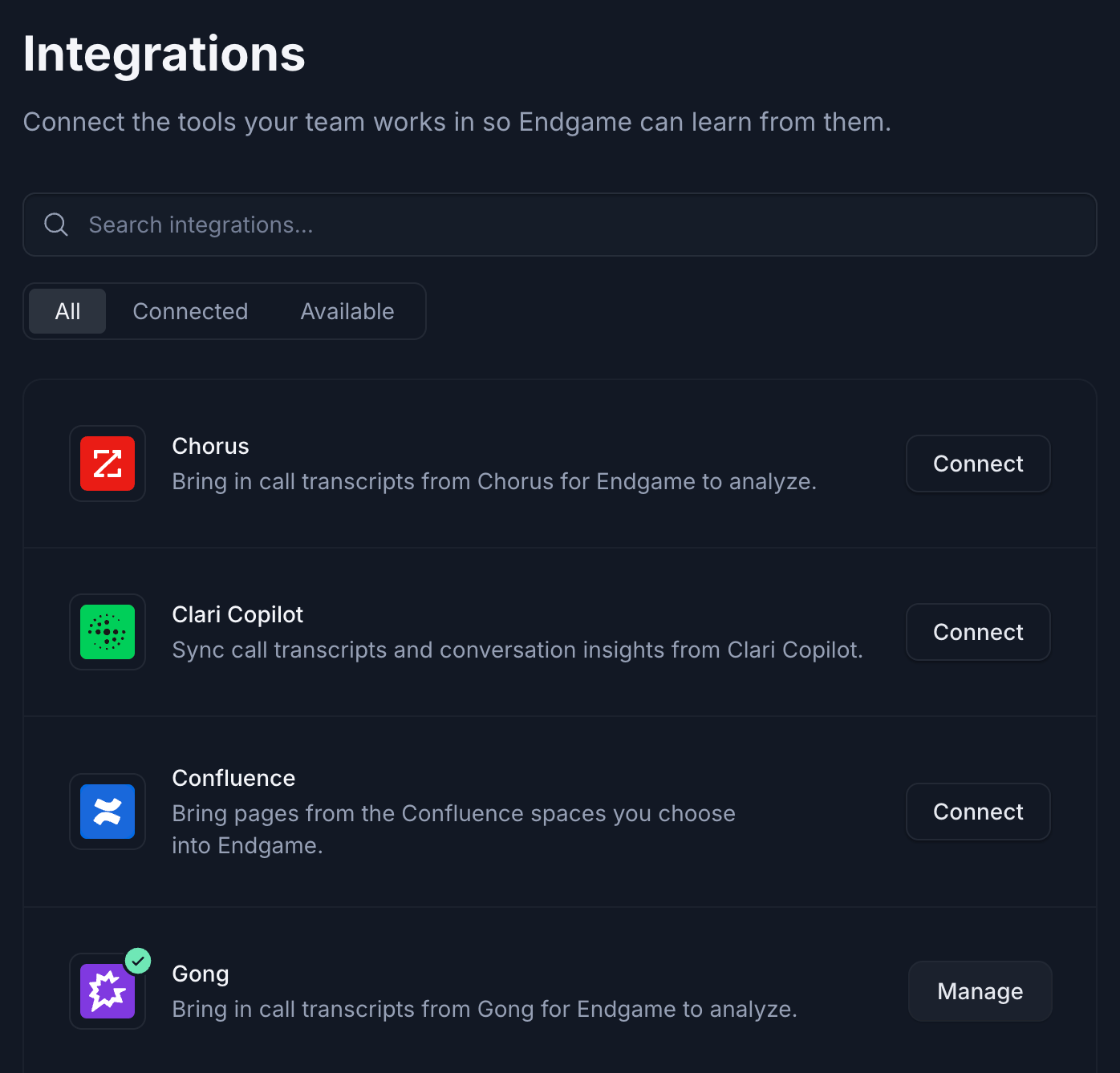
The Integrations page lists every integration your organization can connect.
Connect an integration
- In Settings > Organization > Integrations, find the integration and click Connect.
- Finish connecting. What happens next depends on the integration:
- Integrations you sign in to (Gong, Microsoft SharePoint, Microsoft Teams, Slack, Zoom, and Confluence) take you to that tool’s sign-in page. Sign in and approve access, and you’ll come back to Endgame.
- Integrations that use credentials (Chorus, Clari Copilot, Highspot, Looker, Notion, Seismic, and Snowflake) open a dialog. Enter the credentials from that tool and click Connect.
- Endgame opens the integration’s page, where you can finish any setup it needs, like choosing which spaces, sites, or channels to sync.
Manage a connected integration
To open an integration’s page, click Manage next to it. The page shows Connected at the top, the integration’s own settings, and a Connection section at the bottom. The Connection section shows:- When it was connected, and by whom. If someone reconnected it later, that’s shown too. Endgame only shows the person when it recorded who connected it.
- Credentials: click Update credentials to give Endgame new credentials, for example after you rotate a key or change the account Endgame connects with. For integrations you sign in to, this takes you to the tool’s sign-in page. For the others, it opens the credentials dialog, for example Update Notion credentials. Nothing is prefilled, so have the new credentials ready.
- Disconnect: click Disconnect to stop syncing. Endgame asks you to confirm and tells you what stops syncing.
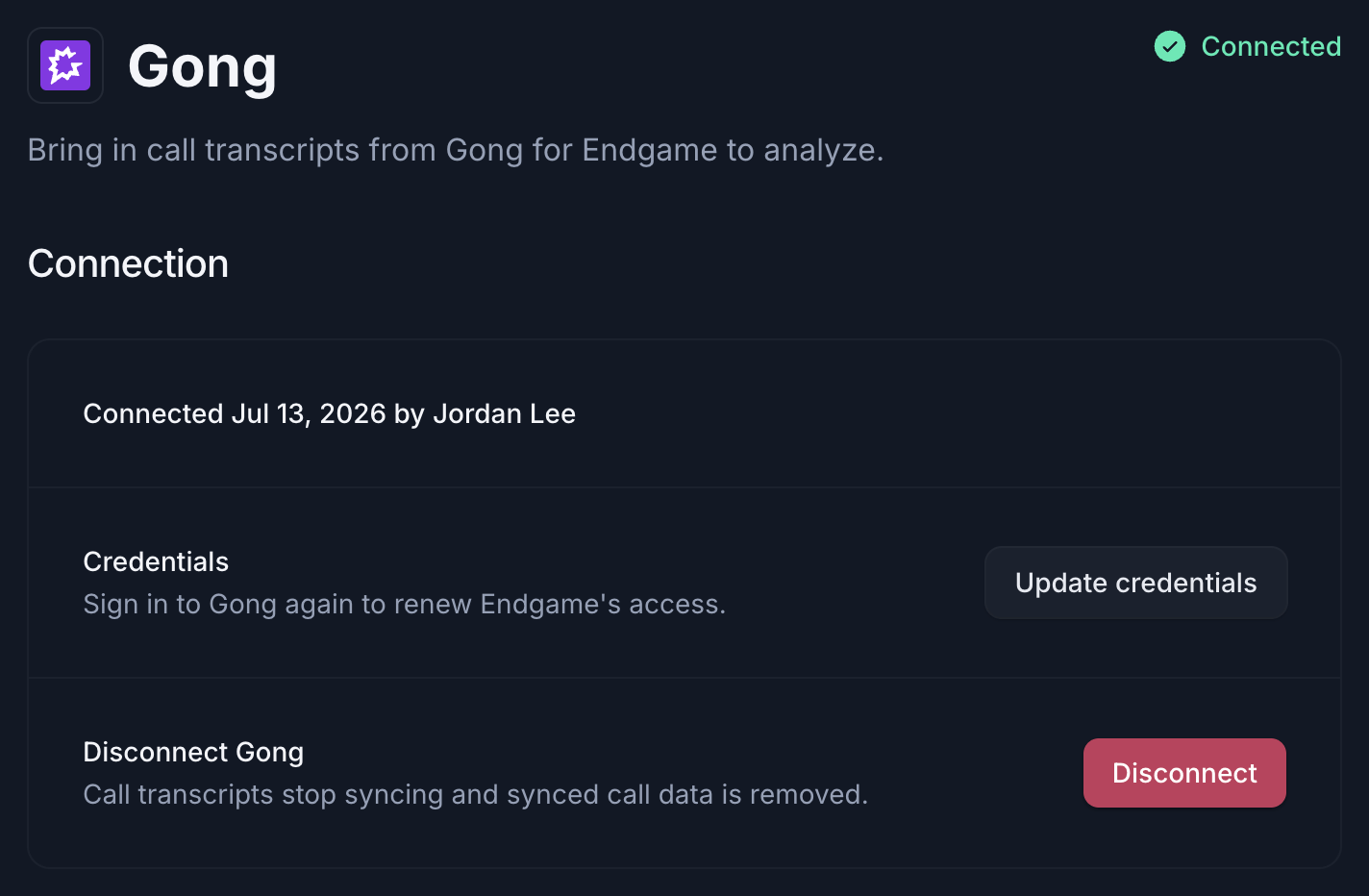
The Connection section shows who connected an integration and lets you update its credentials or disconnect it.
Slack and Salesforce can’t be disconnected from Settings yet. Their Connection section links to support@endgame.io instead.
Fix a connection that needs attention
For Chorus, Highspot, Microsoft Teams, Notion, Seismic and Snowflake, Endgame can tell when the credentials it uses stop working, for example because a password changed or a key expired. It stops syncing from that integration and flags it:- On the Integrations page, it shows Needs attention and a red Reconnect button.
- On its own page, a message says it needs to be reconnected, and Reconnect appears at the top.