Connect Endgame to AI assistants using the Model Context Protocol
The Endgame MCP (Model Context Protocol) Server gives AI assistants like Claude or ChatGPT direct access to your organization’s revenue intelligence — CRM records, meeting transcripts, emails, Slack conversations, uploaded documents, and more. Once connected, your assistant can search interaction history, look up accounts, find stakeholders, query your data warehouse, and surface insights without leaving the conversation.Think of it as giving your AI assistant a direct line to everything Endgame knows about your business.
We recommend connecting Endgame through the Endgame connector in Claude’s connector directory, ChatGPT on the web or desktop, or directly in a Claude Code or Codex terminal session. All options give your AI assistant direct access to all Endgame tools.
Want to call Endgame tools directly from your terminal or scripts, without an AI assistant? See the Endgame CLI.
Endgame is available as a connector in Claude’s connector directory. This is the recommended way to connect Endgame for Claude users, and gives Claude direct access to all Endgame tools.
1
Admin: Enable the Endgame connector for your organization
An admin needs to enable Endgame for the organization before anyone on the team can use it.
In Claude, go to Settings → Connectors
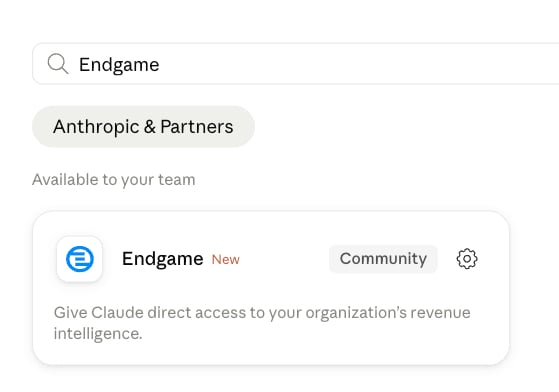
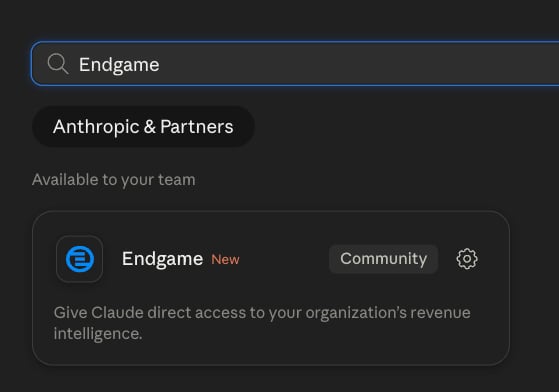
Search the connector directory for Endgame
Enable the connector for your organization
Finding the Endgame connector in Claude's connector directory
2
Individual: Connect to Endgame
Once the admin has enabled the connector at the organization level, each team member can connect:
Go to Settings → Connectors in Claude
Find the Endgame connector and click Connect
Follow the authentication prompts to sign in with your Endgame account
3
Start asking questions
Once connected, just ask Claude anything about your accounts, pipeline, meetings, or conversations. Claude will automatically use the right Endgame tools to find your answer.
Endgame periodically updates our MCP tools. You can ensure you have the latest tool set by going into your Endgame connector, opening the overflow menu, and clicking Refresh Tools List.
Connect Endgame using the instructions for ChatGPT on the web or the desktop app. Sign in with your Endgame account when prompted.
Web
Desktop app
1
Enable Developer mode
In ChatGPT, open Settings → Security and login and turn on Developer mode.
Developer mode requires an eligible ChatGPT plan and may be restricted by your workspace. If the setting is unavailable, ask your ChatGPT workspace admin about access.
Enter Endgame as the name and a description, such as “Search accounts, meetings, and customer conversations in Endgame.”
Under Connection, enter the MCP server URL: https://app.endgame.io/api/v1/mcp.
Choose OAuth authentication and create the connection.
Complete the sign-in prompts with your Endgame account, then review the discovered tools.
3
Use Endgame in a conversation
Start a new conversation. Open the composer’s + menu, choose Developer mode, and select Endgame.Try asking: “Use Endgame to summarize recent meetings for my accounts.”
In the ChatGPT desktop app, open Settings → Plugins.
Open the Add menu and select Add MCP server.
Enter endgame as the name. Under Type, select Streamable HTTP.
Enter the URL: https://app.endgame.io/api/v1/mcp.
Leave Bearer token env var, Headers, and Headers from environment variables blank, then click Save.
This form has no OAuth selector. Sign in separately after saving the server.
2
Sign in to Endgame
Return to Settings → Plugins and select the MCPs tab.
Find the server you just added under Servers and click Authenticate beside it.
Complete the browser sign-in prompts with your Endgame account.
3
Check the connection and start asking questions
Start a new conversation and ask: “Use Endgame to summarize recent meetings for my accounts.”
This configuration is shared with the Codex CLI and IDE extension on the same host. If you already configured Endgame there, check the server list before adding it again.See OpenAI’s desktop MCP instructions for more details.
If your ChatGPT workspace admin has already made Endgame available, open Plugins, select Endgame, and connect with your own Endgame account. Ask your admin for access if it is missing.
Use the Claude Code CLI to add Endgame as a remote MCP server. This is a good option if you work in the terminal and want Endgame tools available in your Claude Code sessions.
1
Add the Endgame MCP server
In your terminal, run:
claude mcp add --transport http endgame https://app.endgame.io/api/v1/mcp
This uses the default local scope, which ties the server to the current project directory. If you want Endgame available across all your projects, use --scope user instead:
claude mcp add --transport http endgame --scope user https://app.endgame.io/api/v1/mcp
To share the config with your team, use --scope project. This writes the server to a .mcp.json file in your project root — commit that file to git and anyone who clones the repo will have it configured automatically:
claude mcp add --transport http endgame --scope project https://app.endgame.io/api/v1/mcp
2
Authenticate with Endgame
Start a Claude Code session and verify the server is connected:
claude
In the session, run /mcp. This shows live connection status and confirms Endgame tools are loading. Select the Endgame server and follow the browser prompts to sign in with your Endgame account.
You’ll be prompted to authenticate the first time you connect. Claude Code will open a browser window to complete the OAuth flow with Endgame.
3
Start asking questions
Once connected, ask Claude anything about your accounts, pipeline, meetings, or conversations. Claude will automatically use the right Endgame tools to find your answer.
Use the Codex CLI to add Endgame as a remote MCP server. This is a good option if you work in Codex terminal sessions and want Endgame tools available there.
Codex detects OAuth support and may start the login flow automatically. If it does not, authenticate separately:
codex mcp login endgame
Running this command will open a browser window prompting you to sign in with your Endgame account. Complete the login there and Codex will store your credentials automatically.
Verify the server was added:
codex mcp list
2
Start a Codex session
Launch Codex in the directory where you want to work:
codex
Endgame tools are available once the MCP server is connected and authenticated.
3
Start asking questions
Once connected, ask Codex anything about your accounts, pipeline, meetings, or conversations. Codex will automatically use the right Endgame tools to find your answer.
Connect via Claude Managed Agents (Service Accounts)
Use a service account API key to connect Endgame to Claude Managed Agents (CMA). Service accounts are user-agnostic and scoped to your organization, making them the right choice for automated or shared agent workflows.
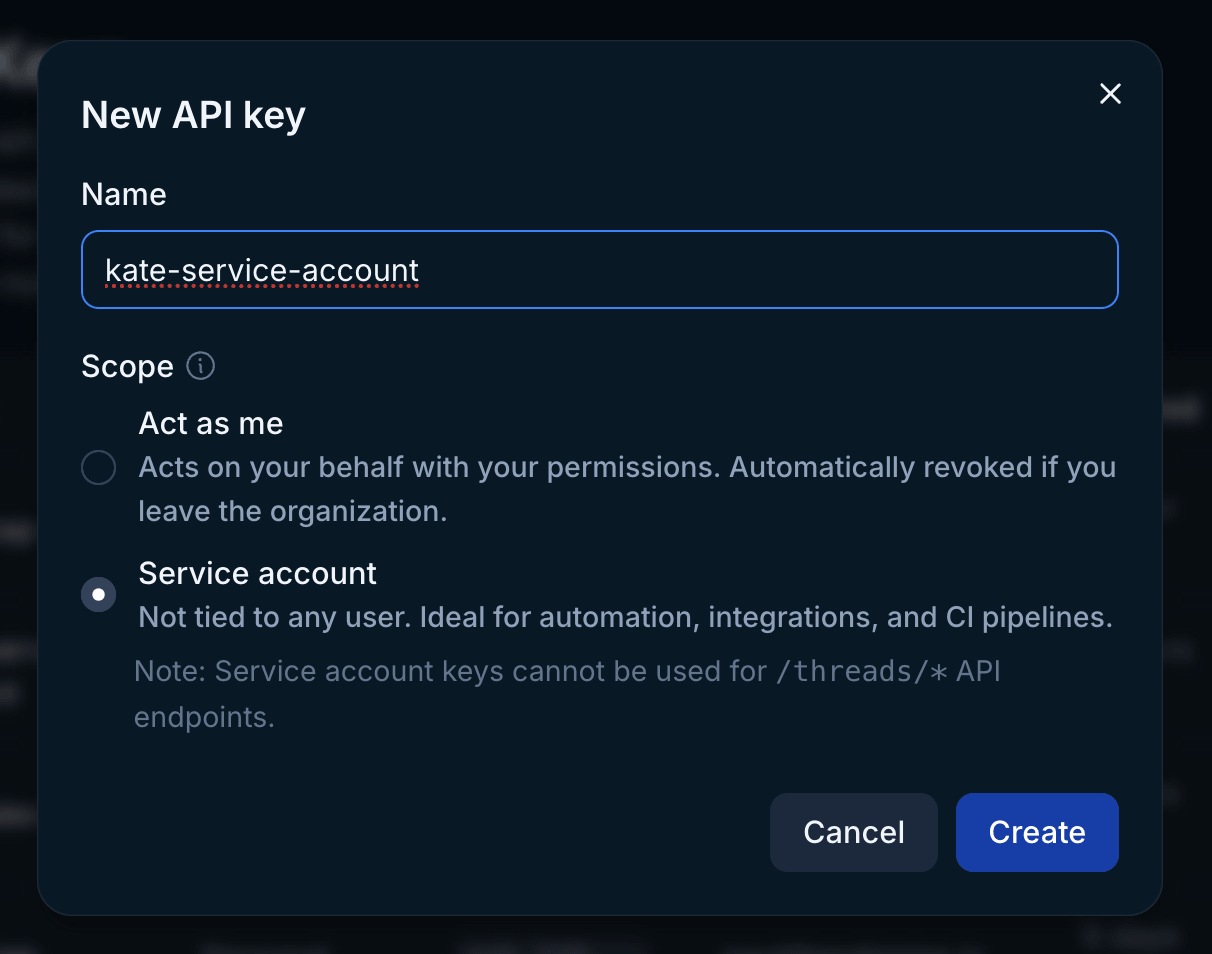
Name your key and select the Service Account option
Click Create and copy the key immediately — you won’t be able to view it again
Only Endgame Admins can create api keys. The number of service keys you are allowed to create for your organization may be limited.
Creating a service account API key in Endgame
2
Create a credential vault in CMA
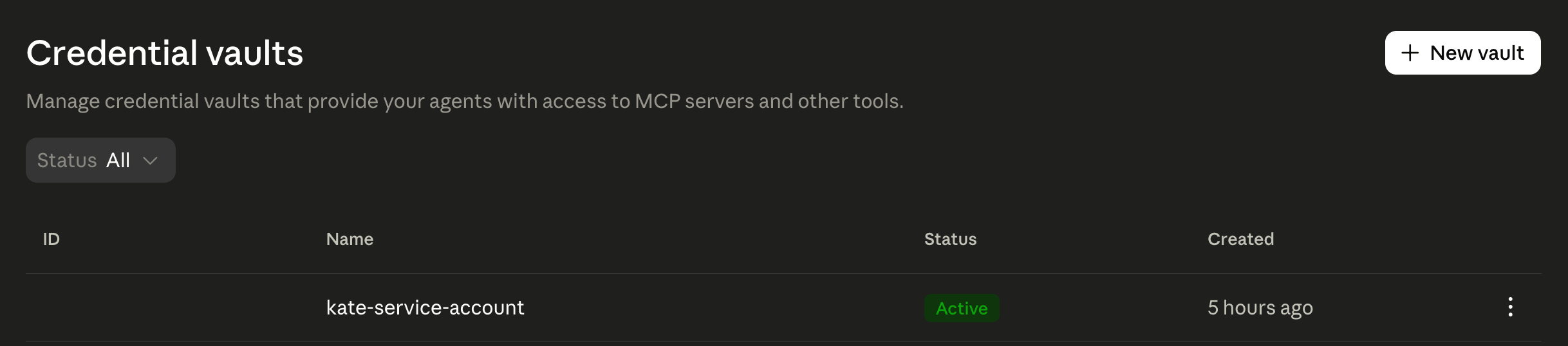
In Claude Managed Agents, go to Credential Vaults in the side navigation
Click + New Vault
Adding a new vault in Claude Managed Agents
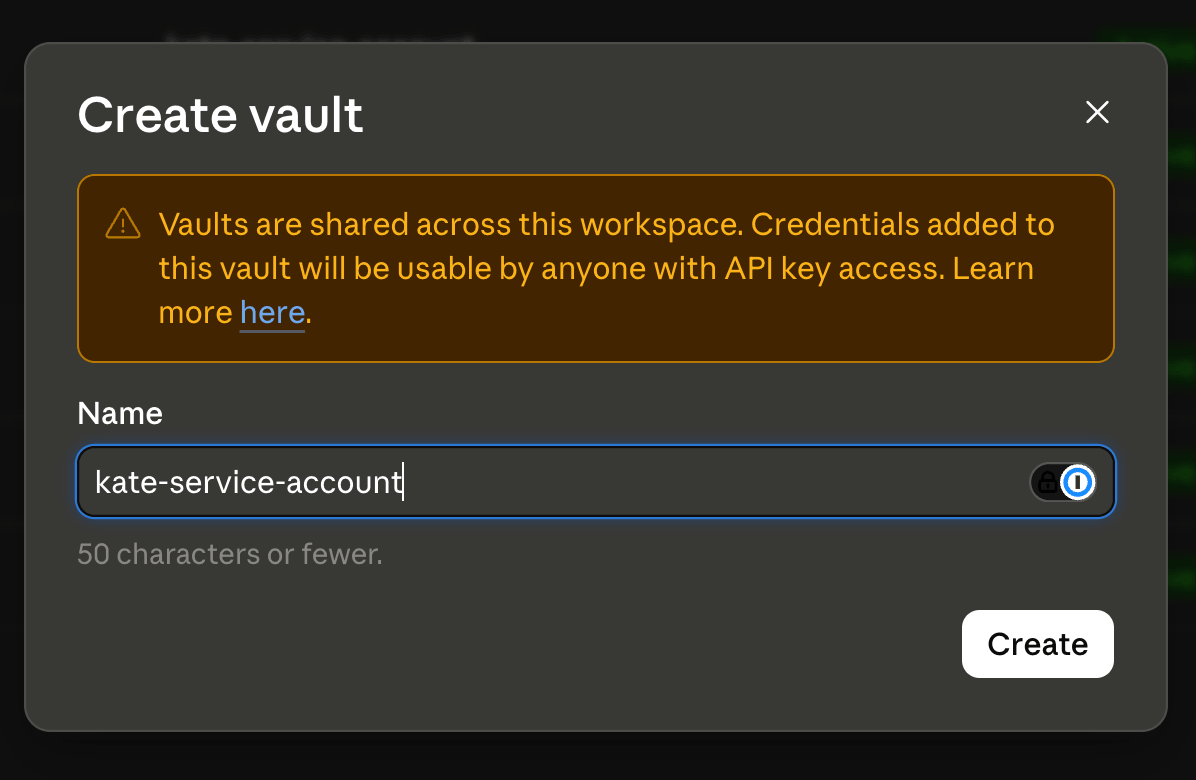
Enter a name for your vault and click Create
Creating a vault in Claude Managed Agents
3
Add your Endgame API key as a credential
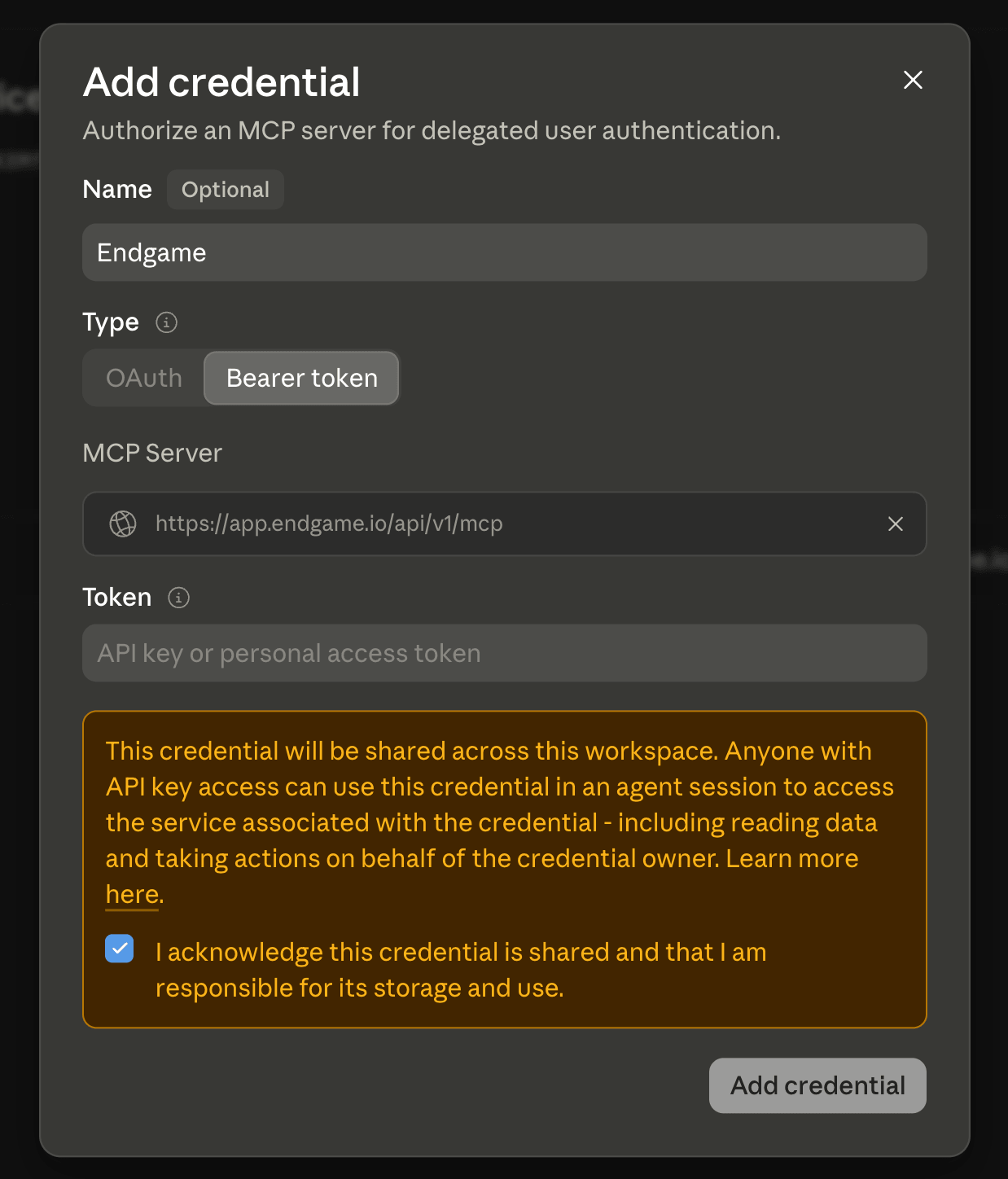
Inside your new vault, click Add Credential
Select Bearer Token as the credential type
Paste the API key you created in Endgame
Set the custom connector URL to: https://app.endgame.io/api/v1/mcp
Save the credential
Adding the Endgame API key as a credential
4
Use the vault in an agent session
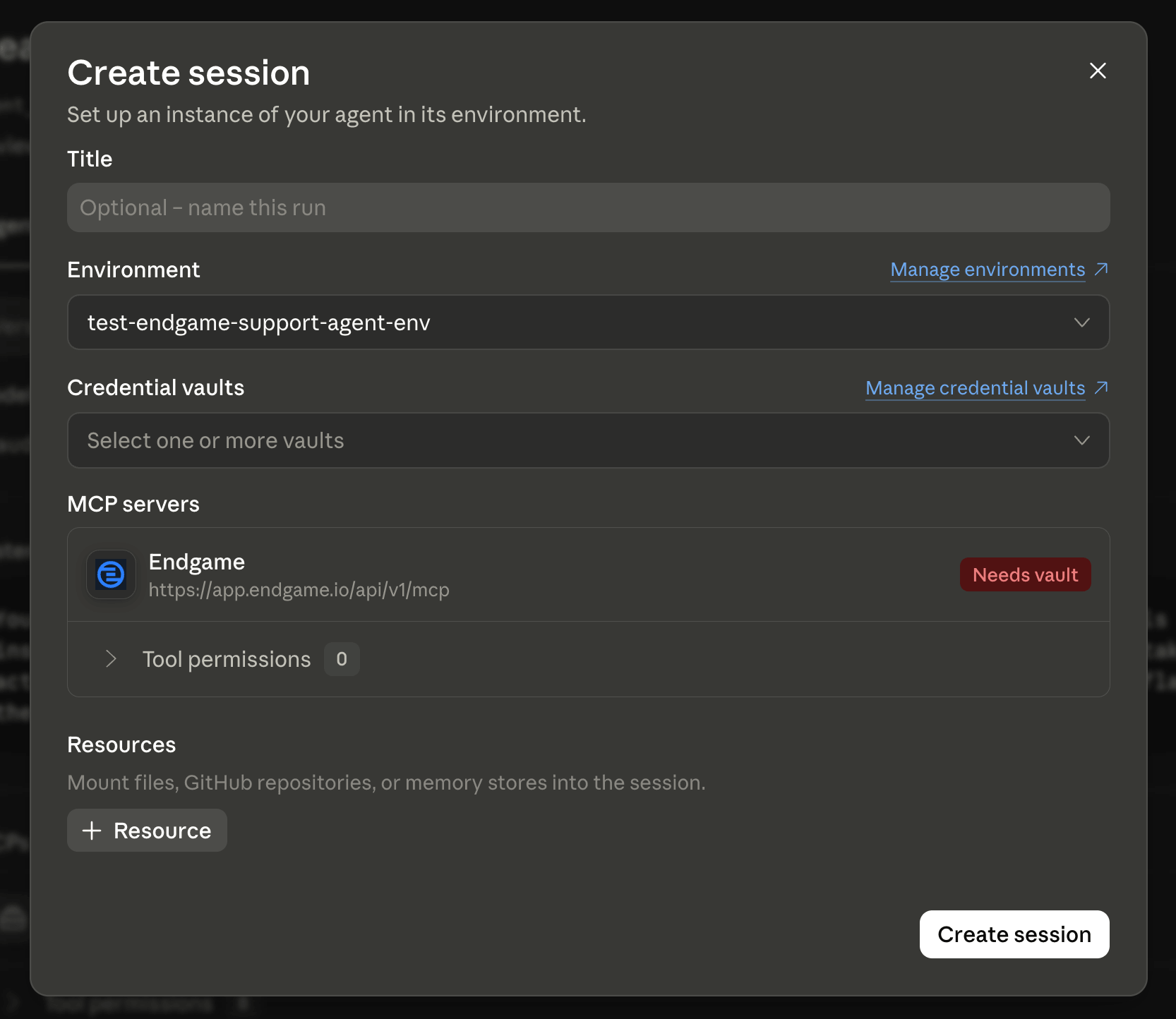
When starting a session with an agent that requires the Endgame MCP, you will be prompted to provide credentials. Select the vault you created to authenticate the session.
Selecting a credential vault when starting a CMA session
Once connected, simply ask your AI assistant questions about your business. You don’t need to use any special syntax — your assistant will automatically select the right Endgame tools based on your question.For complex analyses, your assistant can chain multiple tools together — for example, finding an account, pulling its recent interactions, and searching the evidence behind them to build a complete picture.
Account intelligence
“What accounts does my team own, and when was the last time we interacted with each one?”
Conversation insights
“What did customers bring up as pain points or risks across our last 20 sales calls?”
Public intelligence
“What did Salesforce’s CFO say about their AI strategy on the most recent earnings call?”
Pipeline analytics
“Show me all open opportunities over $500K that haven’t had any activity in the last 45 days.”
Internal communications
“What are we saying internally on Slack about the upcoming renewal with Acme Corp?”
People research
“Who are the key executives at this account, and can anyone on our team make an introduction?”
Get an overview of your organization’s context graph — what entity types exist (accounts, people, meetings, opportunities, and more), how many of each, and what properties they carry.
get_graph_field_catalog
Get your organization’s field catalog — stable field IDs, property keys, value types, and filterability for building precise graph filters.
search_graph_entities
Search the context graph by display name, graph ID, or source identifier. The entry point for resolving a mentioned company, meeting, deal, or document to a graph entity.
list_graph_entities
Browse entities of a single type with property filters and ordering — for example, “list open opportunities” or “accounts of type Customer”.
get_graph_entities
Load the full record for one or more entities by ID, including properties, relationships, summaries, recent news, and LinkedIn detail where available.
get_graph_relationships
Fetch the relationships of a single entity — meetings on an account, participants in a meeting, opportunities at a company — with filtering and pagination.
list_graph_relationships
List or aggregate relationships org-wide, such as counting meetings per account or contacts per company.
Resolve a person mentioned by name, email, or CRM ID to their graph record.
get_graph_person
Load full detail for one or more people — LinkedIn career history, per-account role assessments (champion, decision maker, etc.), and interaction narratives.
search_graph_people
Search people by their relationship to accounts and companies — an account’s contact roster, its key stakeholders, or org-wide sweeps like “VPs across all Enterprise accounts”.
List the facts known about a specific entity — extracted statements with supporting quotes and sources, ranked by salience and recency.
search_graph_facts
Semantic search across extracted facts from meetings, emails, and documents — for thematic evidence questions like pain points, risks, or competitor mentions.
get_graph_citations
Open the sources behind a single piece of context-agent output — a work stream, news item, or stakeholder summary — to see the quotes and documents that back each claim.
verified_sources
Display a verified-source footer alongside an answer, showing which accounts, meetings, emails, and documents informed it and how many of each.
Load your organization’s writing, style, policy, and product guidance so answers stay consistent with your standards.
tell_endgame
Correct or add to the context graph, and send feedback to the Endgame team. Use it when something in Endgame is wrong, outdated, or missing — a company’s industry, someone’s employer, a stakeholder on a deal, an entity Endgame doesn’t know yet — or to file a bug or feature request.
Rate limits are configured per organization and may vary depending on your plan. If you encounter rate limit errors, contact your Endgame administrator to review your organization’s current limits.