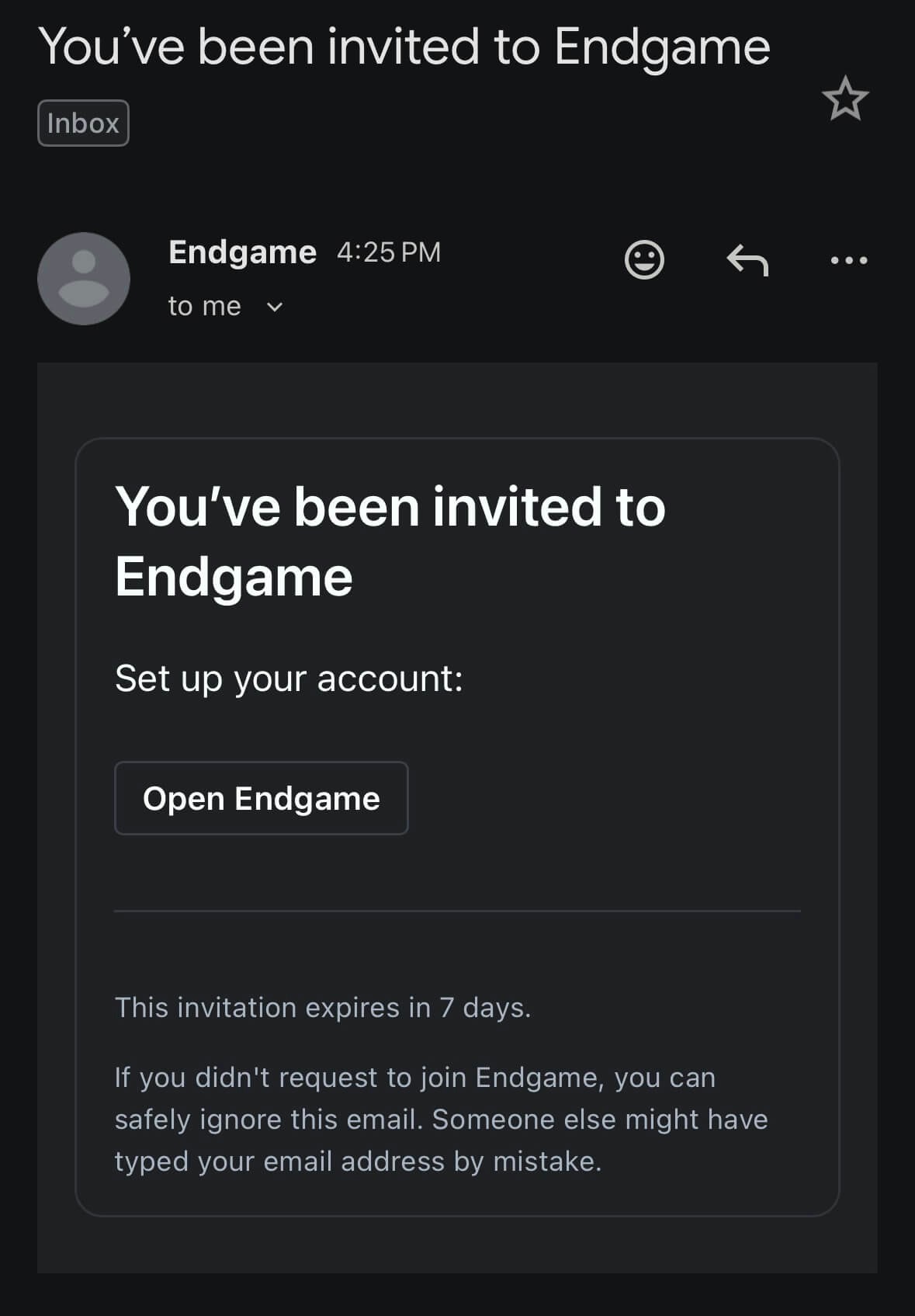
Using the link in the invite email you received from Endgame, authenticate using Google or Salesforce.
Invite Email
2
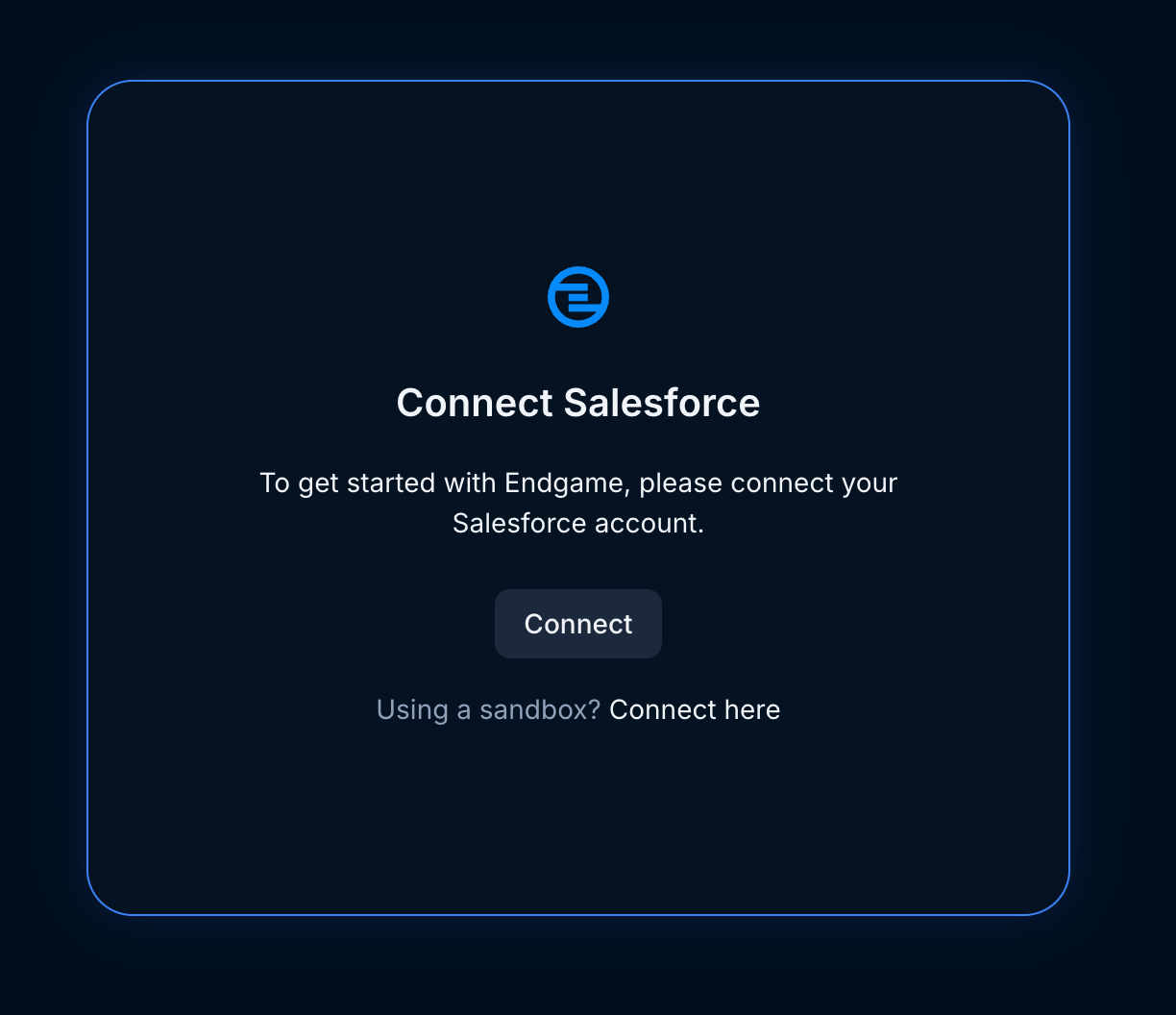
Connect Salesforce
From the welcome view, click to Connect Salesforce and authenticate with integration user credentials. All Endgame users will have access to all the data ingested for the integration user.
Connect Salesforce
3
Approve Salesforce Connected App
As a user with the Manage Connected Apps permission in Salesforce, navigate to Setup -> Manage Apps -> Connected Apps OAuth Usage, and click “Install” next to the “EndgameLabs2” app.
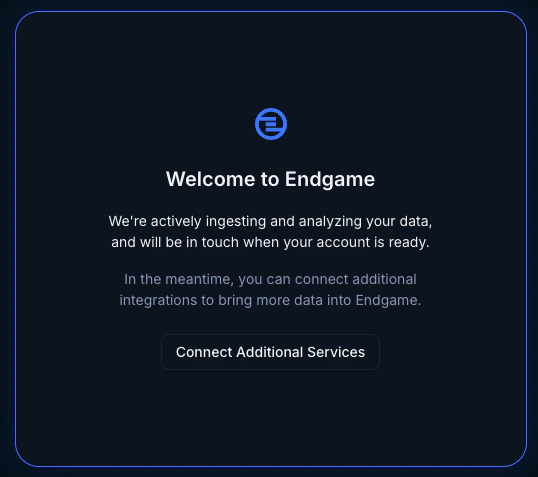
Once you have things connected, Endgame will automatically start ingesting your Salesforce data. This can take some time, and our team will reach out when it’s ready.
Data ingestion typically takes a day or two, depending on the size of your Salesforce instance. The Endgame team will be in touch when your data is ready.
You don’t need to wait for ingestion to finish. Click Connect Additional Services and continue to the next module to start configuring your instance while your data syncs in the background.
Previous Module
Overview
Next Module
Connect Transcripts
Assistant
Responses are generated using AI and may contain mistakes.