Create and manage API keys and machine-to-machine credentials for connecting to the Endgame MCP server.
Deprecation: The Endgame REST API, including the /threads endpoints, has
been deprecated. API keys and machine-to-machine credentials are still
supported for connecting to the Endgame MCP server.
Use API keys and machine-to-machine (M2M) credentials when an agent or automation needs to connect to the Endgame MCP server without a person signing in, such as a Claude Managed Agent, a scheduled job, or a CI pipeline. If a person is connecting their own AI assistant, they should sign in with their Endgame account instead — see Getting started.Credentials are passed as a Bearer token in the Authorization header on requests to the MCP server:
Authorization: Bearer eak_your_api_key_here
The Endgame MCP server URL is:
https://app.endgame.io/api/v1/mcp
Two kinds of credentials are accepted. Both are provisioned from Endgame itself — you don’t need to configure anything in an external identity provider.
Server-to-server integrations that want short-lived OAuth tokens via the client_credentials grant.
Both are admin-only. Admins can see every API key and application running against Endgame, and how much each one is used, in the Automations view of the Console.
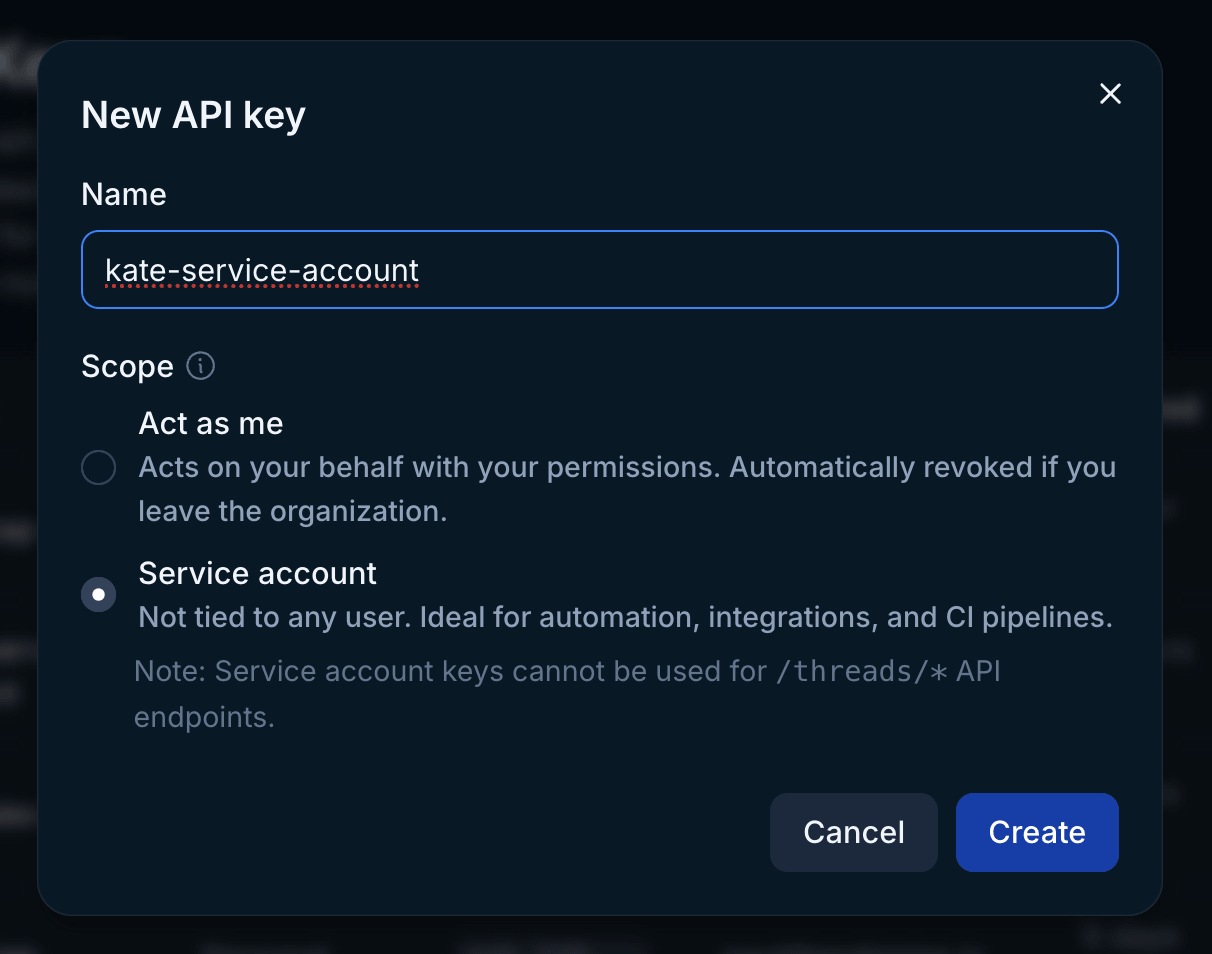
Give the key a descriptive name (e.g. deal-review-agent-prod) and pick a scope:
Act as me — Acts on your behalf with your permissions. Automatically revoked if you leave the organization.
Service account — Not tied to any user. Ideal for automation, integrations, and CI pipelines.
The full key is shown only once on creation — copy it immediately and store it in a secrets manager. The scope cannot be changed later.
Creating an API key in Endgame
3
Use the key to connect to the MCP server
Add the key as a Bearer token wherever your agent or MCP client is configured, with the server URL set to https://app.endgame.io/api/v1/mcp. For a step-by-step example, see Connect via Claude Managed Agents.
Use an M2M application when you need short-lived tokens issued per request (typical for production server-to-server integrations) rather than a long-lived static key.
You must be an admin in your Endgame organization to create applications.
Click New application, give it a descriptive name, and save. Endgame provisions a WorkOS OAuth client on your behalf and returns a client ID and client secret. The secret is shown only once on creation — copy it immediately into your secrets manager. You can rotate it later from the same page.
3
Exchange the credentials for an access token
Perform a standard OAuth client_credentials grant against WorkOS’s token endpoint:
API keys: revoke from the API Keys settings page — click Revoke next to the key’s row. Act as me keys are automatically revoked when the owning user is deactivated or their seat is revoked. Service account keys persist until explicitly revoked.M2M applications: delete the application (or rotate its secret) from the Applications settings page. Deleting the application revokes all access tokens issued under it.Revocation is immediate in both cases; subsequent requests using a revoked credential fail with 401 UNAUTHORIZED.
Store credentials in a secrets manager. Never commit them to source control.
Use a separate credential per environment (dev, staging, prod) so rotation is scoped.
Give each one a descriptive name so revocation decisions are easy to audit.
Rotate on a regular cadence and whenever a team member with access leaves.
For shared or automated workflows, prefer Service account keys or M2M applications over Act as me keys, so access doesn’t depend on a single person staying in the organization.