> ## Documentation Index
> Fetch the complete documentation index at: https://docs.endgame.io/llms.txt
> Use this file to discover all available pages before exploring further.
# Query Your Book
> Ask questions across all your accounts from the homepage
## Introduction
In [Your First 10 Minutes](/your-first-10-minutes), you asked questions about a single account. But Endgame can also answer questions across your entire book of business or the entire organization.
That's what the homepage is for.
***
## Book vs account queries
* Find patterns across multiple accounts
* Prioritize where to spend your time
* Prep for pipeline reviews or forecast calls
* Spot risks or opportunities you might be missing
* Get a digest of what's happening across
your book
* Deep-dive on a specific account
* Prep for a meeting with one customer
* Research stakeholders at one company
* Draft outreach for a specific deal
* Prospect or identify whitespace to expand a customer
## How it works
From the [homepage](https://app.endgame.io/), you'll see the same chat interface as on account pages. The difference is that Endgame will search across all accounts you have access to, not just one.
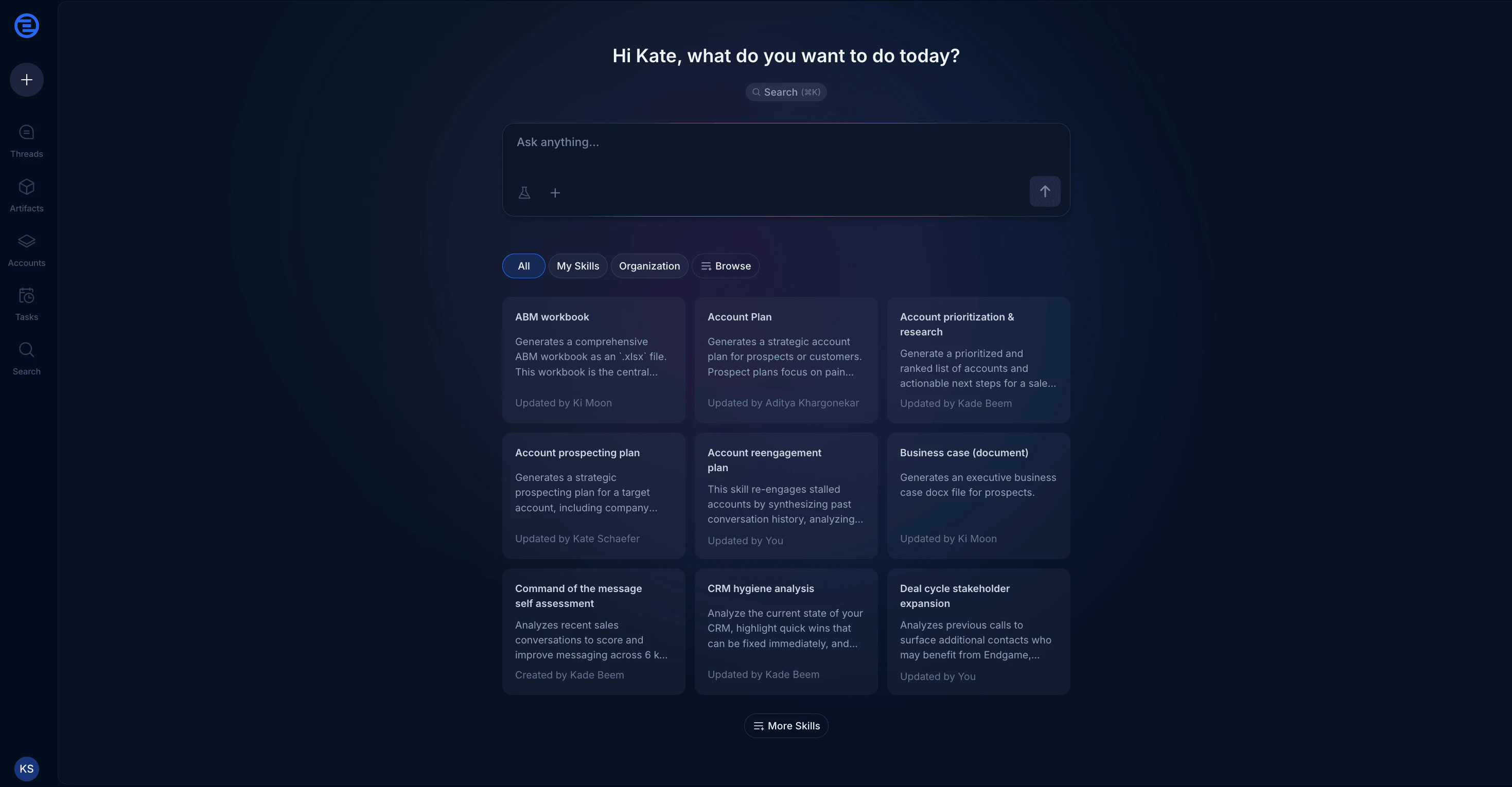 Type your question and hit enter. Endgame will:
1. Identify which accounts are relevant to your question
2. Pull data from those accounts
3. Synthesize insights across them
***
## Sample prompts by use case
```
Which accounts in my book are being underworked relative to their potential?
Consider fit, recent engagement, and any buying signals.
```
```
What are the most important things I should do this week across my accounts?
Did I miss anything I said I'd deliver?
```
```
Which of my accounts have had leadership changes in the last 90 days?
Include who changed, their new role, and whether we have a relationship with them.
```
```
Which of my deals closing this month need the most attention?
For each, tell me the current status, biggest risk, and what I should do this week.
```
```
Look at my open opportunities. Which ones have gone quiet in the last 2 weeks?
Include last activity date and suggested re-engagement approach.
```
```
Rank my top 10 opportunities by likelihood to close.
Explain your reasoning for each.
```
```
Which competitors are showing up in my deals?
How are we positioned against each?
```
```
Summarize my closed-lost deals from the last quarter.
What were the main reasons we lost? Any patterns?
```
```
What objections have come up most frequently across my deals in the last 3 months?
Include examples from specific calls.
```
```
How healthy is my pipeline for this quarter?
Break it down by stage and flag any deals that are at risk.
```
```
Which of my commit deals have risk factors I should be aware of?
```
```
Compare my pipeline now vs. 30 days ago.
What's improved, what's gotten worse?
```
## Tips for better book-level queries
"My accounts" vs "all accounts" vs "accounts closing this quarter" will give
you different results. Say what you mean.
"Last 30 days" or "this quarter" helps Endgame focus on relevant data.
"Top 5" or "rank by priority" forces Endgame to synthesize rather than just
list.
"Put this in a table" or "give me bullet points" makes results easier to
scan and act on.
***
## Working with results
Book-level queries often return tables with multiple accounts. Here's what you can do with them:
**Drill into an account:** Click any account name in the results to open that account's detail page and continue the conversation there.
**Export the data:** Hover over tables to copy as CSV, download, or export to Google Sheets.
**Schedule it:** Use [Tasks](/features/tasks) to get book-level insights delivered to your inbox on a schedule.
***
## Common questions
By default, Endgame searches accounts you have access to based on your
Salesforce permissions and ownership. If you want to narrow or expand the
scope, say so in your prompt (e.g., "across all enterprise accounts" or
"just my named accounts").
Book-level queries search across more data. The more accounts involved, the
longer it takes. You can speed things up by narrowing your scope or time
range.
Yes. Save them as skills or schedule them as [Tasks](/features/tasks) to run
automatically.
Click **Threads** in the left navigation to see all your
non-account-specific conversations.
***
## Next steps
Get book-level insights delivered automatically
Rerun your best workflows with one click
Type your question and hit enter. Endgame will:
1. Identify which accounts are relevant to your question
2. Pull data from those accounts
3. Synthesize insights across them
***
## Sample prompts by use case
```
Which accounts in my book are being underworked relative to their potential?
Consider fit, recent engagement, and any buying signals.
```
```
What are the most important things I should do this week across my accounts?
Did I miss anything I said I'd deliver?
```
```
Which of my accounts have had leadership changes in the last 90 days?
Include who changed, their new role, and whether we have a relationship with them.
```
```
Which of my deals closing this month need the most attention?
For each, tell me the current status, biggest risk, and what I should do this week.
```
```
Look at my open opportunities. Which ones have gone quiet in the last 2 weeks?
Include last activity date and suggested re-engagement approach.
```
```
Rank my top 10 opportunities by likelihood to close.
Explain your reasoning for each.
```
```
Which competitors are showing up in my deals?
How are we positioned against each?
```
```
Summarize my closed-lost deals from the last quarter.
What were the main reasons we lost? Any patterns?
```
```
What objections have come up most frequently across my deals in the last 3 months?
Include examples from specific calls.
```
```
How healthy is my pipeline for this quarter?
Break it down by stage and flag any deals that are at risk.
```
```
Which of my commit deals have risk factors I should be aware of?
```
```
Compare my pipeline now vs. 30 days ago.
What's improved, what's gotten worse?
```
## Tips for better book-level queries
"My accounts" vs "all accounts" vs "accounts closing this quarter" will give
you different results. Say what you mean.
"Last 30 days" or "this quarter" helps Endgame focus on relevant data.
"Top 5" or "rank by priority" forces Endgame to synthesize rather than just
list.
"Put this in a table" or "give me bullet points" makes results easier to
scan and act on.
***
## Working with results
Book-level queries often return tables with multiple accounts. Here's what you can do with them:
**Drill into an account:** Click any account name in the results to open that account's detail page and continue the conversation there.
**Export the data:** Hover over tables to copy as CSV, download, or export to Google Sheets.
**Schedule it:** Use [Tasks](/features/tasks) to get book-level insights delivered to your inbox on a schedule.
***
## Common questions
By default, Endgame searches accounts you have access to based on your
Salesforce permissions and ownership. If you want to narrow or expand the
scope, say so in your prompt (e.g., "across all enterprise accounts" or
"just my named accounts").
Book-level queries search across more data. The more accounts involved, the
longer it takes. You can speed things up by narrowing your scope or time
range.
Yes. Save them as skills or schedule them as [Tasks](/features/tasks) to run
automatically.
Click **Threads** in the left navigation to see all your
non-account-specific conversations.
***
## Next steps
Get book-level insights delivered automatically
Rerun your best workflows with one click