> ## Documentation Index
> Fetch the complete documentation index at: https://docs.endgame.io/llms.txt
> Use this file to discover all available pages before exploring further.
# Microsoft Teams
> Connect Microsoft Teams to sync account channel data to Endgame
Use the instructions below to enable the Microsoft Teams integration in Endgame. Once enabled, Endgame will ingest your Teams messages from specific channels and associate them with specific Accounts making them available in Endgame chat responses.
## Enable the integration
Connecting to the Microsoft Teams API requires that the connecting user is a
Teams Global Administrator.
Navigate to the [integrations page](https://app.endgame.io/settings/integrations). Only Endgame Admins can configure organization integrations.
From the integrations page, click "Connect" to kick off the Teams authentication process.
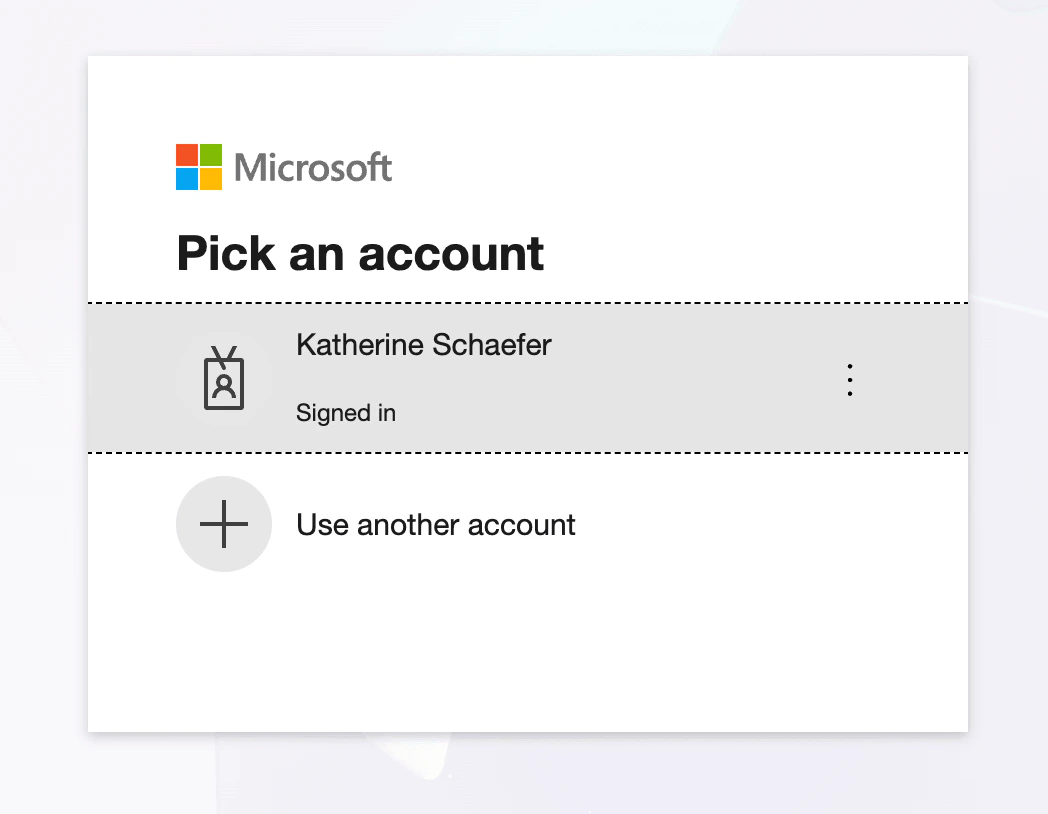
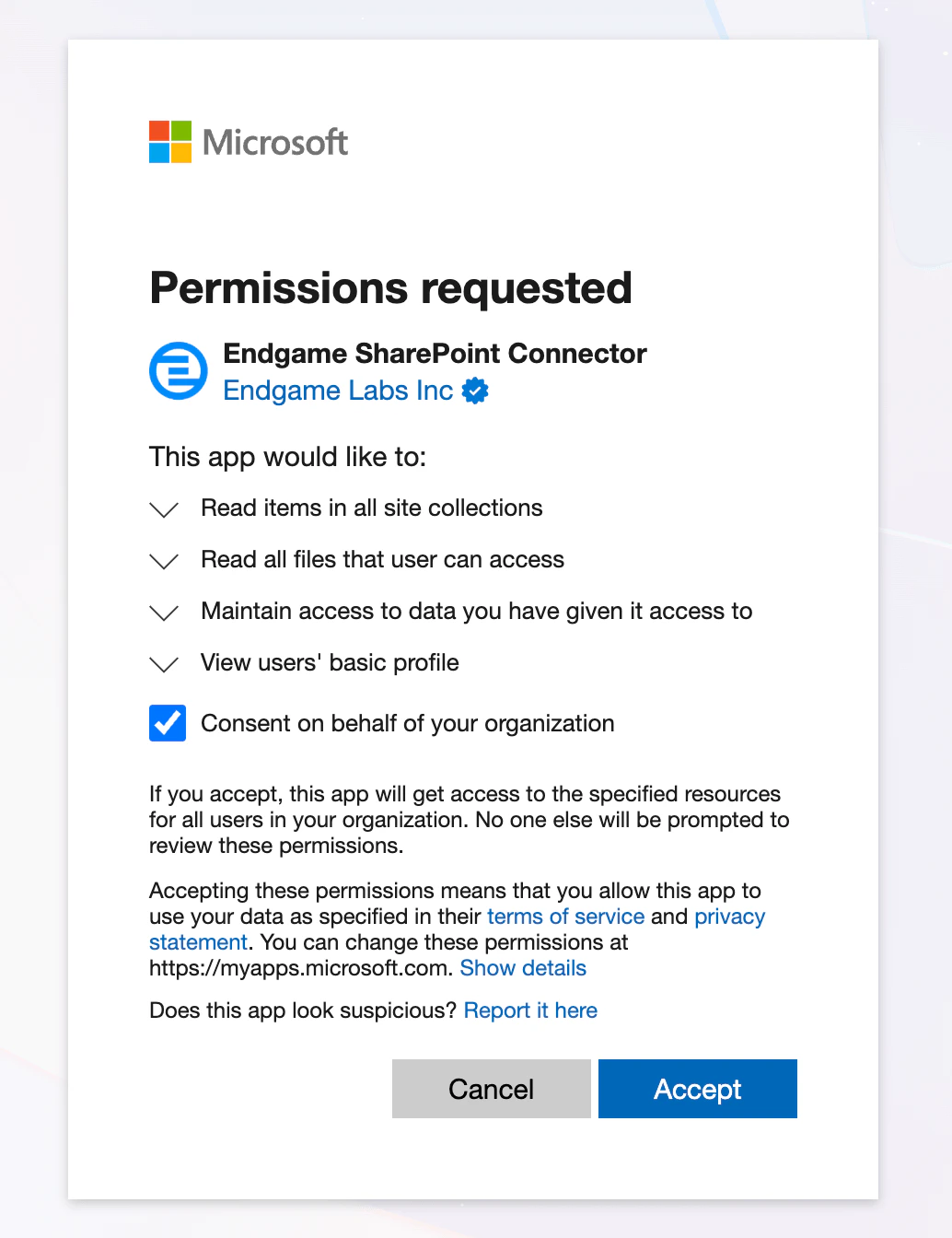
 Select the account you wish to connect to Endgame and go through the authentication flow and ensure you check the box for "Consent on behalf of your organization" to give Endgame access to the necessary scopes.
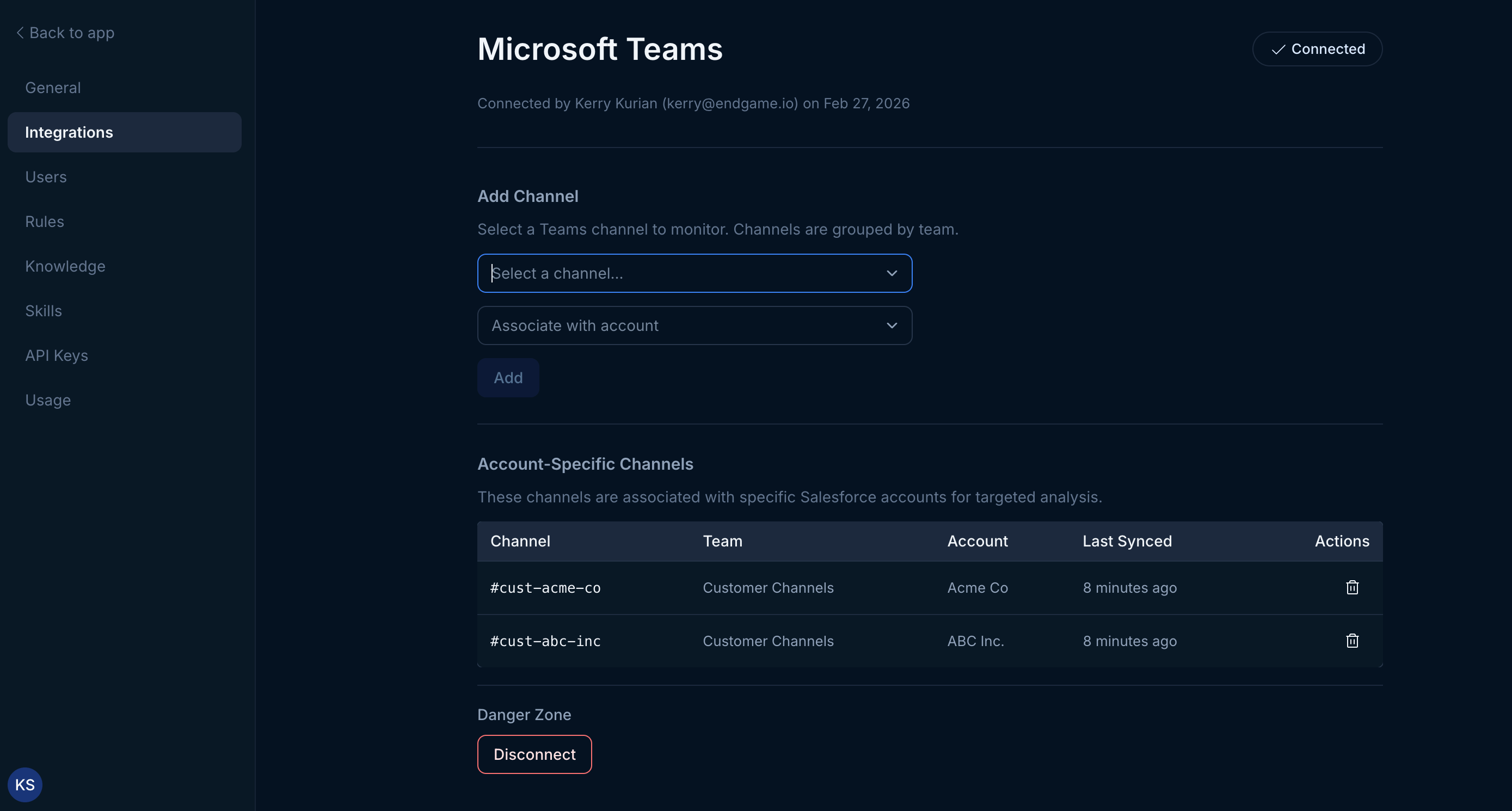
 Once connected, click to Manage your configuration. You can now designate which public Teams channel content will be associated with specific Endgame Accounts.
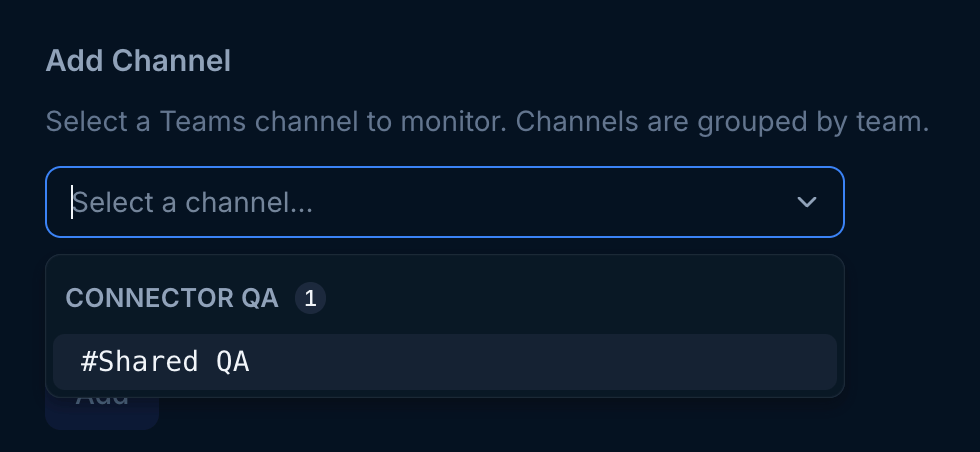
First, you select the channel for which you wish to make an association.
Once connected, click to Manage your configuration. You can now designate which public Teams channel content will be associated with specific Endgame Accounts.
First, you select the channel for which you wish to make an association.
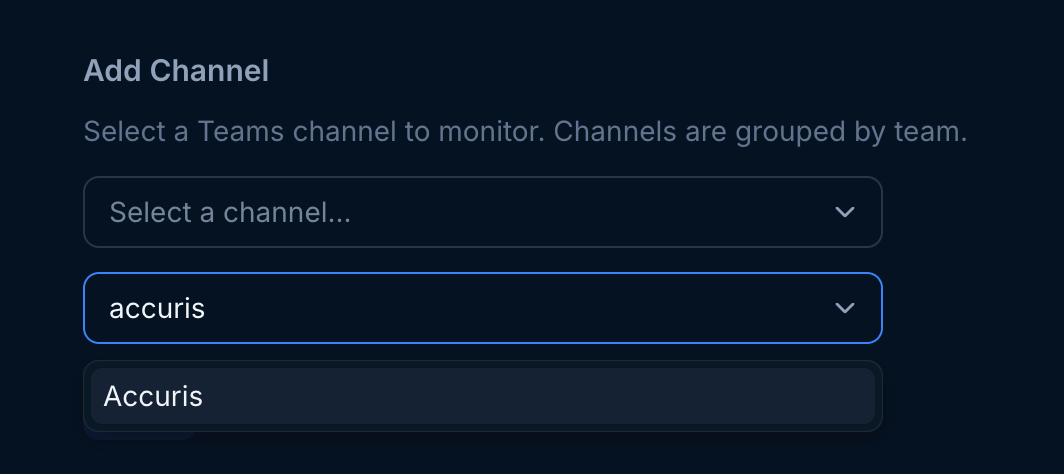
 Second, choose which account to association with that channel and click Add. Channel data is synced to Endgame every 15 minutes.
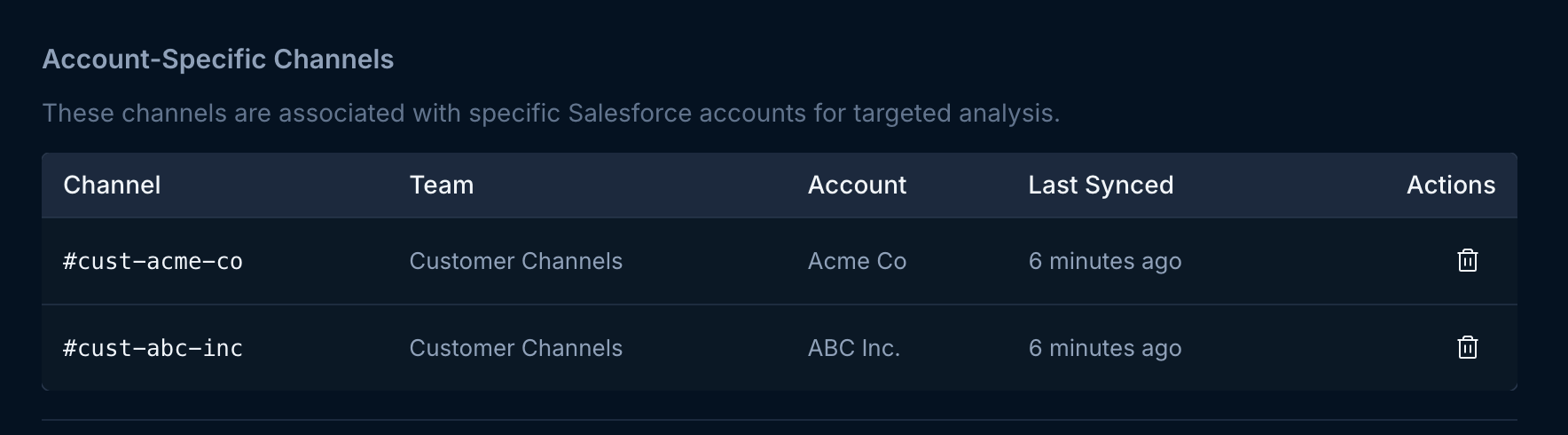
 You will see your association show up in the Account-specific Channels list below. You can remove these associations anytime by clicking the trash icon.
 Users can update or disconnect their Teams connection at anytime. Disconnecting will remove all your existing channel to account mappings.
To update your connection with a new user hover over the Connect button in the top right corner and when it shows Reconnect, click it to trigger the authentication process. To disconnect, click the Disconnect button in the lower left hand corner.
Users can update or disconnect their Teams connection at anytime. Disconnecting will remove all your existing channel to account mappings.
To update your connection with a new user hover over the Connect button in the top right corner and when it shows Reconnect, click it to trigger the authentication process. To disconnect, click the Disconnect button in the lower left hand corner.
 Endgame currently cannot distinguish between different account conversations in a single Teams channel. Instead, use Teams channels that are dedicated to singular account conversations to enhance your Endgame data.
We will *only* ingest channels that you have selected and associated with an Account in the Teams integration configuration. Other than the names of public channels, no other data is ingested without your permission.
## What's next?
That's it! Now that you've connected Teams to Endgame, we'll automatically ingest your data into our systems every 15 minutes and present our insights in Endgame.
## Need help or have feedback?
We'd love to hear from you! You can reach us at [support@endgame.io](mailto:support@endgame.io).
Endgame currently cannot distinguish between different account conversations in a single Teams channel. Instead, use Teams channels that are dedicated to singular account conversations to enhance your Endgame data.
We will *only* ingest channels that you have selected and associated with an Account in the Teams integration configuration. Other than the names of public channels, no other data is ingested without your permission.
## What's next?
That's it! Now that you've connected Teams to Endgame, we'll automatically ingest your data into our systems every 15 minutes and present our insights in Endgame.
## Need help or have feedback?
We'd love to hear from you! You can reach us at [support@endgame.io](mailto:support@endgame.io).