> ## Documentation Index
> Fetch the complete documentation index at: https://docs.endgame.io/llms.txt
> Use this file to discover all available pages before exploring further.
# Microsoft SharePoint
> Connect Microsoft SharePoint to sync document libraries to Endgame
Use the instructions below to enable the Microsoft SharePoint integration in Endgame. Once enabled, Endgame will ingest documents from your SharePoint document libraries, making them available in Endgame chat responses.
## Enable the integration
Connecting to the Microsoft SharePoint API requires that the connecting user
is a SharePoint Administrator.
Navigate to the [integrations page](https://app.endgame.io/settings/integrations). Only Endgame Admins can configure organization integrations.
From the integrations page, click "Connect" on the SharePoint card to kick off the authentication process.
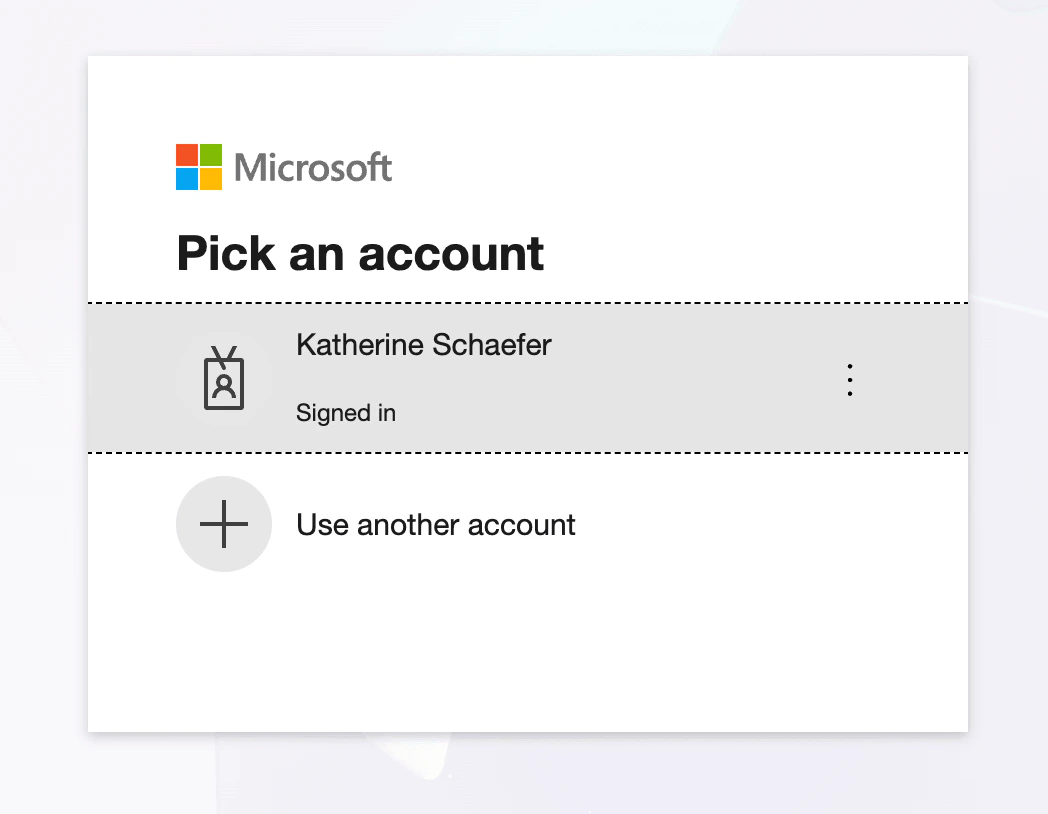
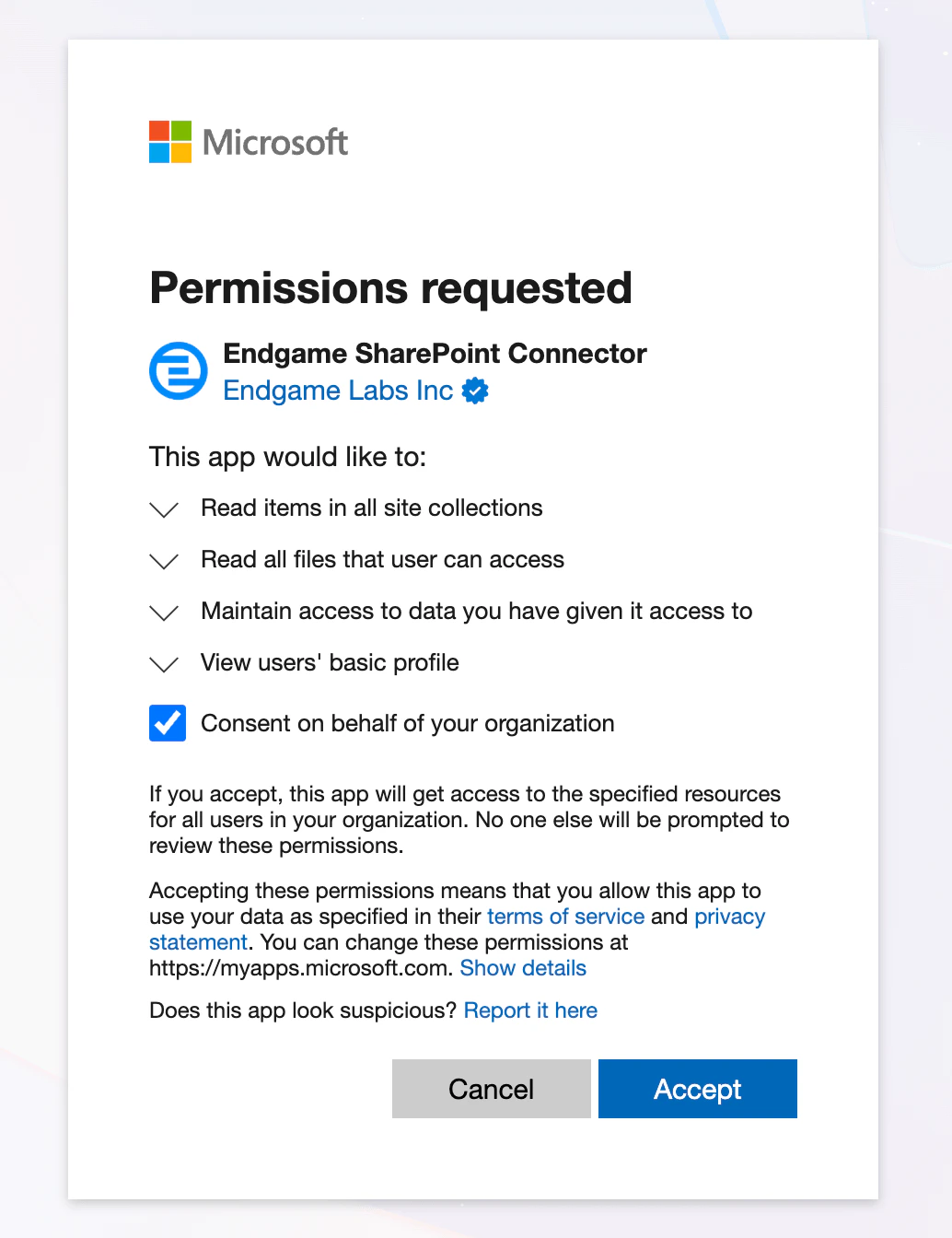
 Select the Microsoft account you wish to connect to Endgame and go through the authentication flow. Ensure you check the box for "Consent on behalf of your organization" to give Endgame access to the necessary scopes.
 Once connected, click to Manage your configuration from the integrations page. You can now add SharePoint document libraries to sync with Endgame.
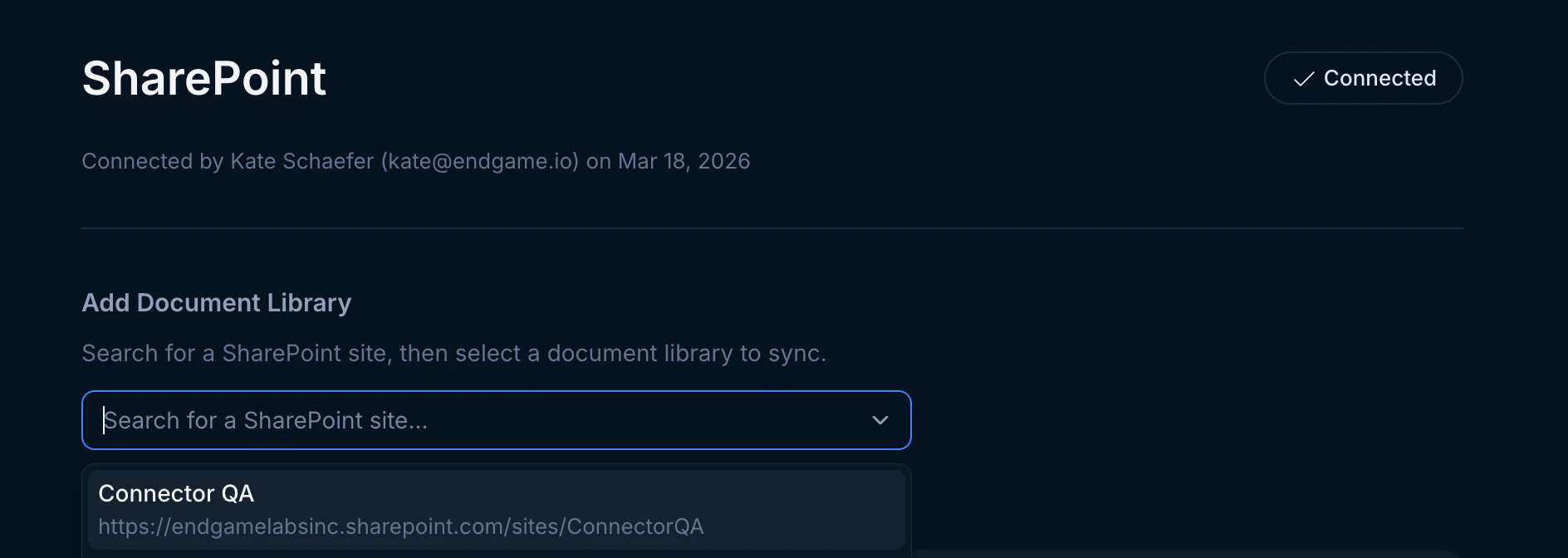
First, search for the SharePoint site that contains the document library you want to sync.
Once connected, click to Manage your configuration from the integrations page. You can now add SharePoint document libraries to sync with Endgame.
First, search for the SharePoint site that contains the document library you want to sync.
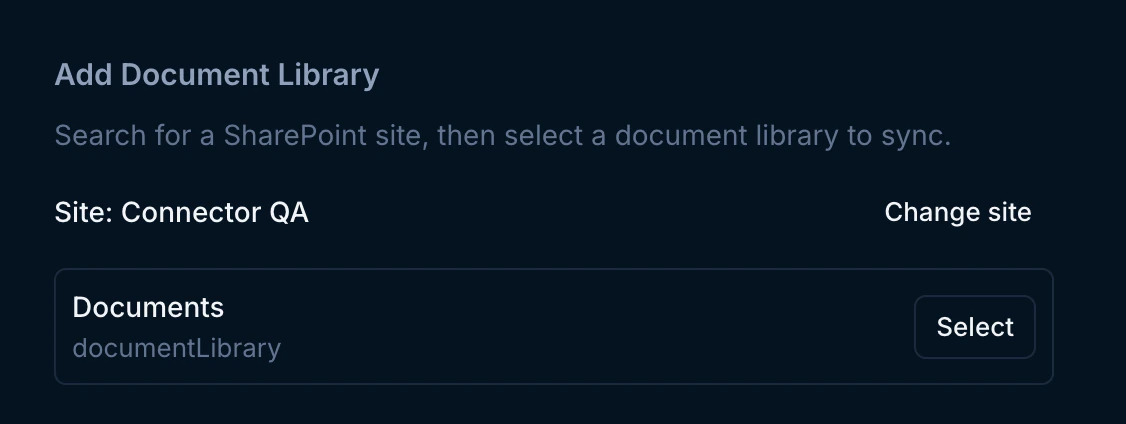
 After selecting a site, you will see the available document libraries. Click "Select" to add as many document libraries as you wish to connect from that site.
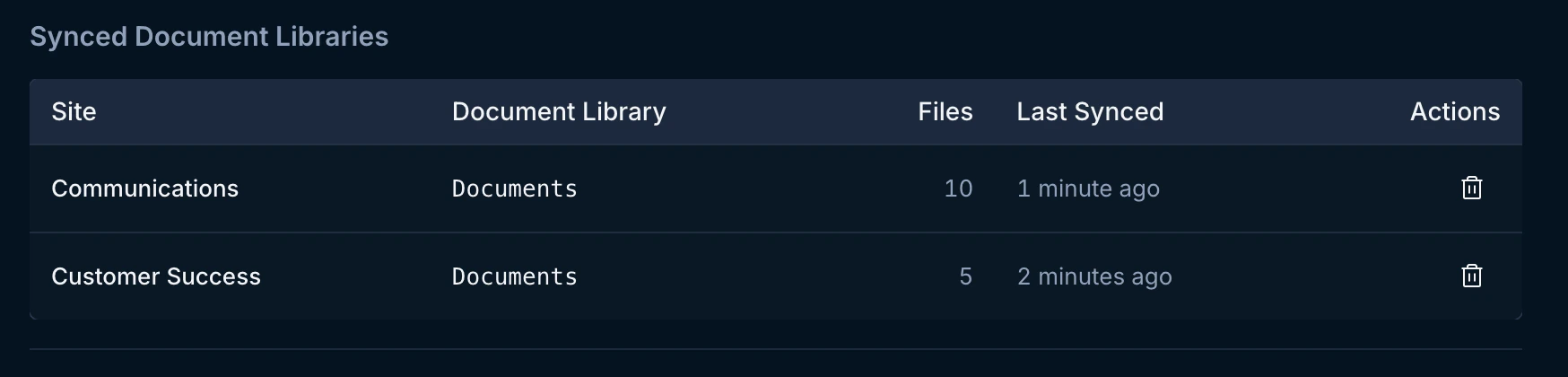
 Your synced document libraries will appear in the table below, showing the site, document library name, file count, and last sync time. You can delete a synced library and its documents from Endgame at any time by clicking the trash icon. Your libraries sync to Endgame immediately upon connection and then every 15 minutes thereafter.
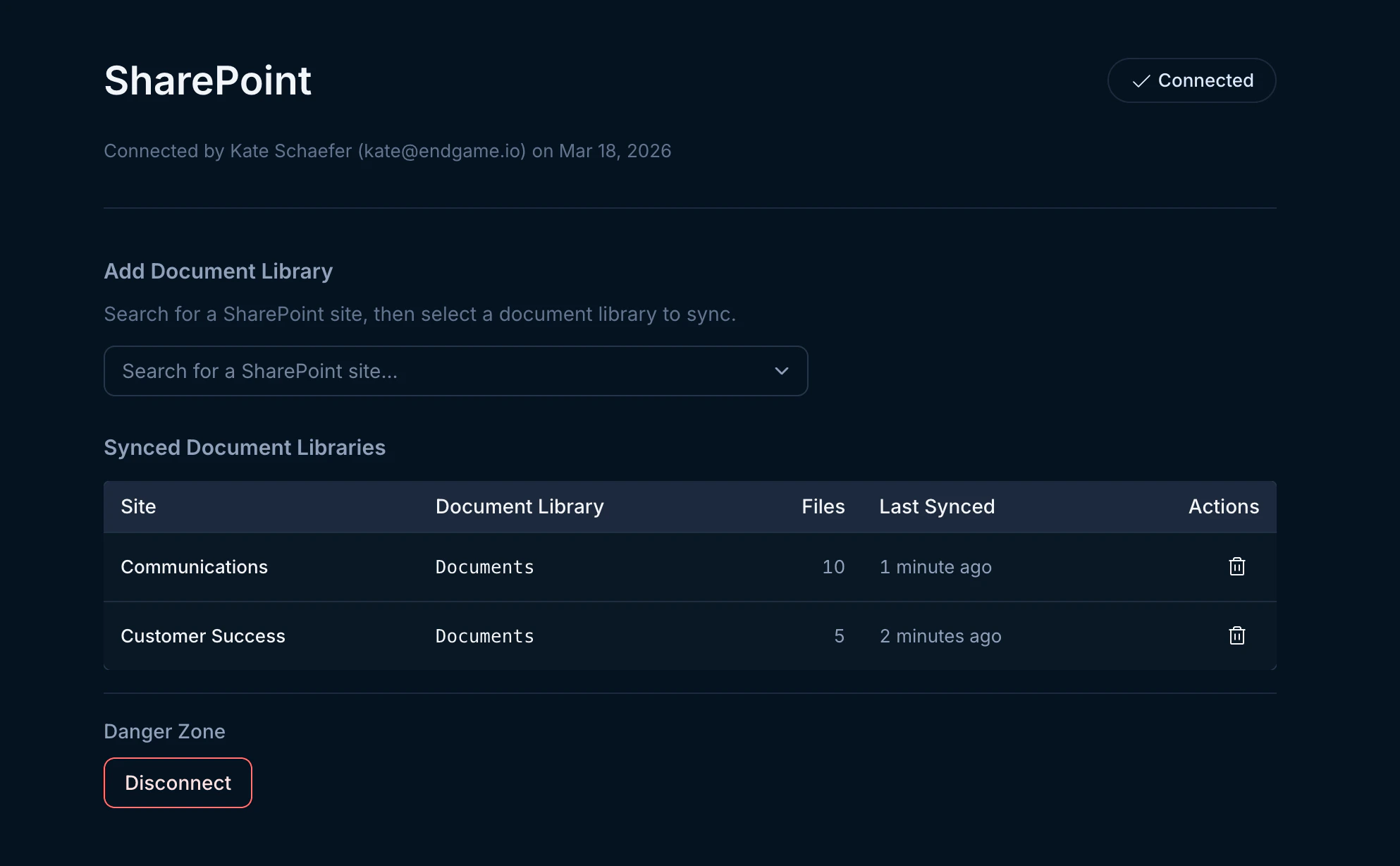
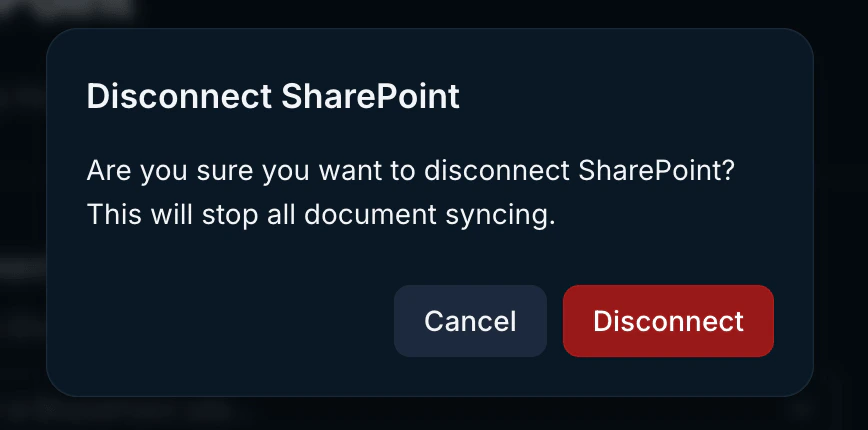
 You can view and manage your full SharePoint configuration from the [integration page](https://app.endgame.io/settings/integrations/sharepoint). To disconnect, click the "Disconnect" button in the bottom left corner. Disconnecting will stop all document syncing and remove the configuration associated with your library.
This action does not delete the documents that were previously synced into Endgame. If you want to completely delete documents from Endgame, click the trash icon next to the library.
If a library is still syncing and you remove documents from the library, Endgame will reflect that change and delete those documents.
To update your connection with a new user, hover over the Connect button in the top right corner until it shows "Reconnect," then click it to trigger the authentication process. Reconnecting will preserve your library configuration.
You can view and manage your full SharePoint configuration from the [integration page](https://app.endgame.io/settings/integrations/sharepoint). To disconnect, click the "Disconnect" button in the bottom left corner. Disconnecting will stop all document syncing and remove the configuration associated with your library.
This action does not delete the documents that were previously synced into Endgame. If you want to completely delete documents from Endgame, click the trash icon next to the library.
If a library is still syncing and you remove documents from the library, Endgame will reflect that change and delete those documents.
To update your connection with a new user, hover over the Connect button in the top right corner until it shows "Reconnect," then click it to trigger the authentication process. Reconnecting will preserve your library configuration.
 Endgame will *only* ingest document libraries that you have explicitly added
in the SharePoint integration configuration. No other data is accessed or
ingested without your permission.
## What's next?
That's it! Now that you've connected SharePoint to Endgame, we'll automatically sync your document libraries and present our insights in Endgame.
## Need help or have feedback?
We'd love to hear from you! You can reach us at [support@endgame.io](mailto:support@endgame.io).
Endgame will *only* ingest document libraries that you have explicitly added
in the SharePoint integration configuration. No other data is accessed or
ingested without your permission.
## What's next?
That's it! Now that you've connected SharePoint to Endgame, we'll automatically sync your document libraries and present our insights in Endgame.
## Need help or have feedback?
We'd love to hear from you! You can reach us at [support@endgame.io](mailto:support@endgame.io).