> ## Documentation Index
> Fetch the complete documentation index at: https://docs.endgame.io/llms.txt
> Use this file to discover all available pages before exploring further.
# Login & Connect CRM
> Get up and running with Endgame in minutes
[Implementation Guide](/implementation-guide/overview) · Module 1 of 9 · \~5 minutes
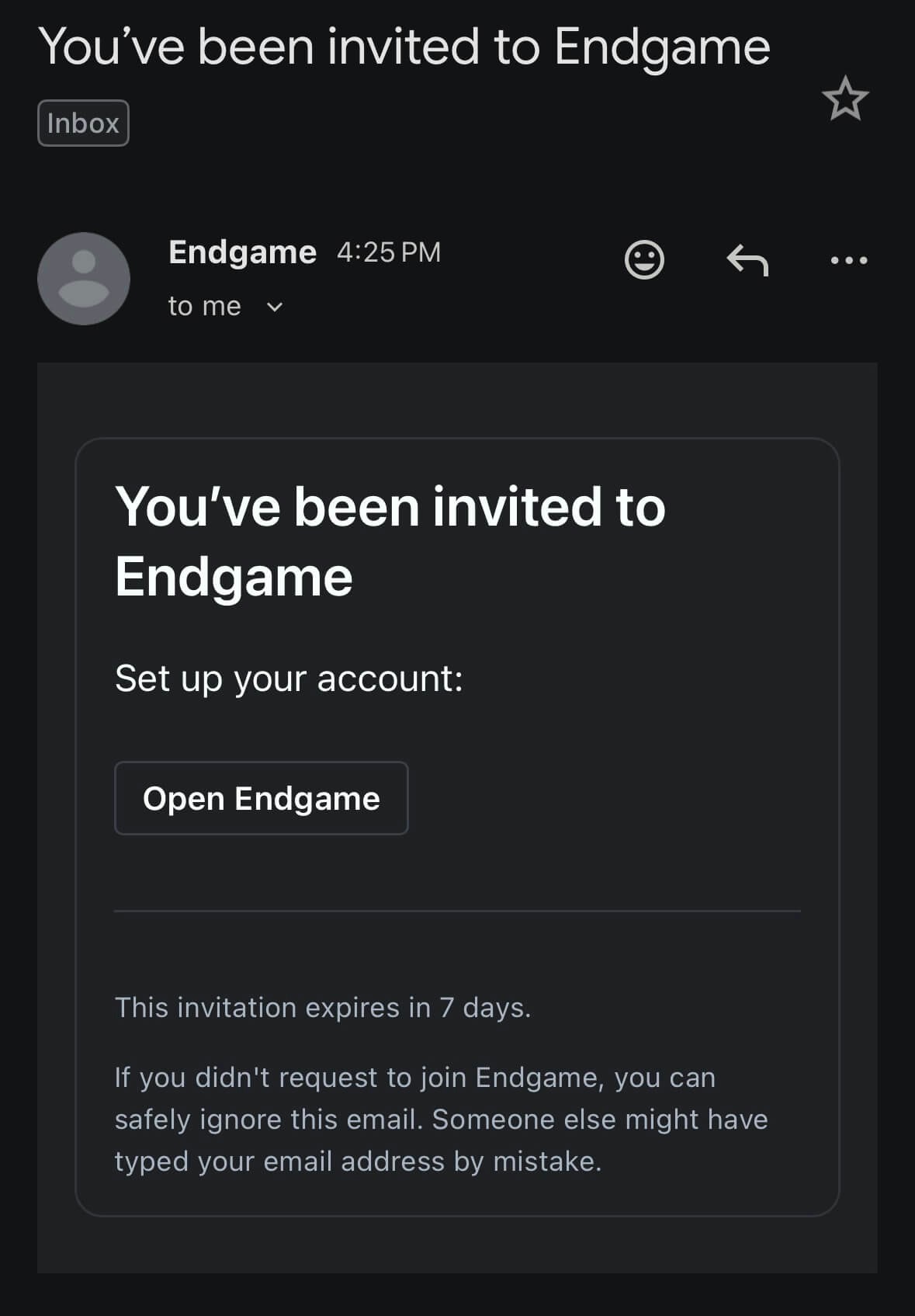
Getting started with Endgame is simple. You will receive an invitation via email from the Endgame team to login and begin your integrations setup.
## Pre-flight checklist
**Best practice:** Connect with a dedicated [API Integration User](/integrations/salesforce#optional-api-integration-user) instead of a personal account.
The connecting user (or API Integration User) needs read access to **all fields** on the following Salesforce objects:
* Account
* User
* Lead
* Contact
* Opportunity
* Task
* Event
* RecordType
* OpportunityLineItem
* OpportunityContactRole
* Campaign
* CampaignMember
* Note
* OpportunityHistory
## Quick Setup
Using the link in the invite email you received from Endgame, authenticate using Google or Salesforce.
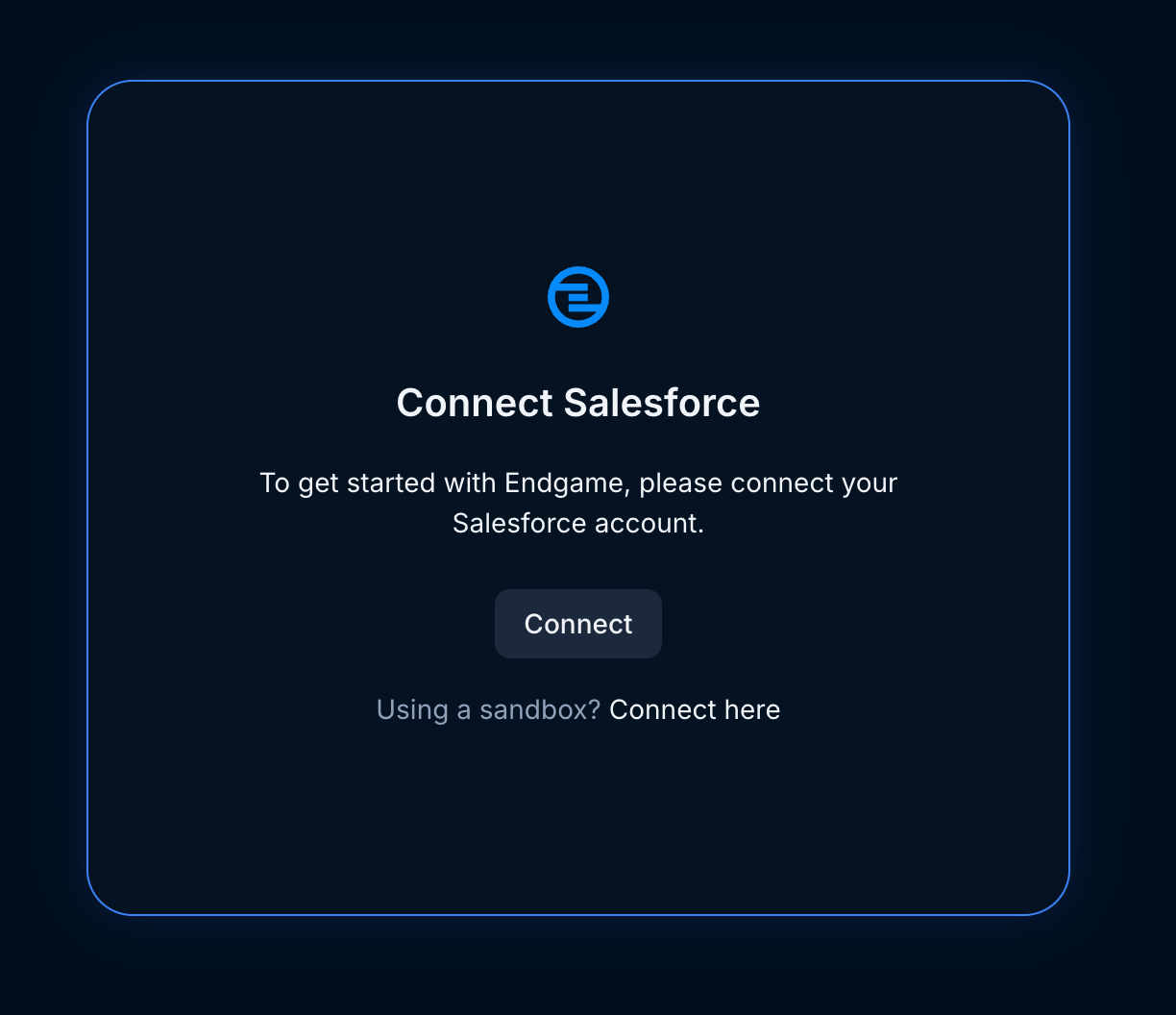
 From the welcome view, click to Connect Salesforce and authenticate with integration user credentials. **All Endgame users will have access to all the data ingested for the integration user.**
 As a user with the `Manage Connected Apps` permission in Salesforce, navigate to `Setup -> Manage Apps -> Connected Apps OAuth Usage`, and click "Install" next to the "EndgameLabs2" app.
## What happens next?
Once you have things connected, Endgame will automatically start ingesting your Salesforce data. This can take some time, and our team will reach out when it's ready.
Data ingestion typically takes a day or two, depending on the size of your Salesforce instance. The Endgame team will be in touch when your data is ready.
As a user with the `Manage Connected Apps` permission in Salesforce, navigate to `Setup -> Manage Apps -> Connected Apps OAuth Usage`, and click "Install" next to the "EndgameLabs2" app.
## What happens next?
Once you have things connected, Endgame will automatically start ingesting your Salesforce data. This can take some time, and our team will reach out when it's ready.
Data ingestion typically takes a day or two, depending on the size of your Salesforce instance. The Endgame team will be in touch when your data is ready.
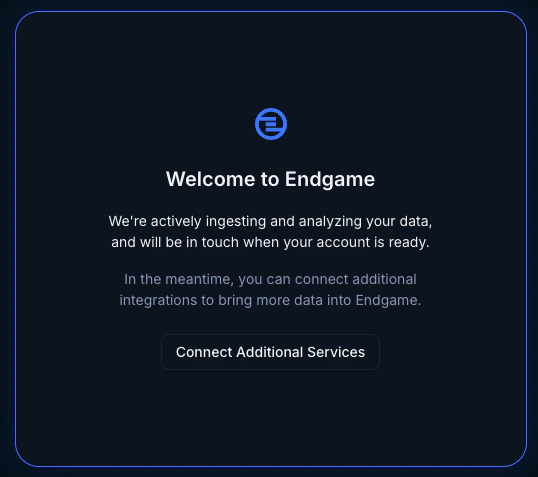 You don't need to wait for ingestion to finish. Click **Connect Additional Services** and continue to the next module to start configuring your instance while your data syncs in the background.
***
Overview
Connect Transcripts
You don't need to wait for ingestion to finish. Click **Connect Additional Services** and continue to the next module to start configuring your instance while your data syncs in the background.
***
Overview
Connect Transcripts