> ## Documentation Index
> Fetch the complete documentation index at: https://docs.endgame.io/llms.txt
> Use this file to discover all available pages before exploring further.
# Skills
> Create repeatable, standardized workflows and artifacts
## What are skills
A Skill is a reusable instruction file that instructs Endgame (and the AI) how to handle a specific type of tasks.
Think of it like your team's playbook: instead of re-explaining your process every time, you write it down once in a skill, and the AI follows it automatically whenever that skill is used.
**A Skill can define things like:**
* The goal of the task (e.g., "write a follow-up email after a discovery call")
* The format or structure the output should follow
* Your company's tone, messaging, or value props to always include
* Step-by-step instructions the AI should walk through
* Examples of emails, call scripts, or summaries that have worked well
A simple example:
Your team always follows up after a demo the same way — thank them for their time, recap the top pain points they mentioned, and end with a clear next step. Instead of coaching the AI on this every time, you create a demo follow-up skill with those instructions baked in. Now anyone on the team gets a consistent, on-brand follow-up in seconds.
**Why use Skills?**
* Save time — stop rewriting the same prompts from scratch
* Get consistent, on-brand output across your whole team
* Onboard new reps faster by sharing proven playbooks
* Build a library of your best messaging and workflows
For a how to on composing skills check out our [skills 101](/skills/skills-101) page.
## Using Skills in threads
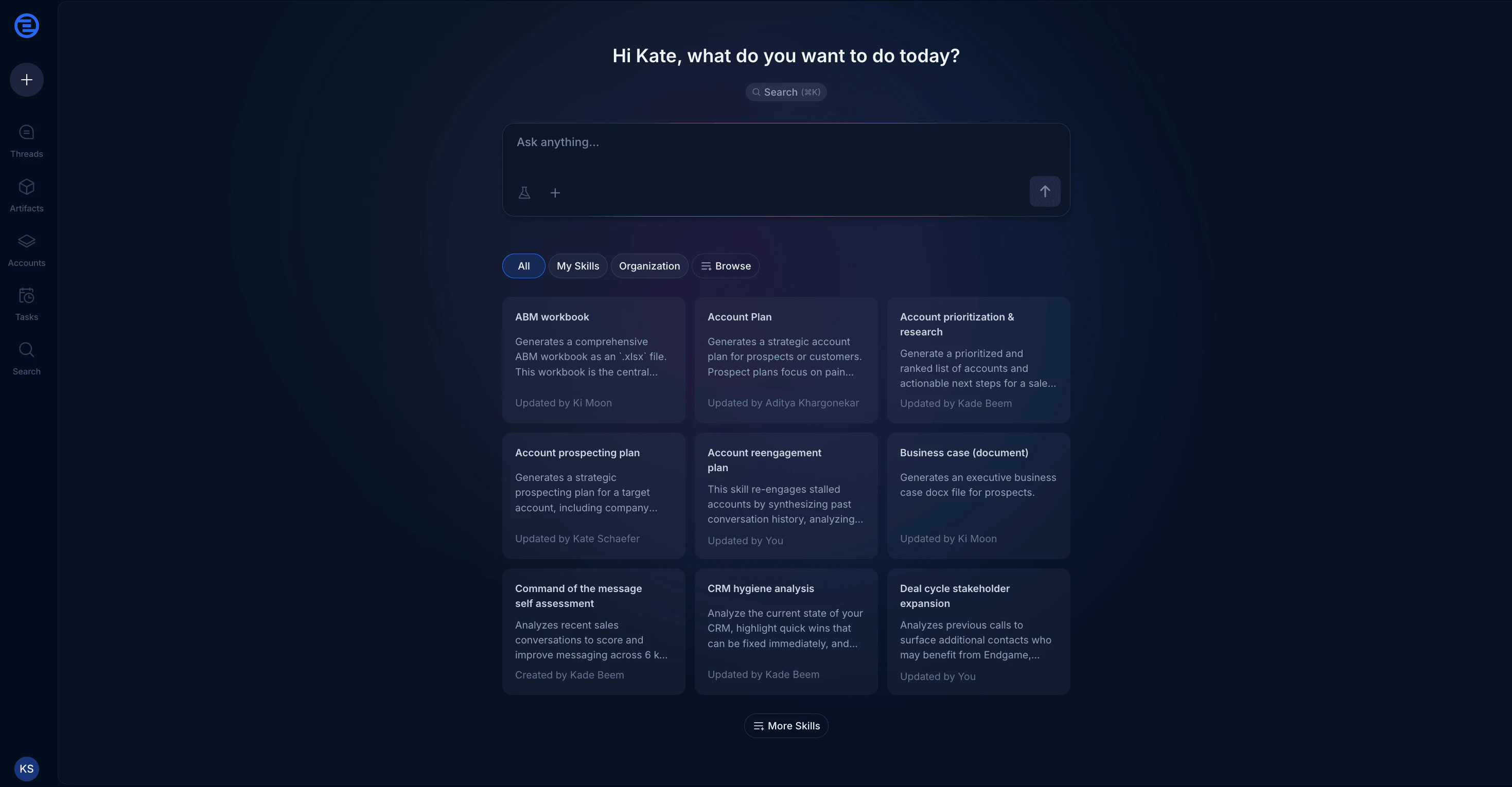
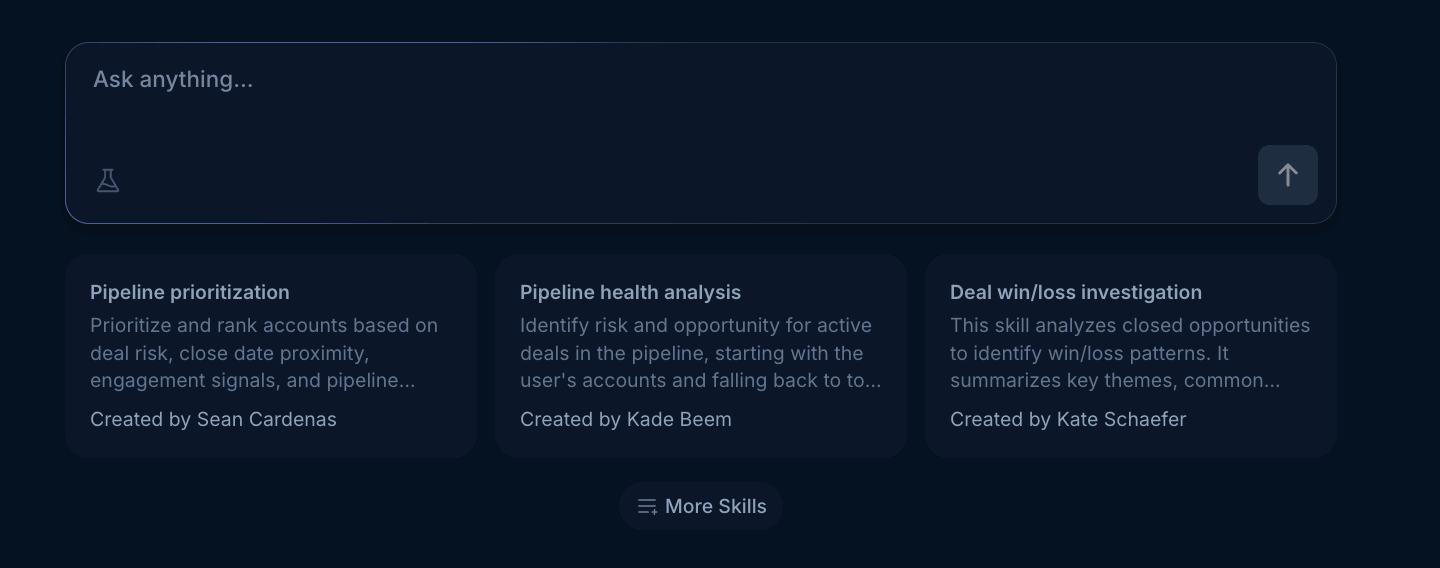
To use a skill, click on one of the skill cards under the chat input in the homepage or click the More skills button below the skill cards to access your full skills library. You can also access skills from the Account Detail page.
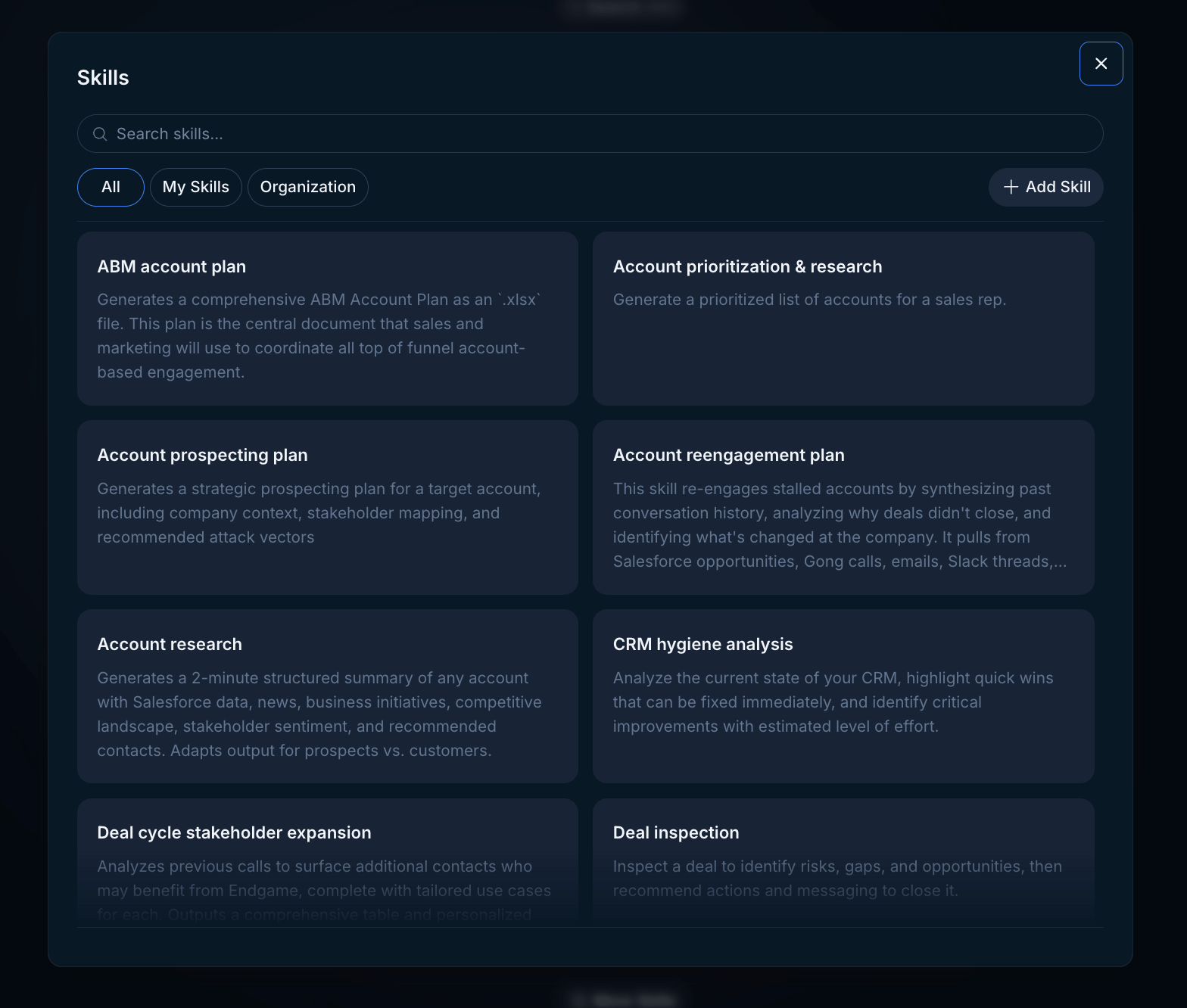
 In the skills modal you can filter and search within your skills.
 Once you click on a skill, a basic prompt will populate the chat input to trigger that skill. All you have to do then is hit Enter to have Endgame start a new thread that utilizes that skill in the response. Before you hit enter, you can also choose to directly make edits and tweaks to the prompt if needed before starting your thread.
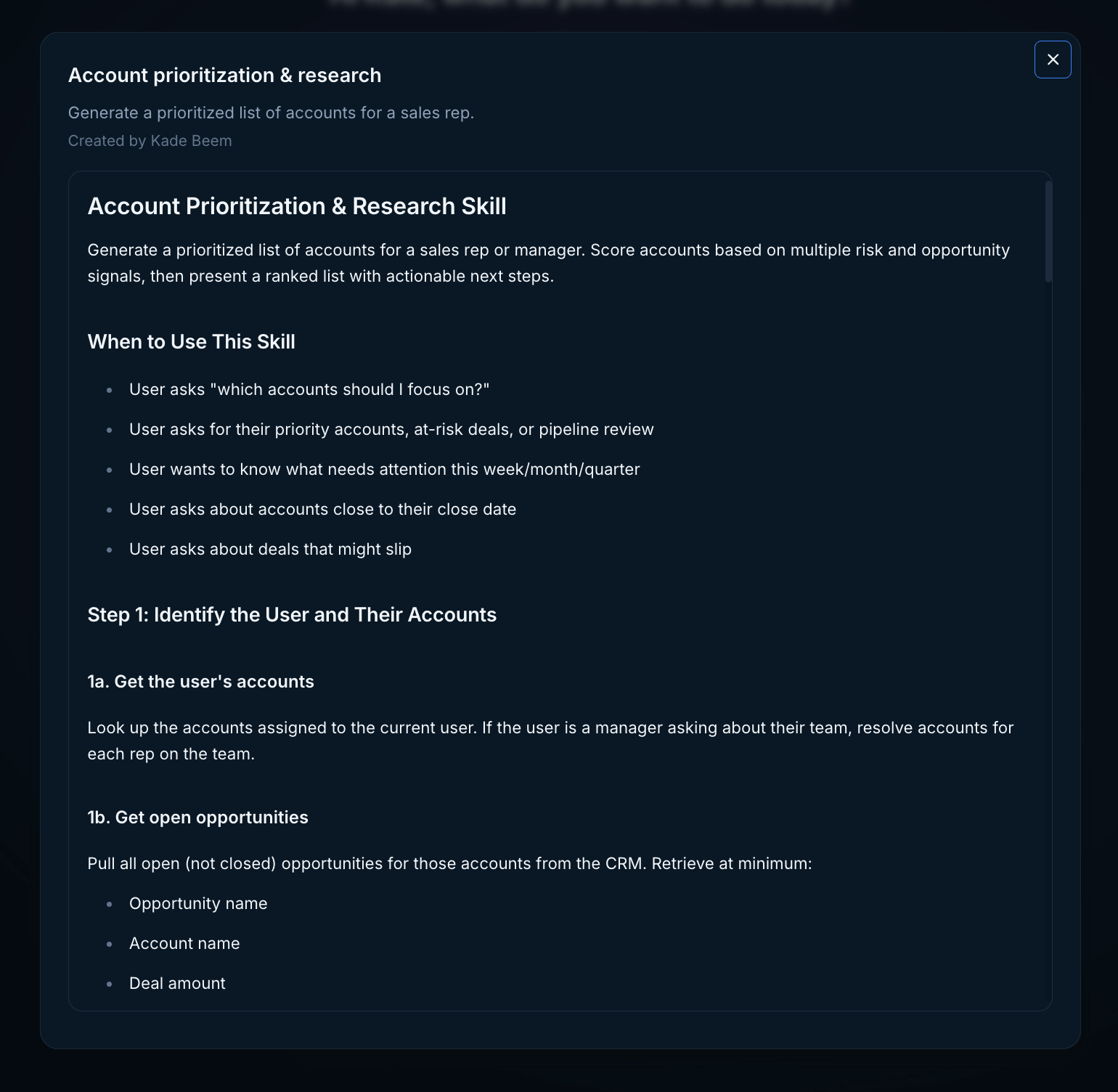
You can view more information about the content of a skill by clicking on the info icon in the top right corner of the skill card.
Once you click on a skill, a basic prompt will populate the chat input to trigger that skill. All you have to do then is hit Enter to have Endgame start a new thread that utilizes that skill in the response. Before you hit enter, you can also choose to directly make edits and tweaks to the prompt if needed before starting your thread.
You can view more information about the content of a skill by clicking on the info icon in the top right corner of the skill card.
 ## Creating Skills
Some skills in your library will be controlled by account admins; you cannot edit or delete these. You can, however, create your own skills which you can filter down to using the My Skills tag in the main skill modal view or within the skill grid.
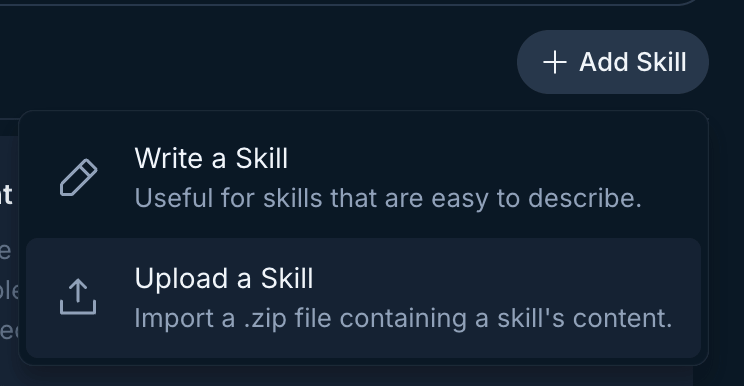
**Write a basic skill:** Add Skill -> Write a Skill within the skills modal and populate the form. See tips below for each field.
## Creating Skills
Some skills in your library will be controlled by account admins; you cannot edit or delete these. You can, however, create your own skills which you can filter down to using the My Skills tag in the main skill modal view or within the skill grid.
**Write a basic skill:** Add Skill -> Write a Skill within the skills modal and populate the form. See tips below for each field.
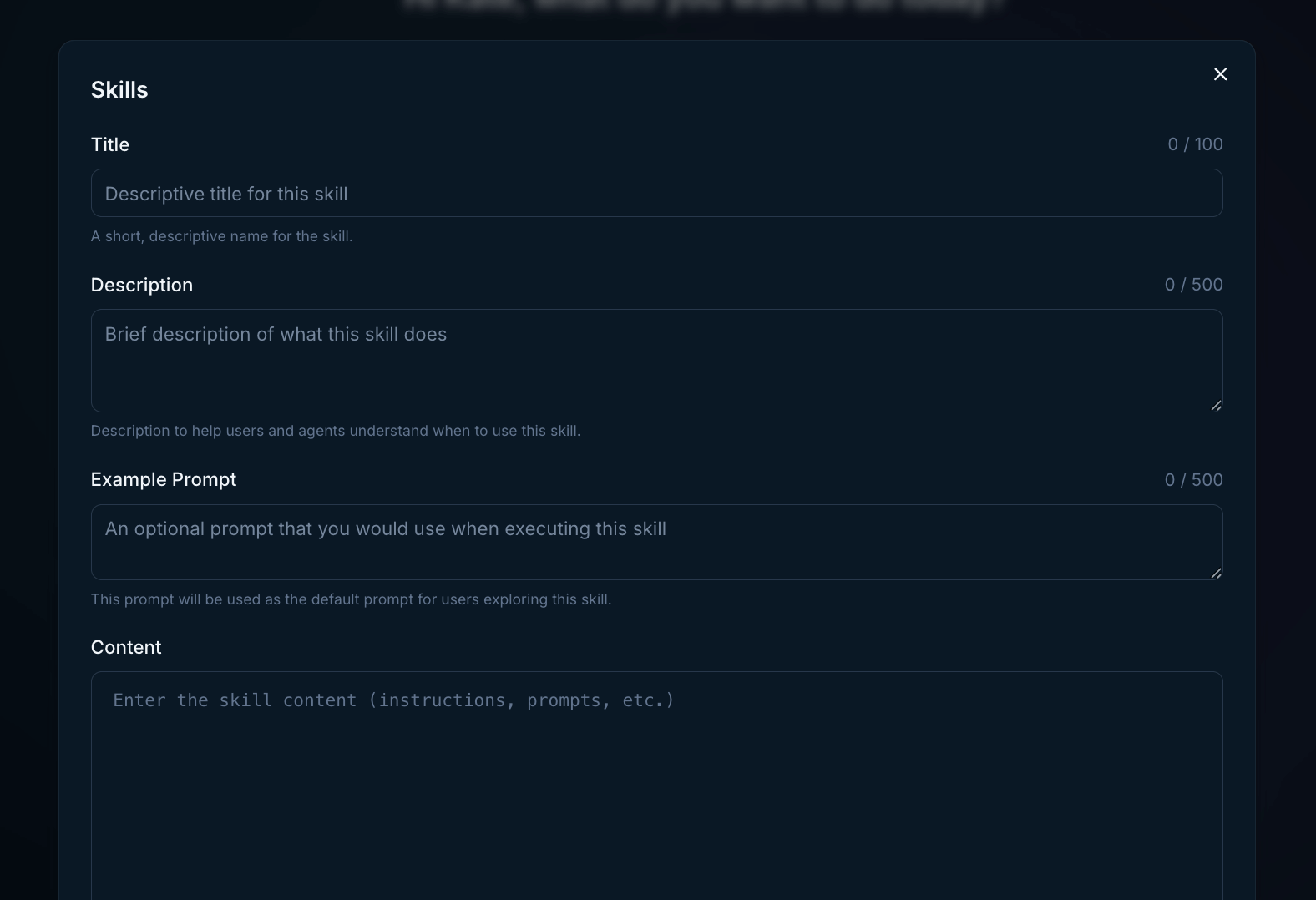 **Anatomy of a Skill:**
* **Title:** The title of your skill, displayed on the skill card.
*Example:* `Demo Follow-Up`
* **Description:** The description helps you and Endgame understand what a skill does. Include details about when the skill should be used and what it's capable of so Endgame can apply it effectively.
*Example:* `Generates a post-demo follow-up email that thanks the prospect, recaps their key pain points, and outlines a clear next step.`
* **Example Prompt:** The prompt that pre-populates in the chat input when this skill is selected from the skill grid.
*Example:* `Use the Demo Follow-up skill to write a follow-up email for the demo I just completed.`
* **Context:** The actual instructions that define *what* your skill does and *how* it should output content — this is where the real customization lives.
*Example:* `Write a concise follow-up email after a sales demo. Open by thanking the prospect for their time. Summarize the 2–3 pain points they mentioned during the call. Close with a single, specific next step (e.g., a follow-up call, trial, or proposal). Keep the tone warm but professional. Do not use filler phrases like "Hope this email finds you well."`
**Upload complex skills:** Add Skill -> Upload a Skill within the skills modal. Uploaded skills must be a .zip file that contains a `SKILL.md` file in addition to other optional material that will be used to execute your skill. This is often example or template files to inform the output of your skill and other assets like company logos.
**Anatomy of a Skill:**
* **Title:** The title of your skill, displayed on the skill card.
*Example:* `Demo Follow-Up`
* **Description:** The description helps you and Endgame understand what a skill does. Include details about when the skill should be used and what it's capable of so Endgame can apply it effectively.
*Example:* `Generates a post-demo follow-up email that thanks the prospect, recaps their key pain points, and outlines a clear next step.`
* **Example Prompt:** The prompt that pre-populates in the chat input when this skill is selected from the skill grid.
*Example:* `Use the Demo Follow-up skill to write a follow-up email for the demo I just completed.`
* **Context:** The actual instructions that define *what* your skill does and *how* it should output content — this is where the real customization lives.
*Example:* `Write a concise follow-up email after a sales demo. Open by thanking the prospect for their time. Summarize the 2–3 pain points they mentioned during the call. Close with a single, specific next step (e.g., a follow-up call, trial, or proposal). Keep the tone warm but professional. Do not use filler phrases like "Hope this email finds you well."`
**Upload complex skills:** Add Skill -> Upload a Skill within the skills modal. Uploaded skills must be a .zip file that contains a `SKILL.md` file in addition to other optional material that will be used to execute your skill. This is often example or template files to inform the output of your skill and other assets like company logos.
 Skill folders generally contain:
* SKILL.md (required): Instructions in Markdown - MUST contain a `name` and `description` field which follows this format including the "---":
```
---
name: Account Plan Deck
description: Use when asked to build an account plan or account plan deck.
---
```
The description helps you and Endgame understand what a skill does. Include details about when the skill should be used and what it's capable of so Endgame can apply it effectively.
* scripts/ (optional): Executable code (Python, Bash, etc.)
* references/ (optional): Documentation loaded as needed
* assets/ (optional): Templates, fonts, icons used in output
**Skill Artifacts**
Often using a skill within a thread will generate an "artifact". These artifacts can be slide decks, dashboards, excel spreadsheets, and more. Read [more](/features/publishing-and-sharing#skill-artifacts) about how you can publish these artifacts to share them with your team or external stakeholders.
## Deck Creation
Skills can generate polished slide decks exported as `.pptx` (PowerPoint) files. This makes it easy to build customer-facing presentations, QBRs, deal reviews, and other slide-based deliverables directly from Endgame.
When a skill is configured to produce a deck, Endgame will assemble the slides using our default Endgame branding or will use your organization's branding if configured. This includes colors, logos, and design guidelines, so every output looks professional and on-brand without manual formatting.
Organization **Branding** settings are located in the admin
[settings](https://app.endgame.io/settings/branding). This ensures slides use
your company's colors, logos, and design guidelines. See the [Branding setup
guide](/skills/quickstart#configure-your-branding) for details.
To create a deck skill, you can tell Endgame to create a "deck" in your prompt or specify a deck output in your skills. If you use the **Upload a Skill** flow you can include a `SKILL.md` that specifies a slide deck output. You can include template files, logos, and other assets in the skill's `assets/` folder to further customize the output.
Skill folders generally contain:
* SKILL.md (required): Instructions in Markdown - MUST contain a `name` and `description` field which follows this format including the "---":
```
---
name: Account Plan Deck
description: Use when asked to build an account plan or account plan deck.
---
```
The description helps you and Endgame understand what a skill does. Include details about when the skill should be used and what it's capable of so Endgame can apply it effectively.
* scripts/ (optional): Executable code (Python, Bash, etc.)
* references/ (optional): Documentation loaded as needed
* assets/ (optional): Templates, fonts, icons used in output
**Skill Artifacts**
Often using a skill within a thread will generate an "artifact". These artifacts can be slide decks, dashboards, excel spreadsheets, and more. Read [more](/features/publishing-and-sharing#skill-artifacts) about how you can publish these artifacts to share them with your team or external stakeholders.
## Deck Creation
Skills can generate polished slide decks exported as `.pptx` (PowerPoint) files. This makes it easy to build customer-facing presentations, QBRs, deal reviews, and other slide-based deliverables directly from Endgame.
When a skill is configured to produce a deck, Endgame will assemble the slides using our default Endgame branding or will use your organization's branding if configured. This includes colors, logos, and design guidelines, so every output looks professional and on-brand without manual formatting.
Organization **Branding** settings are located in the admin
[settings](https://app.endgame.io/settings/branding). This ensures slides use
your company's colors, logos, and design guidelines. See the [Branding setup
guide](/skills/quickstart#configure-your-branding) for details.
To create a deck skill, you can tell Endgame to create a "deck" in your prompt or specify a deck output in your skills. If you use the **Upload a Skill** flow you can include a `SKILL.md` that specifies a slide deck output. You can include template files, logos, and other assets in the skill's `assets/` folder to further customize the output.