> ## Documentation Index
> Fetch the complete documentation index at: https://docs.endgame.io/llms.txt
> Use this file to discover all available pages before exploring further.
# File Upload
> Adding contextual knowledge to your chat responses
Individual users have the ability to upload documents to enhance the context provided to Endgame for singular account chat responses. Some types of documents that could be useful are account plans, meetings notes, or partnership decks. Anything that isn't already captured in the mediums Endgame already ingests can be added here.
## Upload files from your device
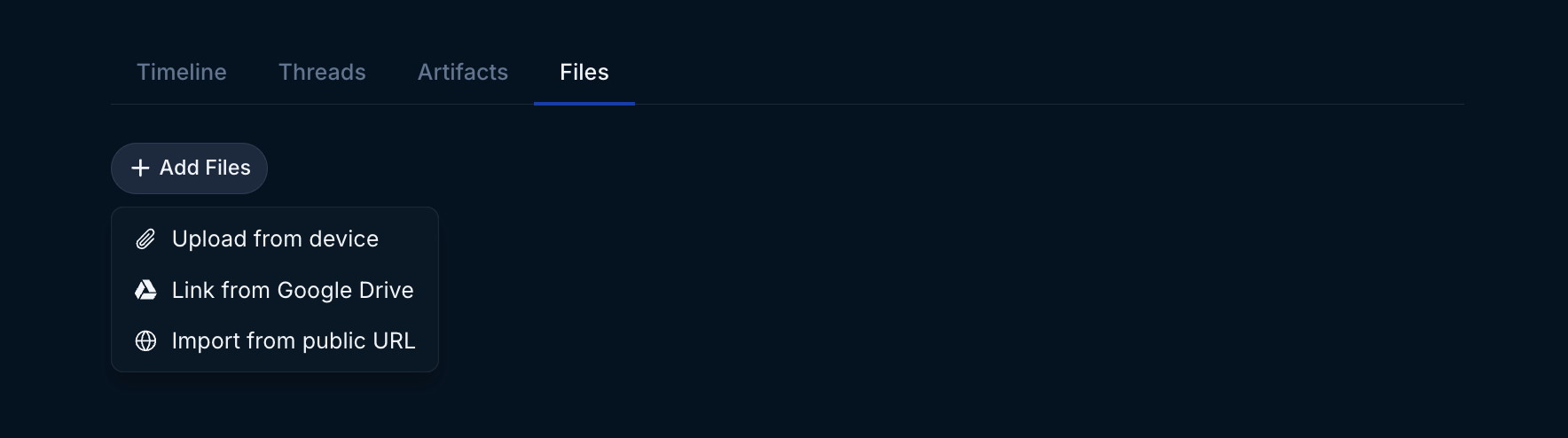
In a account detail page, open the Files tab toward the bottom of the page. Click Add Files and select Upload from device.
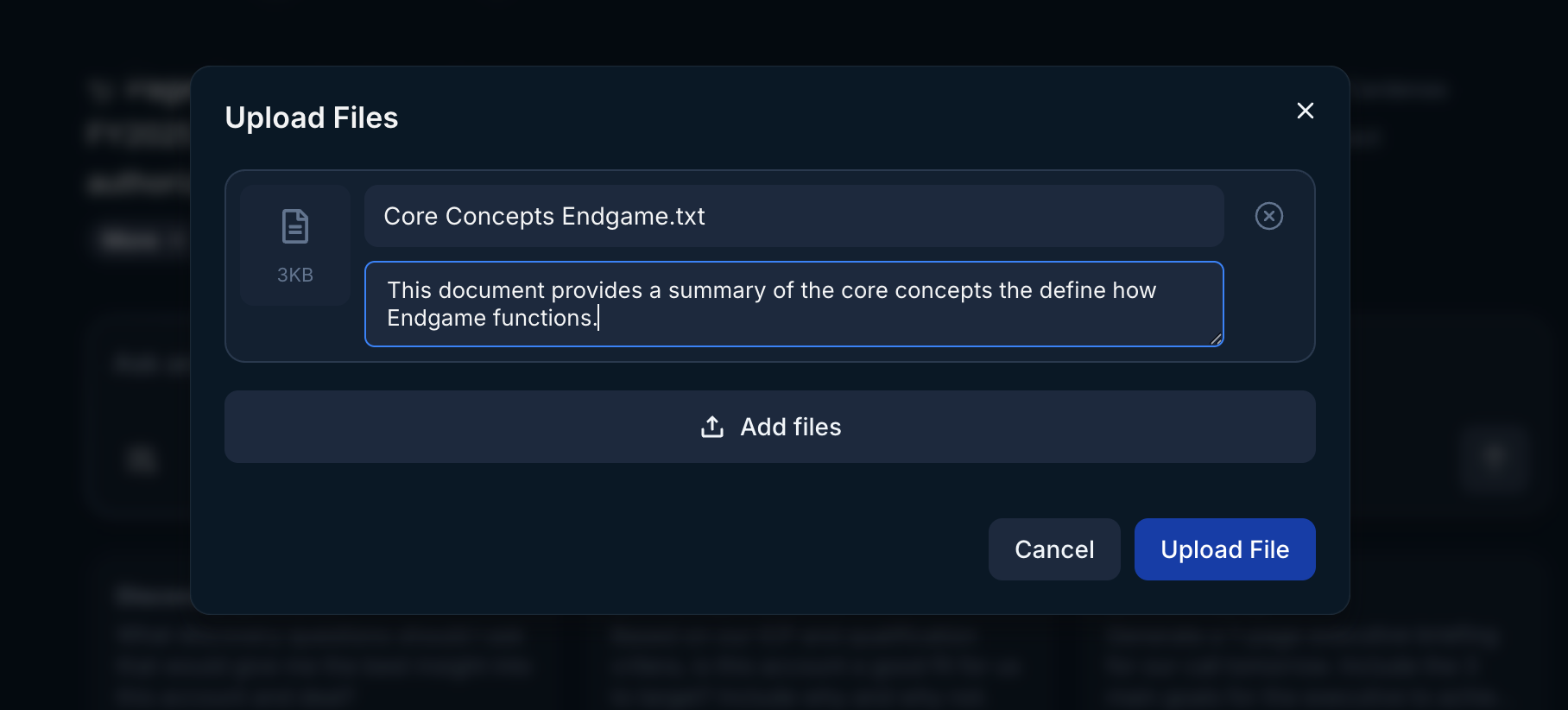
 Go through the flow to select up to 100 files at a time from your device. You can edit the titles and descriptions for the files before clicking to Upload Files.
 ## Link files from Google Drive
In a account detail page, open the Files tab toward the bottom of the page. Click Add Files and select Link from Google Drive.
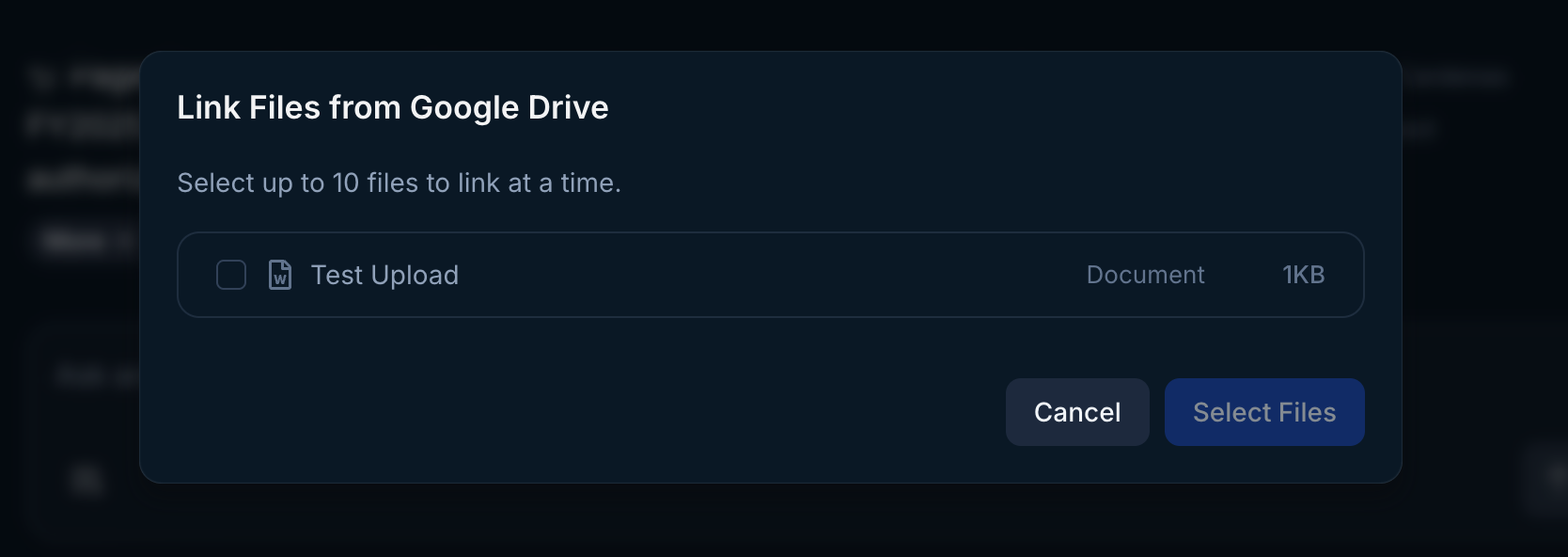
Go through the Google authentication process. Select all permissions requested (we only requst [drive.file](https://developers.google.com/workspace/drive/api/guides/api-specific-auth) and [drive.readonly](https://developers.google.com/workspace/drive/api/guides/api-specific-auth)) for the best Endgame experience. Once authenticated, select up to 100 files at a time to sync with Endgame. You can edit the description for the files before clicking to Select Files.
## Link files from Google Drive
In a account detail page, open the Files tab toward the bottom of the page. Click Add Files and select Link from Google Drive.
Go through the Google authentication process. Select all permissions requested (we only requst [drive.file](https://developers.google.com/workspace/drive/api/guides/api-specific-auth) and [drive.readonly](https://developers.google.com/workspace/drive/api/guides/api-specific-auth)) for the best Endgame experience. Once authenticated, select up to 100 files at a time to sync with Endgame. You can edit the description for the files before clicking to Select Files.
 ### Updating linked files
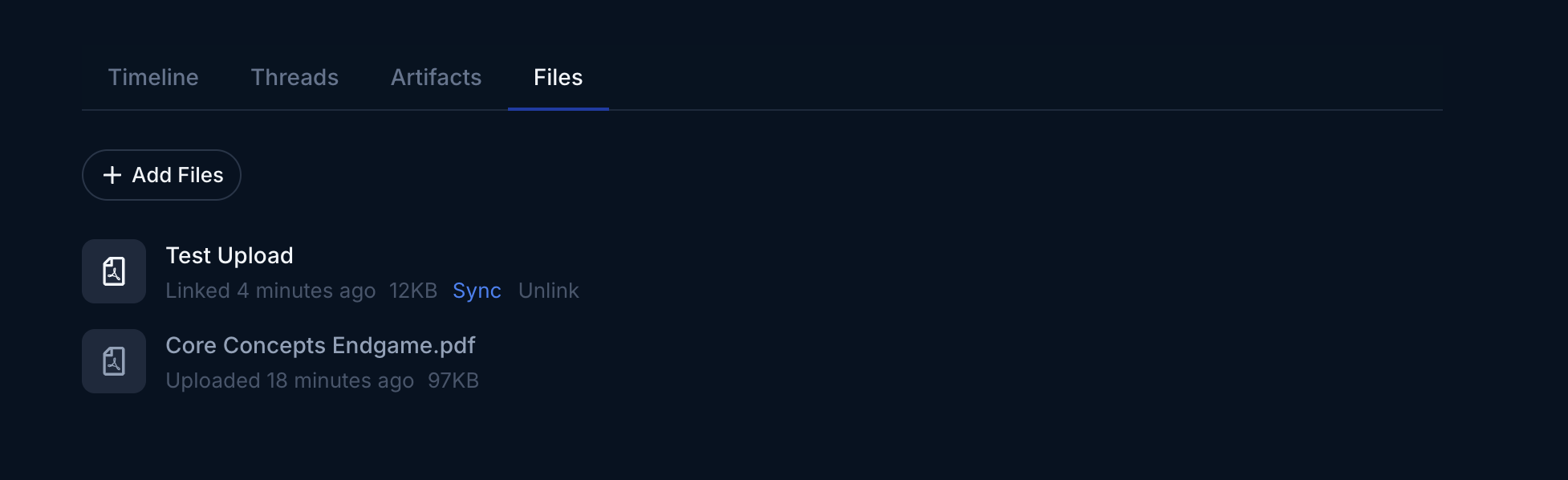
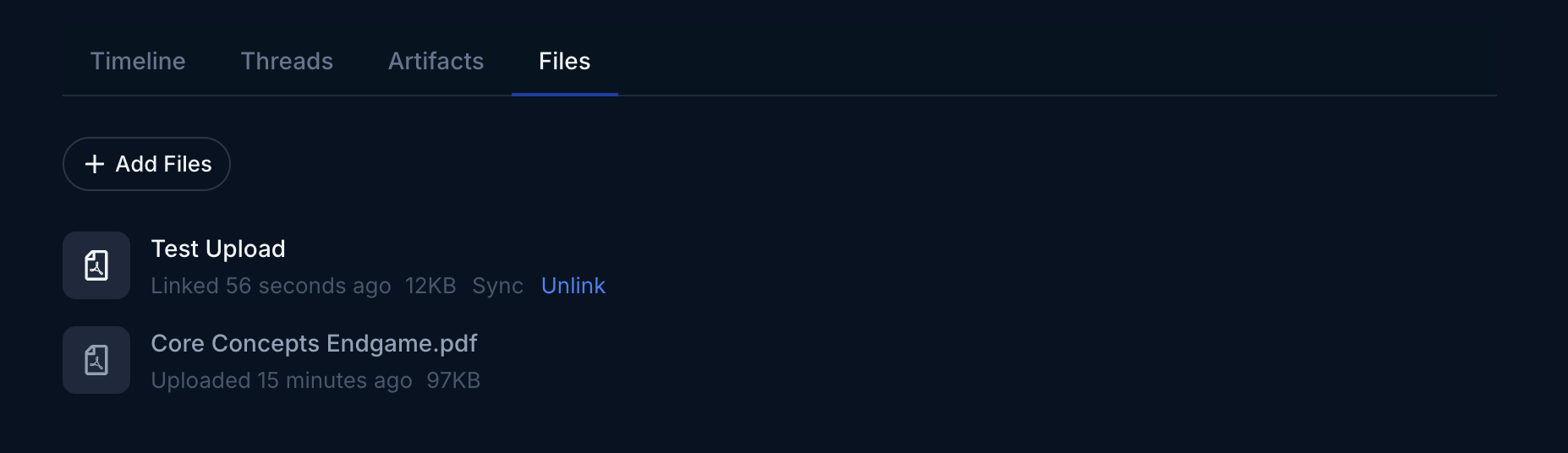
Your Google Drive and URL files are automatically synced once per day, but you can trigger a manual sync anytime by hovering over the item and then clicking Sync.
### Updating linked files
Your Google Drive and URL files are automatically synced once per day, but you can trigger a manual sync anytime by hovering over the item and then clicking Sync.
 ## Import files from a public URL
In a account detail page, open the Files tab toward the bottom of the page. Click Import from public URL.
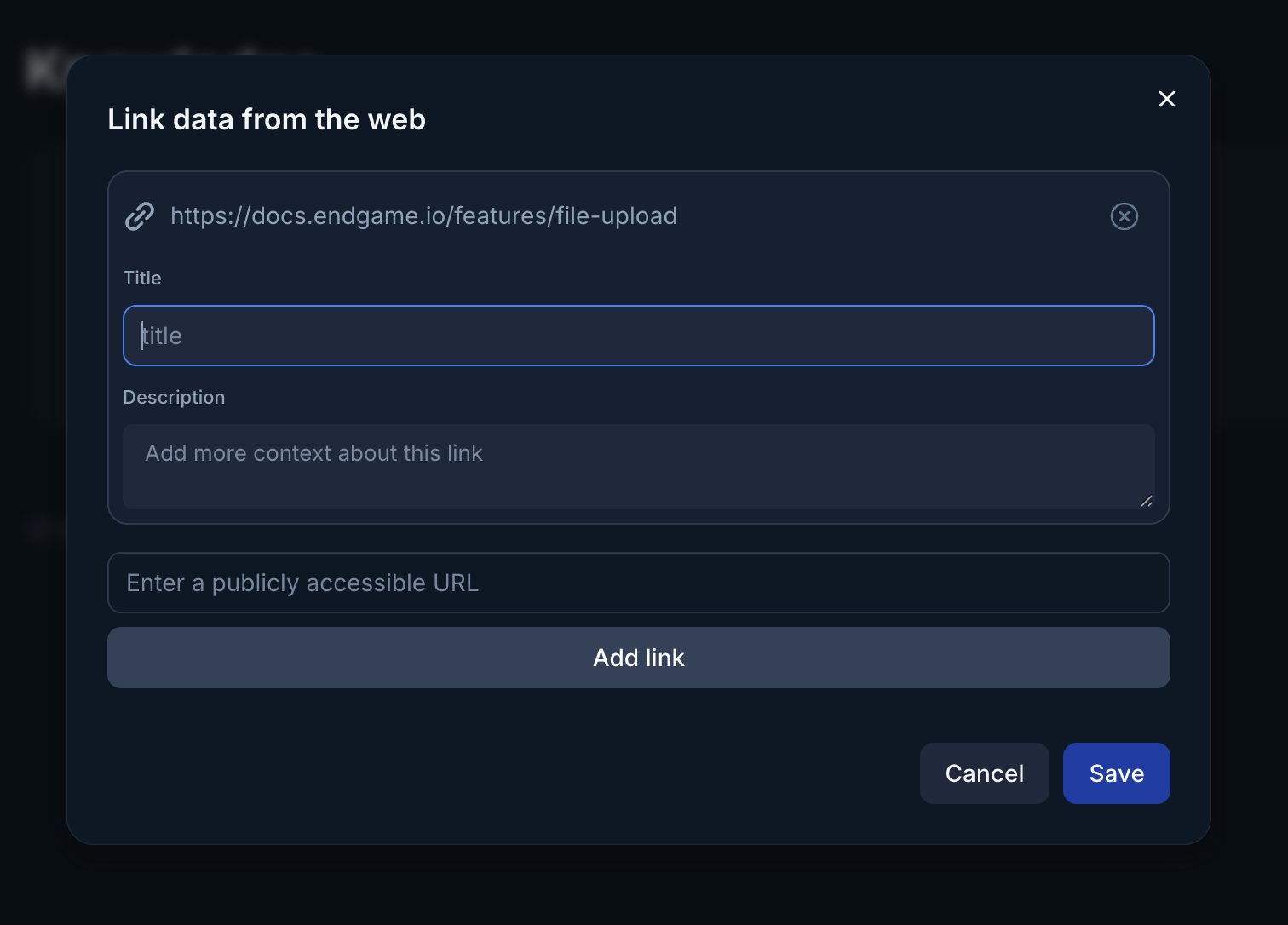
Copy and paste a link to a public document or webpage. After you click Add Link, you will be able to add a title and a description for the URL. Continue to add additional URLs and click Save once completed. Your document will now be added to your list of Knowledge documents.
## Import files from a public URL
In a account detail page, open the Files tab toward the bottom of the page. Click Import from public URL.
Copy and paste a link to a public document or webpage. After you click Add Link, you will be able to add a title and a description for the URL. Continue to add additional URLs and click Save once completed. Your document will now be added to your list of Knowledge documents.
 ## Remove files
Once your files are uploaded or linked, you can delete or unlink them anytime by hovering over the item and then clicking Delete or Unlink. By deleting or unlinking the file you ensure that information associated with that file will no longer be present in new chat responses.
Application Admins have the ability to delete or unlink *any* folder or file regarless of ownership
## Remove files
Once your files are uploaded or linked, you can delete or unlink them anytime by hovering over the item and then clicking Delete or Unlink. By deleting or unlinking the file you ensure that information associated with that file will no longer be present in new chat responses.
Application Admins have the ability to delete or unlink *any* folder or file regarless of ownership
 ### File sync frequency
| **Knowledge source** | **Frequency** |
| -------------------- | ---------------------------------------------------- |
| Google Drive | automatically 1/day - option for manual sync anytime |
| Public web URL | must trigger manual sync |
| Personal upload | must re-upload for new content |
### File sync frequency
| **Knowledge source** | **Frequency** |
| -------------------- | ---------------------------------------------------- |
| Google Drive | automatically 1/day - option for manual sync anytime |
| Public web URL | must trigger manual sync |
| Personal upload | must re-upload for new content |